Browse guides
Watch a play
Build a play
Keep and share work
Court, player styles and branding
Change the venue, ball, player style, uniforms and logos, or save browser defaults for new plays.
Reviewed 2026-10-13 · Rufio Stats Markdown
Open the settings tabs
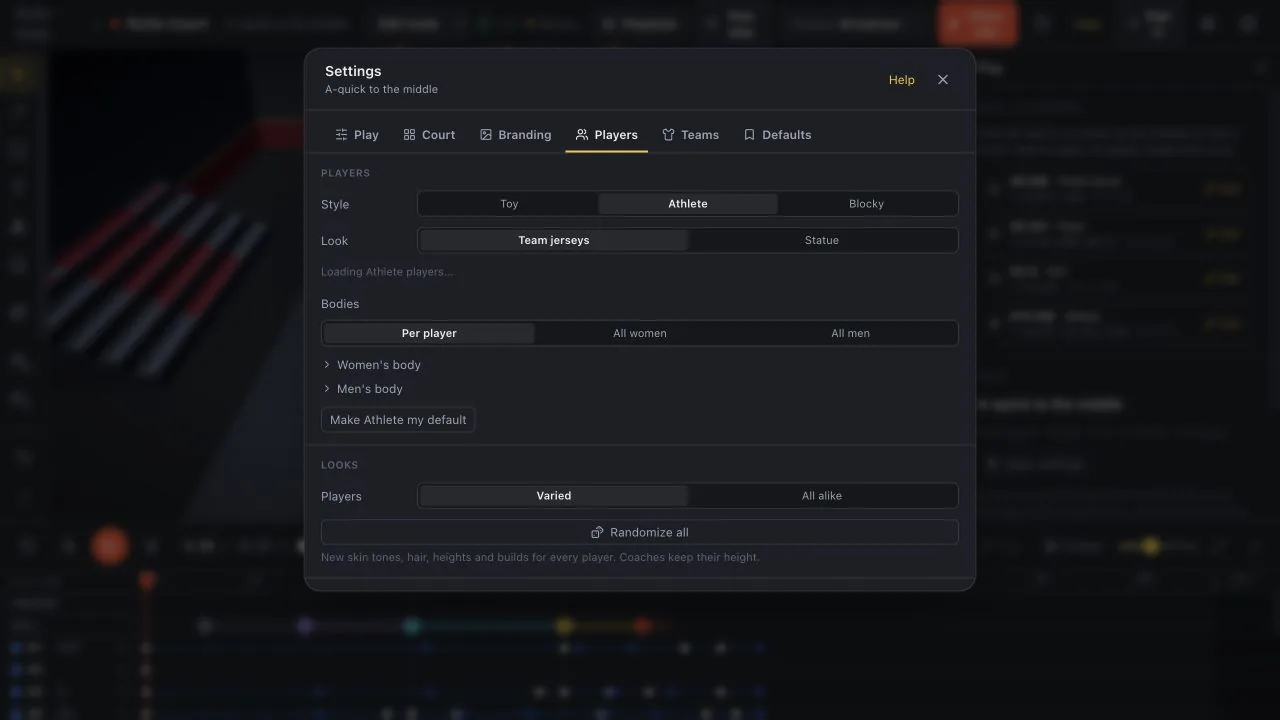
Switch to Edit mode, then choose Settings. Play holds the title and net; Court holds court and venue choices; Players holds player styles and bodies; Teams holds team settings. Branding and Defaults have their own tabs.
Toy, Athlete and Blocky are player styles. The body choices and the Team jerseys or Statue look are separate controls. If a style cannot load, read Player loading help.
Your own branding
Under Settings > Branding, Your brand holds your logo, your net band text and the web address for the end card of your clips. They replace the Rufio defaults on every play that has no logos or net text of its own. Anything you set on a single play stays as you set it. When you are signed in, your brand is kept in the cloud with your Playbook.
Each floor logo has a Rotation field in degrees, including the Rufio defaults. Changing the rotation keeps its position and size. Choose a preset placement again to reset it.
Studio look and Statue players
Two looks made for social clips. Open Settings: on the Court tab, set Venue to Studio; on the Players tab, set Look to Statue. Use either one, or both.
- Studio: the court lit on a dark stage, like a product shot. A key light, a soft fill and a rim light from behind outline the players, soft shadows sit under their feet, and the floor fades into a dark backdrop. Your theme and floor colors stay. It works on beach courts too.
- Statue: the players become matte stone figures, in every player style. The near team is warm marble, the far team a cooler gray stone, their uniforms a light wash of the team colors and their numbers in the team color, so you can still tell the teams apart. The ball stays a real volleyball.
Choose a player style
Remember a starting look
Under Defaults, choose Save current court as defaults to remember the court look in this browser. Existing saved plays keep their own settings. A template or drill can have its own court setup; defaults do not turn it into a different drill.
Your team’s own logos and account branding are separate from browser court defaults.
Related guides
Players, lineups and formations
Move a player, add a player and apply a formation while keeping the current roster.
Camera views and First person
Show a court angle, follow programmed camera moves or see a rally through a player’s eyes.
Export a video clip or PNG still
Make a volleyball teaching clip, choose its framing and download the finished video or a still image.