
Browse guides
Watch a play
Build a play
Keep and share work
Saving plays and using the Playbook
Keep local drafts, save plays to My plays, download a backup and recover work after closing a tab.
Reviewed 2026-10-13 · Rufio Stats Markdown
Save a play you can reopen
- In Edit mode, make your changes and check the save status.
- Press Ctrl/Cmd+S, or open Playbook and choose Save current.
- The play is now in My plays. Open it there to continue later.
- Choose Save play file to download a separate backup.
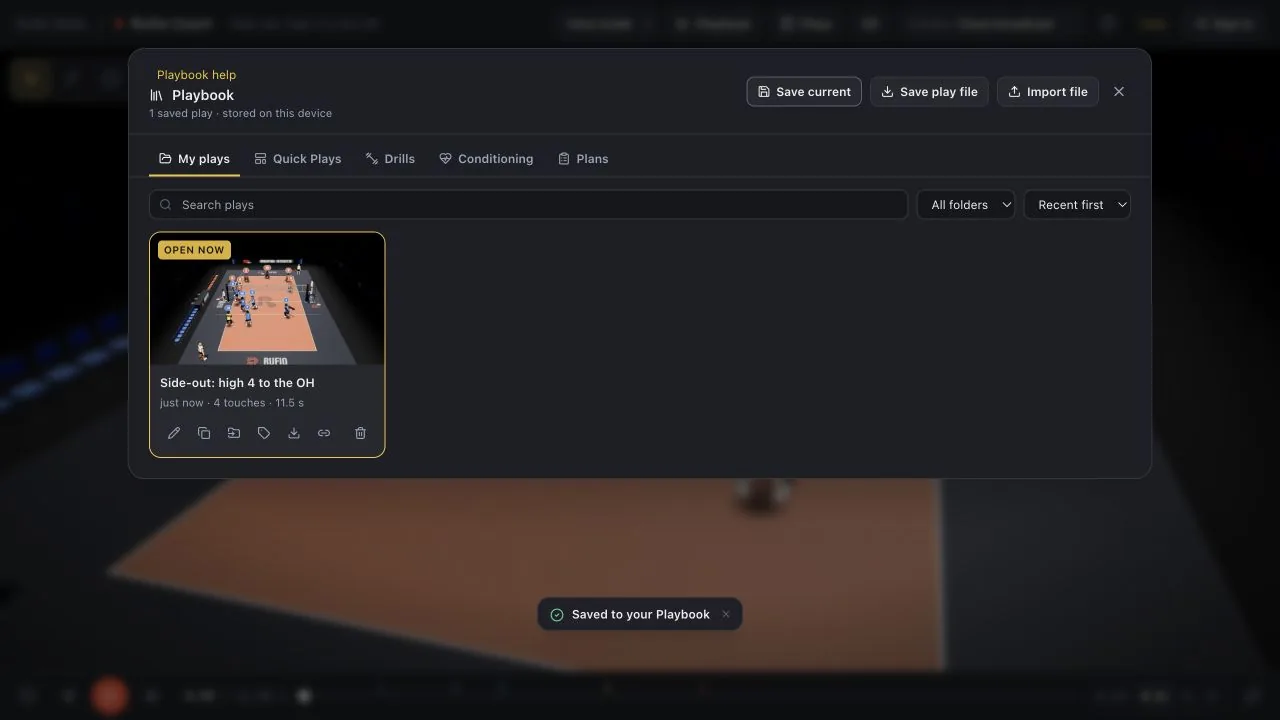
Saving and the Playbook
- Autosave: your play saves in your browser a moment after every change, and the top bar shows Saved, Saving, or Unsaved. If you close the tab by accident, your work is restored when you come back.
- A new play is a draft until you press Ctrl/Cmd+S, which puts it in your Playbook.
- Playbook: open it from the top bar. My plays lets you search, filter by folder or tag, and sort. Each card can be opened, renamed, duplicated, moved to a folder, tagged, saved as a play file, or deleted. A deleted play can be brought back with Undo on the toast that appears.
- The Quick Plays tab has the built-in example, the starter plays and the formations. Use Open as new play to save a copy, or Apply to this play to set up the play you have open. The originals are never changed.
To pass a play to another device or a coworker, use Save play file on a play card. It saves a .rufio-play.json file. On the other side, use Import file in the Playbook, or drag the file onto the Court window.
Recover a draft
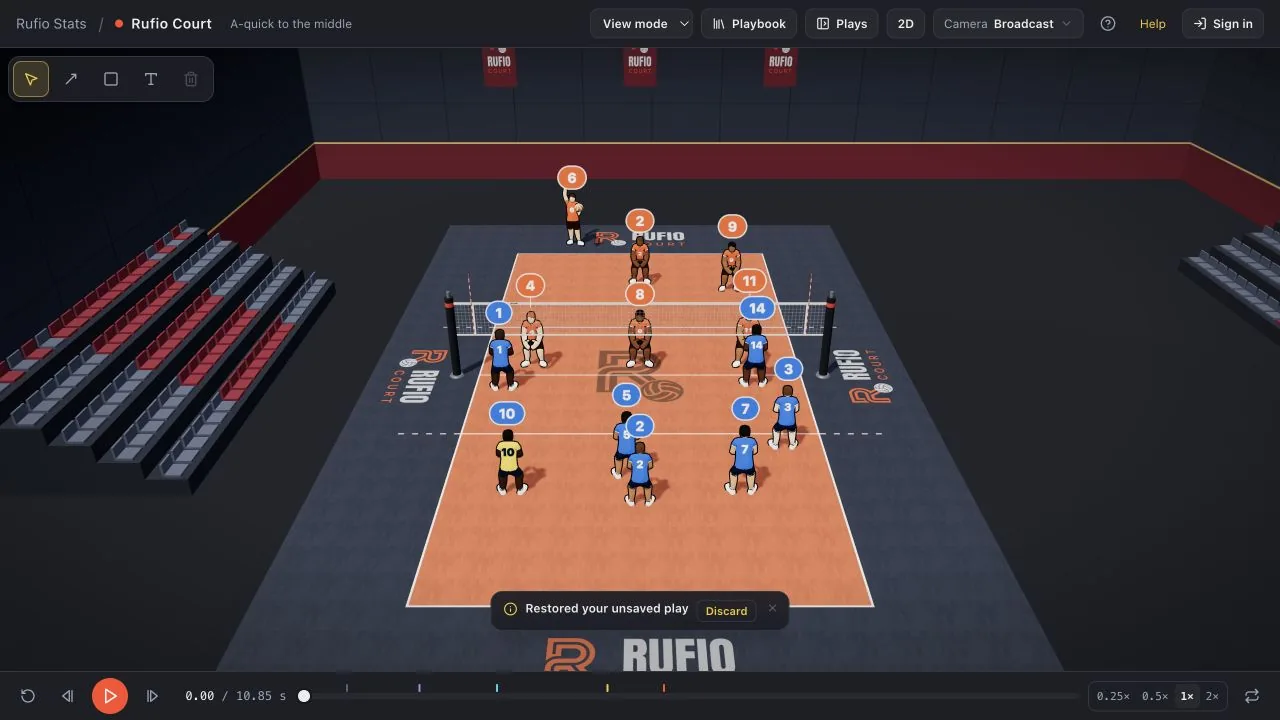
Reopen Court in the same browser and device. Court checks its working copy and saved play before deciding what to restore. Discard removes the restored working copy and opens the saved play, or the example if there is no saved play. Download a play file first if you want to keep the restored changes.
Before clearing browser data
Local plays are stored in this browser. Export files before clearing site data, leaving a school computer or reinstalling a browser. Private browsing or blocked storage may keep work only for the current visit; follow the warning and download a file.
Cloud copies are a separate feature of a signed-in account. Read Account, cloud and sharing to understand which copy you are using.
Related guides
Quick Plays and formations
Choose a complete volleyball play or start from a formation and add your own touches.
Troubleshoot Rufio Court
Fix player loading, missing plays, playback, sign-in and video export problems without discarding your work.
Account, cloud Playbook and sharing
Understand browser copies, account copies and read-only links, including what other people can see.