
Browse guides
Watch a play
Build a play
Keep and share work
Build and edit ball touches
Choose who serves, passes, sets and attacks, then change the ball target, speed, height and curve.
Reviewed 2026-10-13 · Rufio Stats Markdown
Start from a complete play or formation
Switch to Edit mode. For a first attempt, open Side-out: high 4 to the OH and change one touch. A formation is useful when you want to build the entire sequence yourself.
Court moves players from the touches you add. To edit a drill by hand, choose Drill in the top bar, then Edit as a normal play. Undo restores the drill link.
Building a play
There are two ways to build, and you can mix them in one play.
- Edit touches: say who touches the ball, what kind of touch it is, and where it goes. The Court works out the runs, jumps, and ball flights.
- By hand: drag players around and set keys on the timeline. A key is a position and pose for one player at one moment.
- Pick a starting point: New play or Quick Plays in the Playbook (next section).
- Press B for Edit touches and add the serve, pass, set, and attack. Click the ball later to change its path, speed, or height.
- Press Space to play it. Use the arrow keys to step frame by frame.
- Fix anything that looks off by dragging a player, then add annotations and freezes to make the point.
- Your play autosaves. Share it as a clip when you are happy.
The touch editor
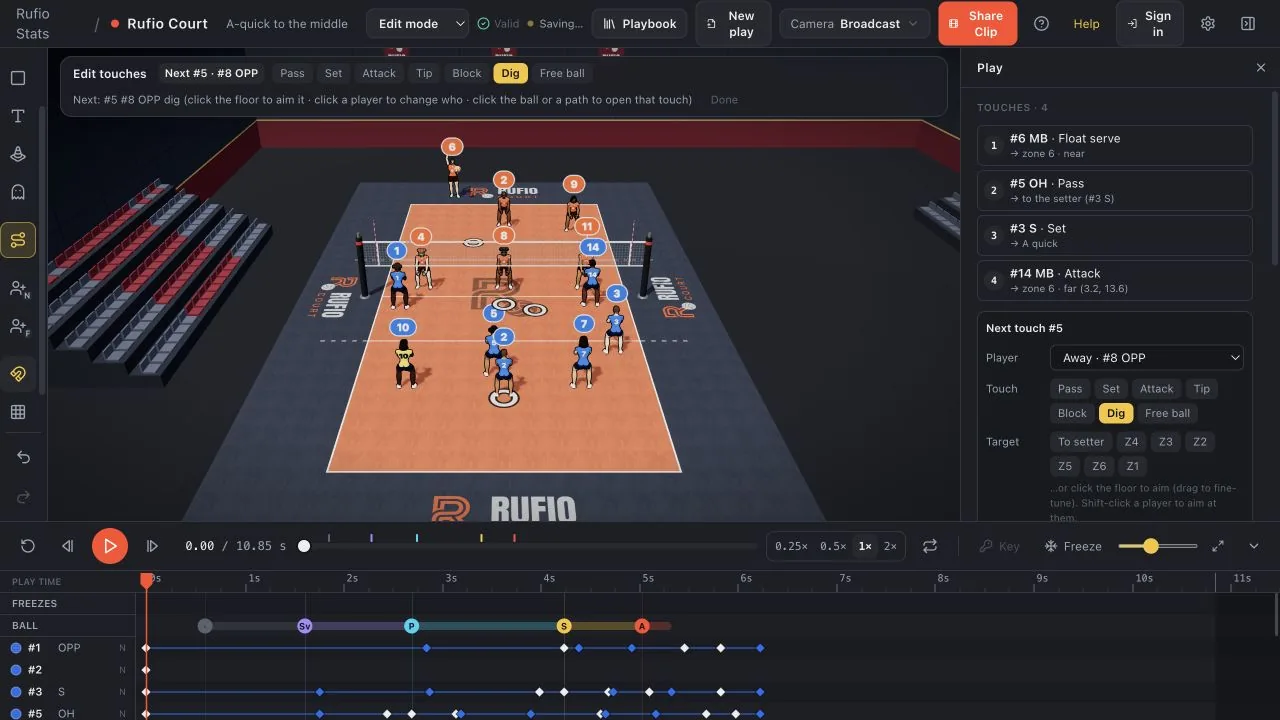
Edit touches: the ball, touch by touch
Edit touches builds a play from its touches: who plays the ball, what kind of touch it is, and where it goes. The Court works out the runs, jumps, and ball flights. Choose Edit touches in the left toolbar, or press B. If the play is not built from touches yet, start from a formation or choose Use current positions as the formation. Then add touches one at a time:
- Click the player who touches the ball next, or pick them in the Player list.
- Pick the touch type: Pass, Set, Attack, Tip, Block, Dig, or Free ball. The first touch is the Serve, with a Float or Jump choice.
- Pick the target. For a set it is the Call: 4, 5, A, B, C, Slide, Pipe, or D. For anything else, pick a player or a zone, or click the floor to aim and drag to fine-tune. Shift-click a player to aim at them.
- Tap Add to append the touch. Select a touch to change it, move it up or down, or remove it.
To change a touch that is already there, open it. Any of these works, in any tool:
- Click the ball in the court view. The touch that sent the ball opens, and the playhead stays where it is.
- Click a touch on the timeline, in the ball lane. The playhead jumps to that contact and the touch opens.
- Use the Ball section in the inspector. It lists every touch with who plays it, where it goes, and how fast or how high the ball is. Edit opens that touch.
- With a touch open, click another touch's path, or click a player to open their touch nearest the playhead. Clicking a player never hands them the open touch: to give it to someone else, change the Player list.
An open touch has these settings:
- Target: where the ball goes. Pick a zone, a set call, or a player, or click the floor. Drag the ring on the floor to fine-tune it.
- Speed (serves, attacks, and other hard-hit balls): how fast the ball leaves the hand, in km/h, the way a radar gun reads it. Auto lets the Court pick a speed that suits the touch and the target. Drag the slider to see the new path, or type a number.
- Height (passes, sets, free balls, and tips): the top of the arc, in meters above the floor. Auto lets the Court pick the arc, and it always clears the net.
- Curve (serves and attacks): which way the ball bends, left or right as the hitter sees it, and how far. The panel says how much, for example "Bends 0.40 m left".
- Spin: Natural, or an amount of topspin. More topspin makes the ball dip sooner. No spin on a float serve makes it knuckle.
- Aim at (a ball aimed at a player on the other side): their spot, or a part of the body: the platform, the chest, the face, a hip, or over the head. The player plays it the way that part needs, for example with the hands up for a ball at the face.
- Read (a pass, dig, or free ball off the other side's ball): Already in position, where the player is set early, or Move to the ball, where the player waits a moment to read the ball, then moves to meet it.
Under Rally ends, choose how the last ball finishes: Auto, Floor, Net, or Open (the rally continues and the ball holds in the air).
Related guides
Quick Plays and formations
Choose a complete volleyball play or start from a formation and add your own touches.
Players, lineups and formations
Move a player, add a player and apply a formation while keeping the current roster.
Timeline keys, annotations and freezes
Adjust a player at a particular moment and add saved coaching arrows, zones, labels or freezes.