
Browse guides
Watch a play
Build a play
Keep and share work
Getting started with Rufio Court
Watch your first volleyball play, try an edit and keep a copy. You can start without signing in.
Reviewed 2026-10-13 · Rufio Stats Markdown
Start with a play
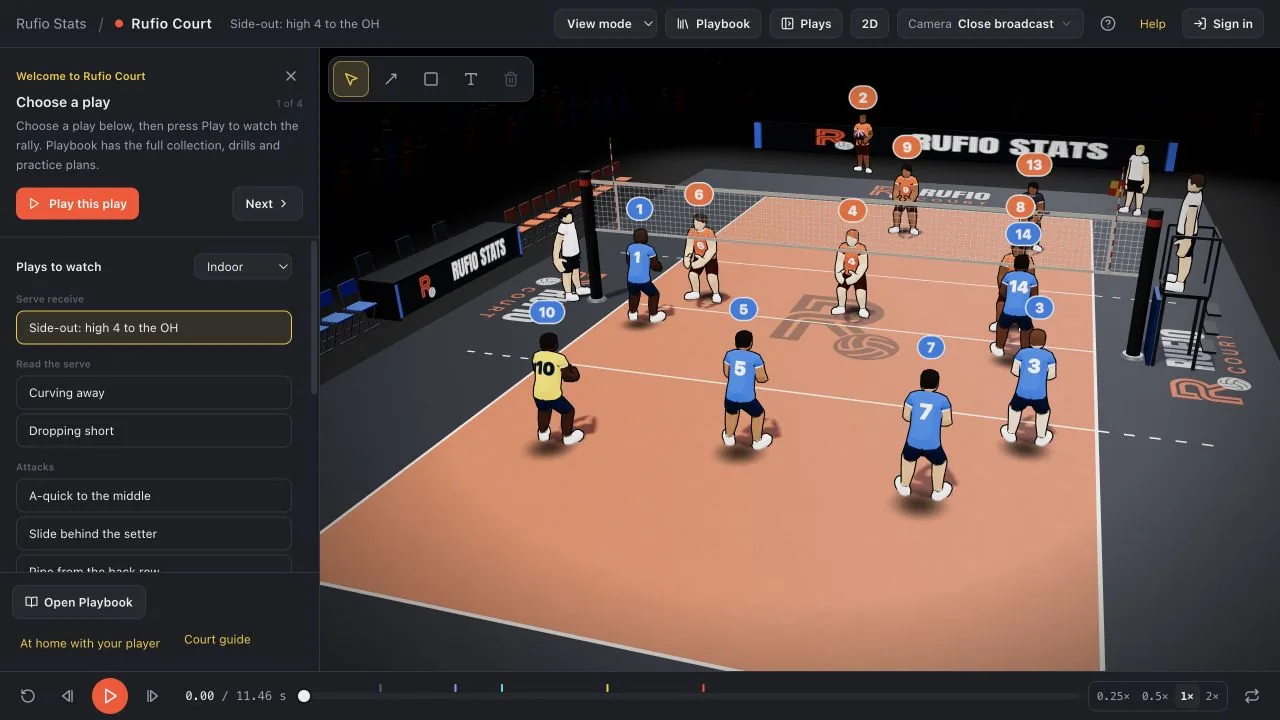
Rufio Court runs volleyball plays and drills in your browser. Open Rufio Court and choose a play to watch. A new browser starts with Side-out: high 4 to the OH. If you have used Court before, your local work opens instead.
- Open Rufio Court. The Plays pane has ready-made plays.
- Press Play this play in the pane, or Play below the court.
- Follow the serve, pass, set and attack. Use 0.5× to slow the play down.
Try changing the play
- Choose Edit mode in the header.
- Close or follow the editing walkthrough. Select a player and drag them to a new spot.
- Press Play to see the change. Undo takes it back.
To change where the ball goes, use Edit touches. You can edit without an account.
Keep what you make
Court keeps drafts in this browser when storage is available. Open Playbook, then Save current, to add the play to My plays. Save play file downloads a copy you can keep outside the browser.
Watching on a phone
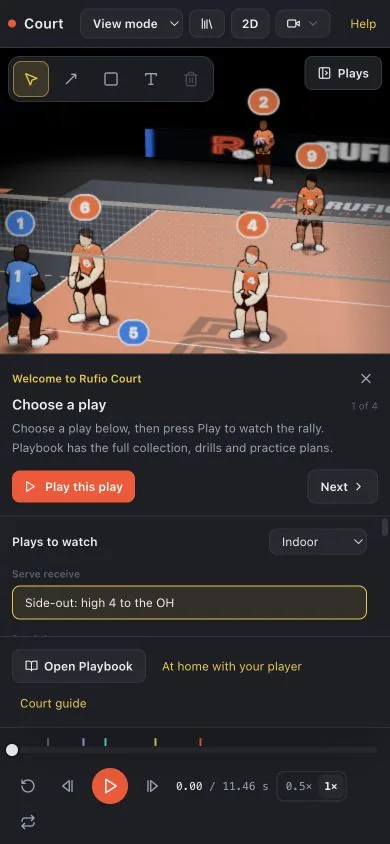
The Plays button is on the court on narrow screens. The pane opens over the lower part of the view and leaves playback below it. Close the pane to see more of the court. 2D is useful for overhead positioning; detailed editing is easier with a mouse.
Related guides
Watch, pause and slow a play
Use playback, slow motion, the timeline and 2D or 3D views to explain a volleyball rally.
Quick Plays and formations
Choose a complete volleyball play or start from a formation and add your own touches.
Saving plays and using the Playbook
Keep local drafts, save plays to My plays, download a backup and recover work after closing a tab.