Browse guides
The Practice tab
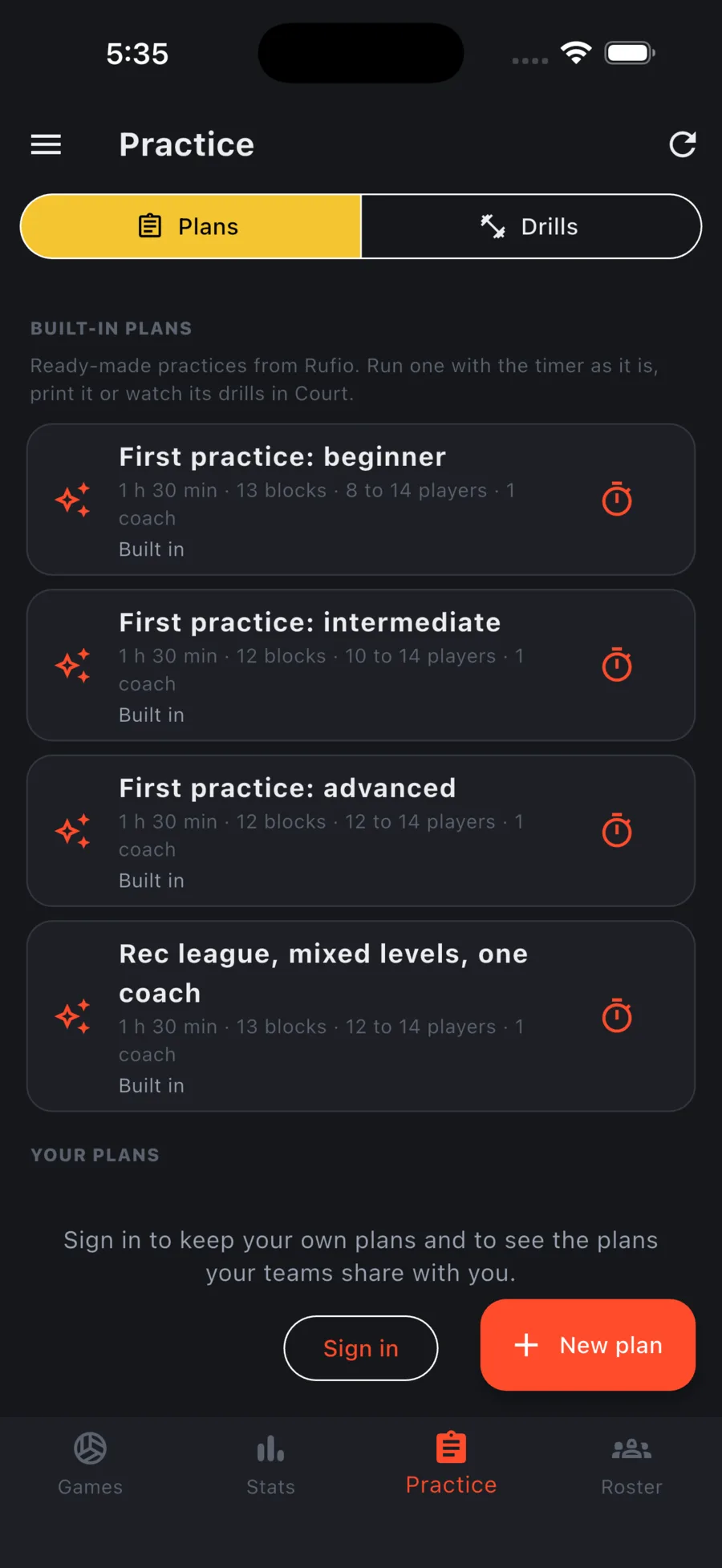
Browse drills and run Rufio's built-in practice plans with a timer for free, and keep your own plans in one place.
What is on it
Practice is the third tab at the bottom of the app, between Stats and Roster. It works without a team and without signing in. It has two parts: Plans and Drills.
Practice plans are separate from tracked practices. To record stats from a practice, use the practice button on the Games tab (see Practices).
Free for everyone
- Drills: search the drill library and filter it by skill, level, how many players you have, the equipment in your gym, and One coach. Open a drill for its time, setup, coaching points, and easier and harder versions. Watch in Court plays it on a 3D court (see Drills and conditioning).
- Built-in plans: open any of Rufio's ready-made practices and use it as it is. Run practice times it block by block, or print it and watch its drills in Court.
- Plans shared with you: plans your team shares with your role show up under Your plans. You can run and print them too.
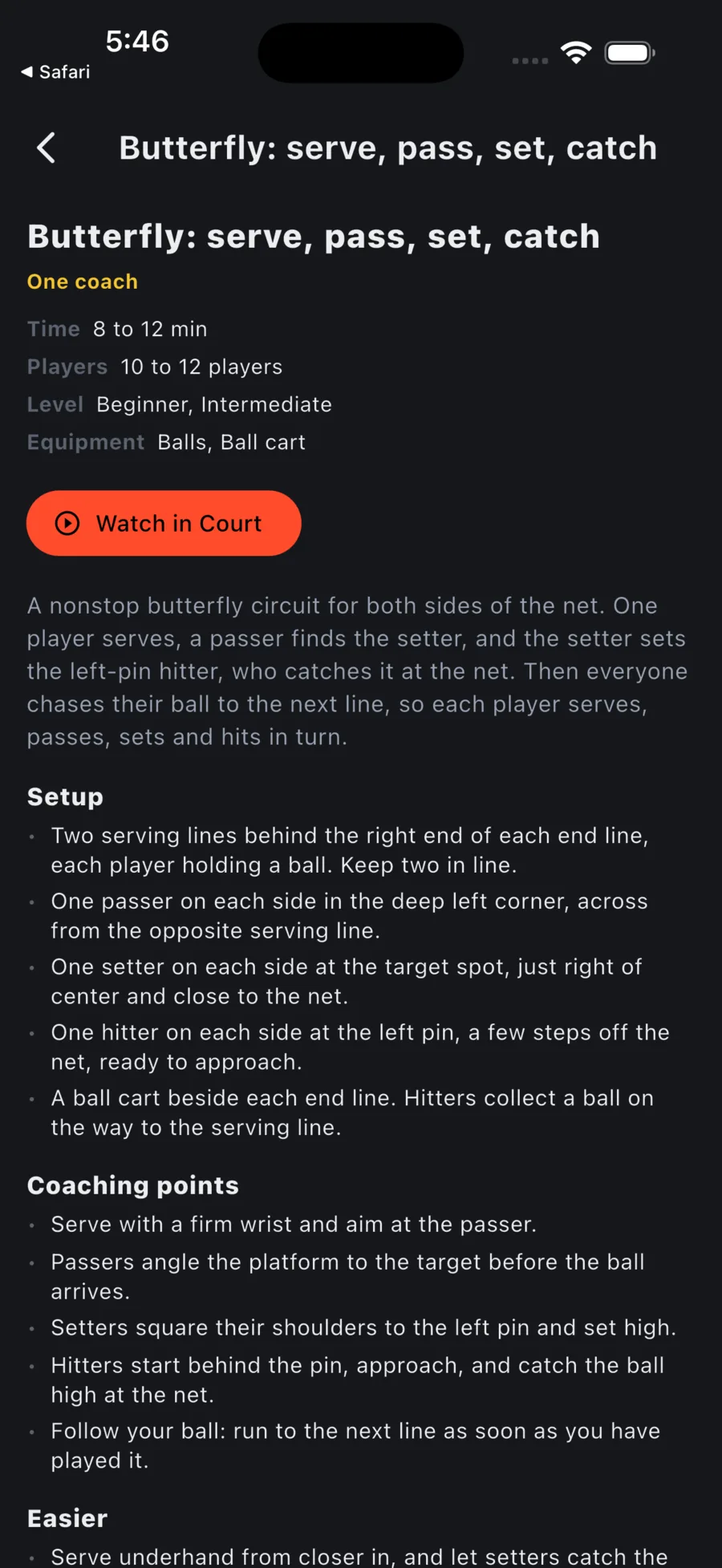
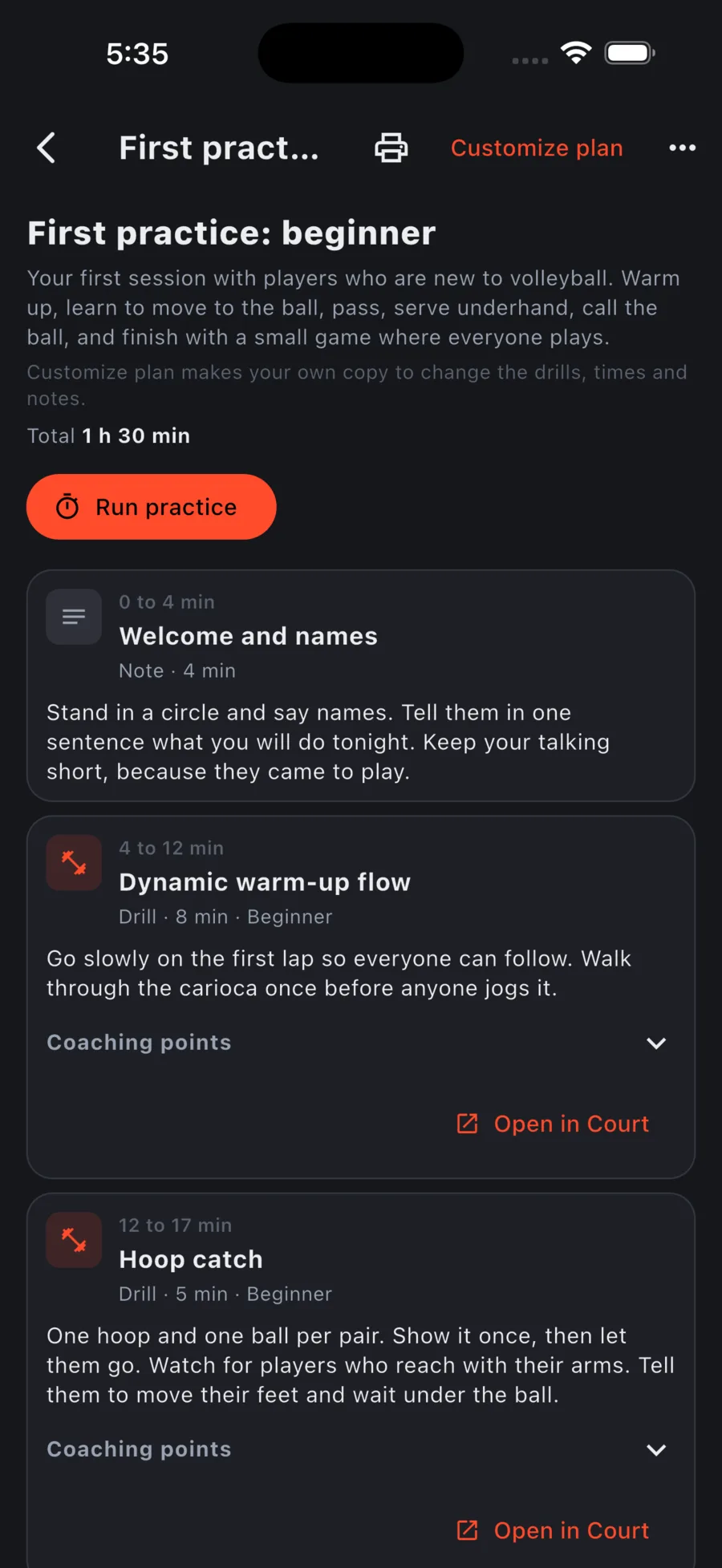
Drills and built-in plans you have opened before still open with no connection, and a practice you have started keeps running without one. Your own plans need a connection to open.
Run practice
Run practice is on every plan you can open: the built-in plans, your own, and the ones your team shares with you. It is free for everyone and it never changes the plan.
- Start and Pause the block clock. Previous and Next move between blocks, and Restart block puts the time back to the start.
- When a block runs out the screen says Block finished and waits. Nothing moves on until you tap Next, even if the phone was locked or Court was open.
- Under the clock you see how far ahead of or behind the plan you are, and how much practice is left. A pause counts as time spent.
- Open in Court on a drill or play block shows it in 3D. The timer keeps running, and Return to practice above the tab bar brings it back from any tab.
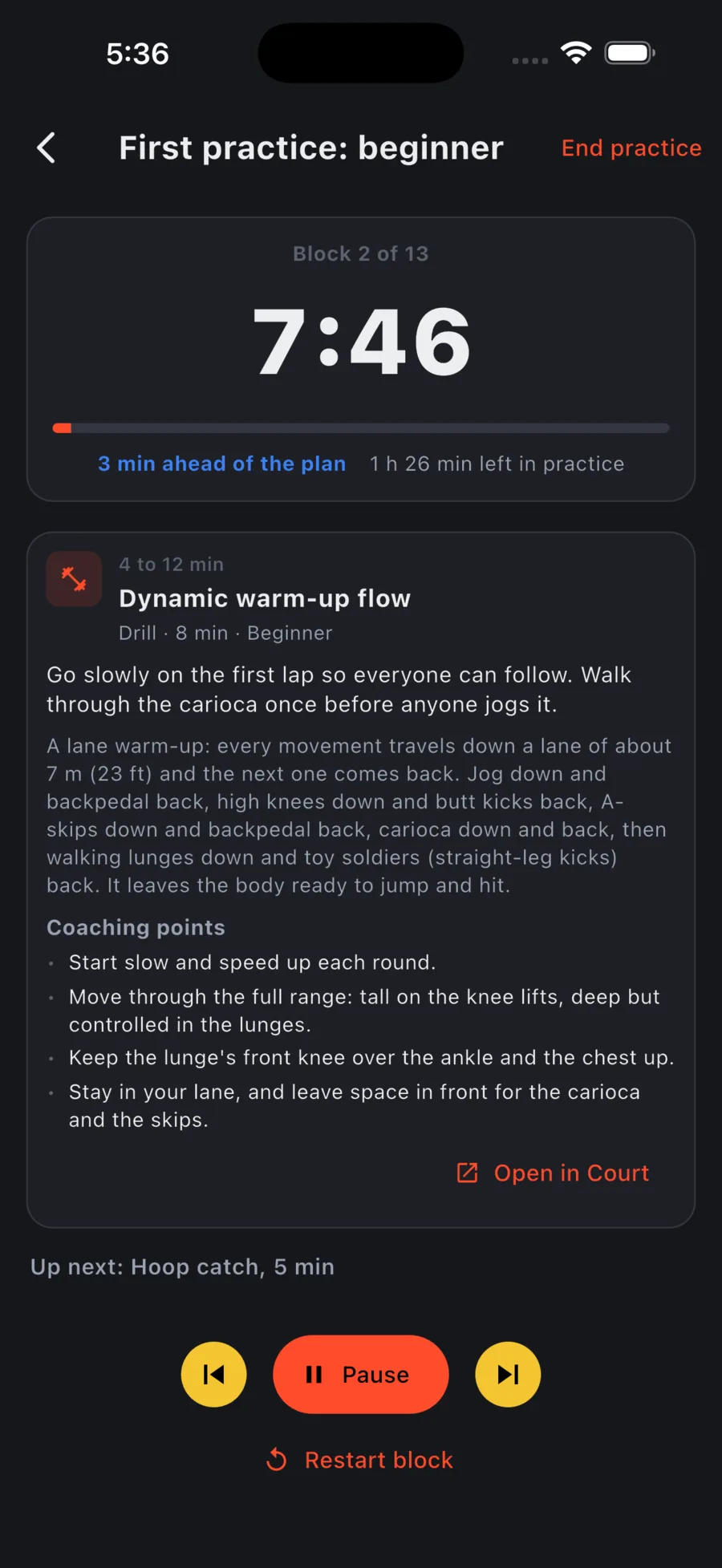
The timer keeps going while the app is in the background, but it does not survive the app being closed. It makes no sound and sends no notification when a block ends, so keep the screen in view. Starting another plan asks before it replaces the one running, and End practice stops it. Nothing is saved: no attendance, no stats, no history.
In Rufio Court on the web, Run practice is on your plans, the built-in plans and shared plan links. Press Play on a block to watch it on the court, then Return to practice in the top bar. Reloading or closing the page ends the run.
Your own plans
Sign in to see your plans and your teams' plans. The chips above the list switch between All my teams, Personal, and one team. The next plan with a date (today or later) shows first as Up next.
New plan, Customize plan on a built-in plan, and Add to plan on a drill save a plan to your account. The same plans open in Rufio Court on the web.
In a plan, Custom drill adds your own drill with a name, minutes and instructions. Scrimmage adds two sides, Blue and White to start. Add players from the team roster or type names, move them between sides, and set a target score and rules if you want. The sides show when the plan is opened or printed.