Browse guides
Rufio Stats
- Getting started
- People and roles
- Device settings
- Team tracking settings
- Beach doubles (beta)
- Live tracking
- Tracking together
- When the connection drops
- Drafts and merging
- Film review
- Game film
- Recording games
- Stream a game to Facebook
- Stream a game to YouTube
- Tournaments
- Stats and dashboards
- Dashboards
- RufioStats for college & club programs
- The Practice tab
Getting started
Set up an organization, a team, or a single player, or join one that already exists.
Sign in first
Rufio Stats uses an Arbito account. You need to sign in before creating a team, player, organization, or your own practice plan. Following a public team also needs an account, but watching a public team page does not.
Open the menu (top left) and tap Sign in or create account. Accounts are for ages 13 and older.
You can browse drills and run built-in plans on the Practice tab without an account or a team.
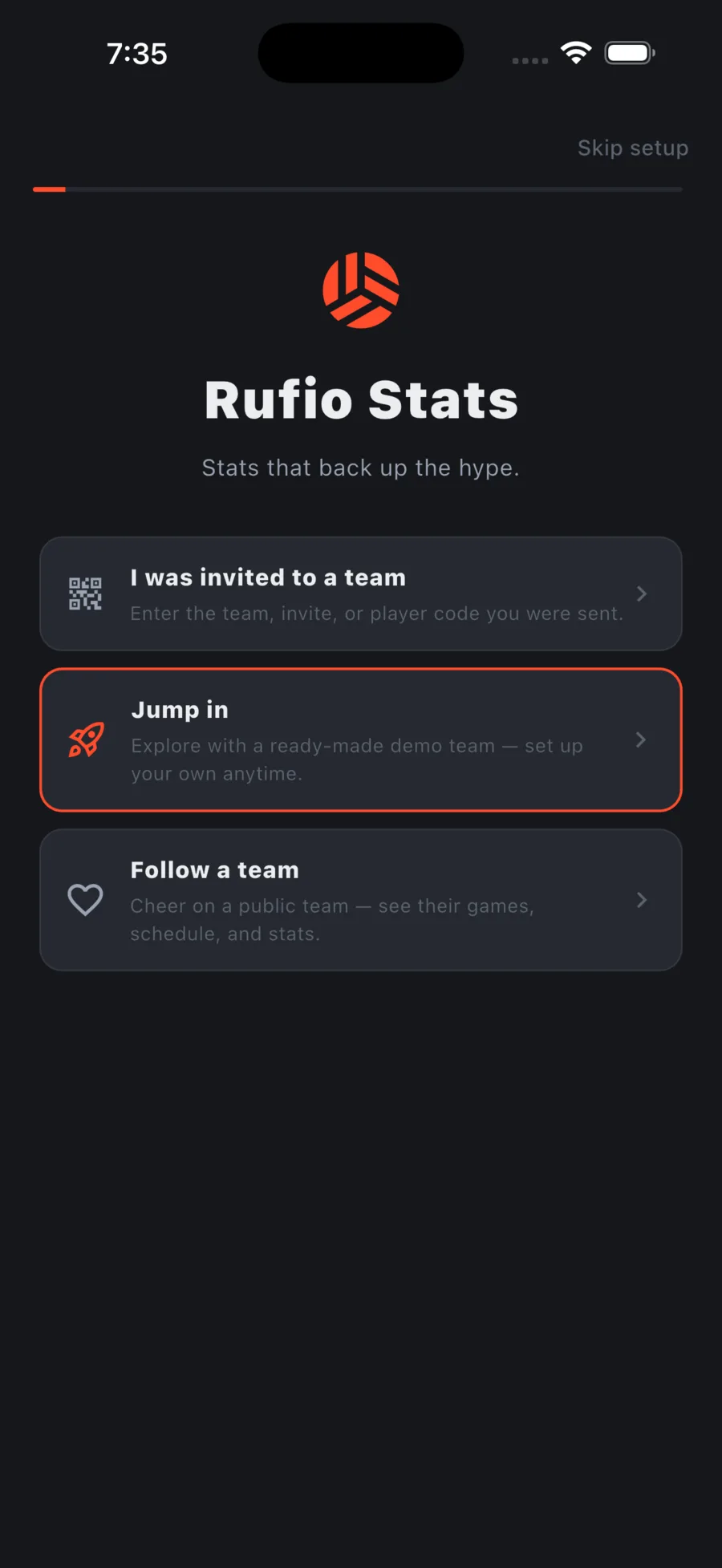
The first-run screen
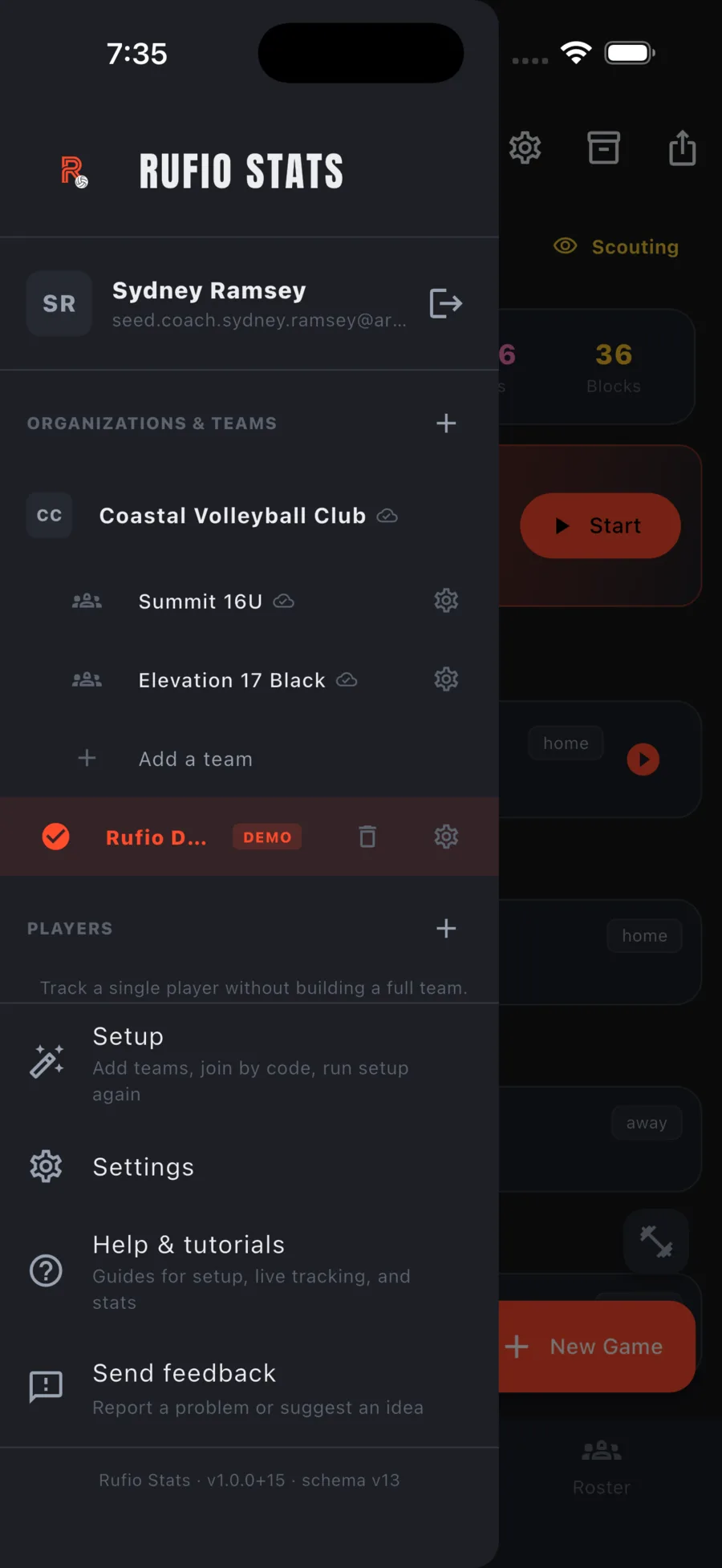
On a fresh install you get three choices. You can come back to this screen any time from the menu under Setup.
- I was invited to a team: enter the code you were sent. See People and roles.
- Jump in: adds a demo team with a full roster and played games so you can poke around. On a fresh install it first asks the same three tracking questions a new team gets. Remove it any time from the menu.
- Follow a team: search public teams and follow the ones you care about.
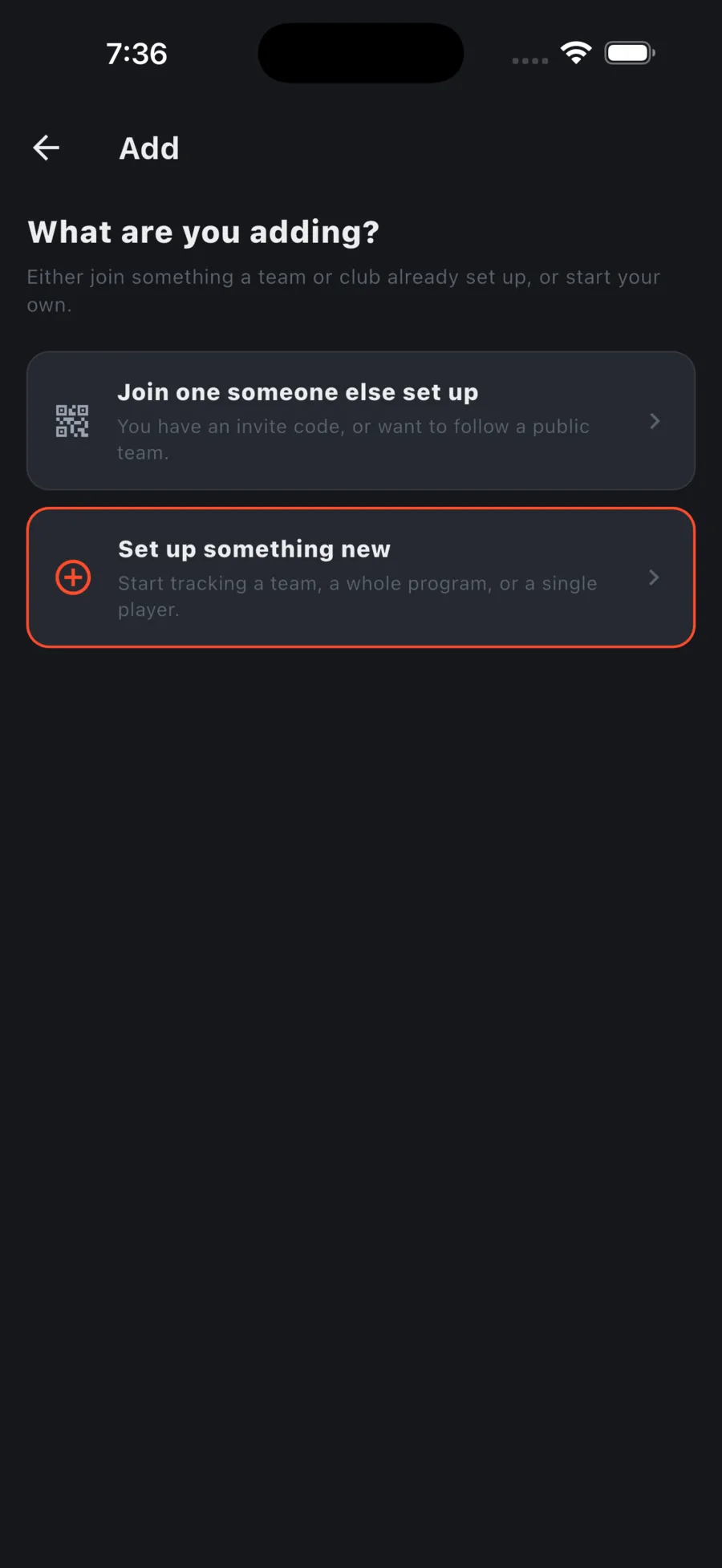
Adding a team, organization, or player
Every + in the menu opens the same short flow. First choose whether you are joining something someone else set up or creating something new. Then pick how much you are tracking.
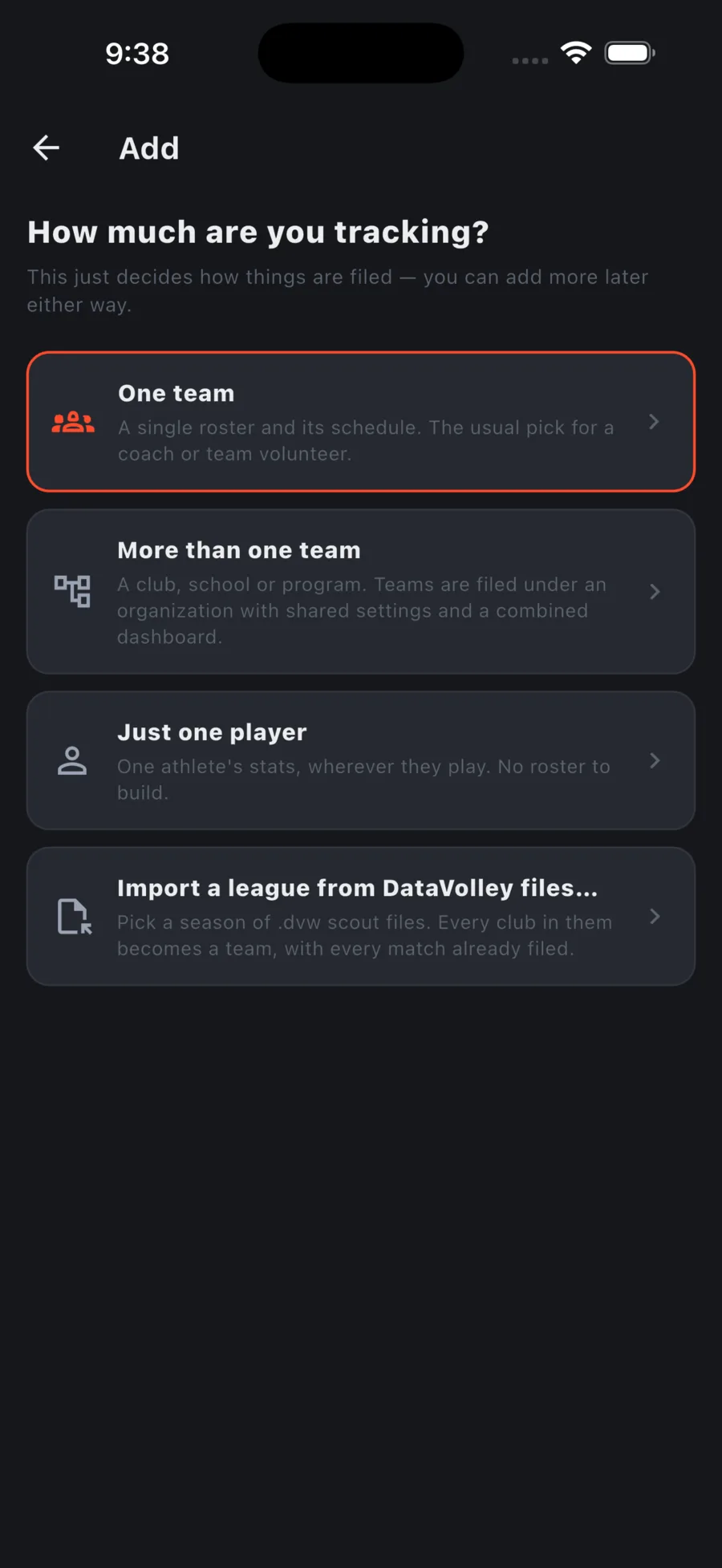
| Pick | When | What you get |
|---|---|---|
| One team | You coach or keep stats for a single roster. | A team with its own roster, schedule, and stats. |
| More than one team | A club, school, or program. | An organization. Teams are filed under it, share settings, and get a combined dashboard. |
| Just one player | You follow one athlete wherever they play. | A player workspace. No roster to build; stats belong to the player. |
Setting up an organization
- Tap + next to Organizations & teams, then Set up something new.
- Pick More than one team.
- Name the organization and tap Continue.
- Name its first team and tap Create team. An organization always starts with one team.
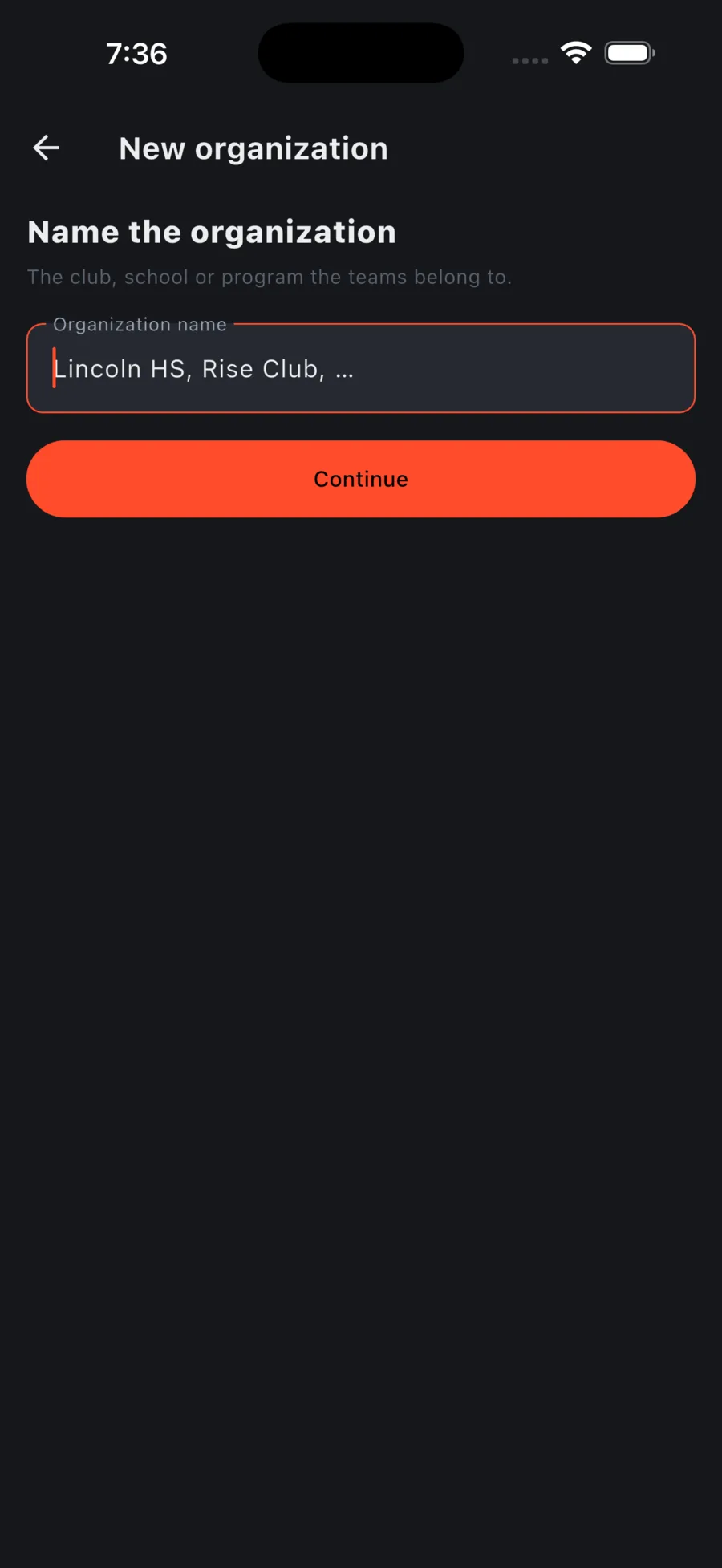
Once it exists, tap the organization in the menu to open its home: an overview across all teams, the team list, combined stats, and a Manage tab for staff and seats. Teams inside it can inherit tracking settings from the organization or override them.
Setting up a team
- Tap +, then Set up something new, then One team (or Add a team under an organization).
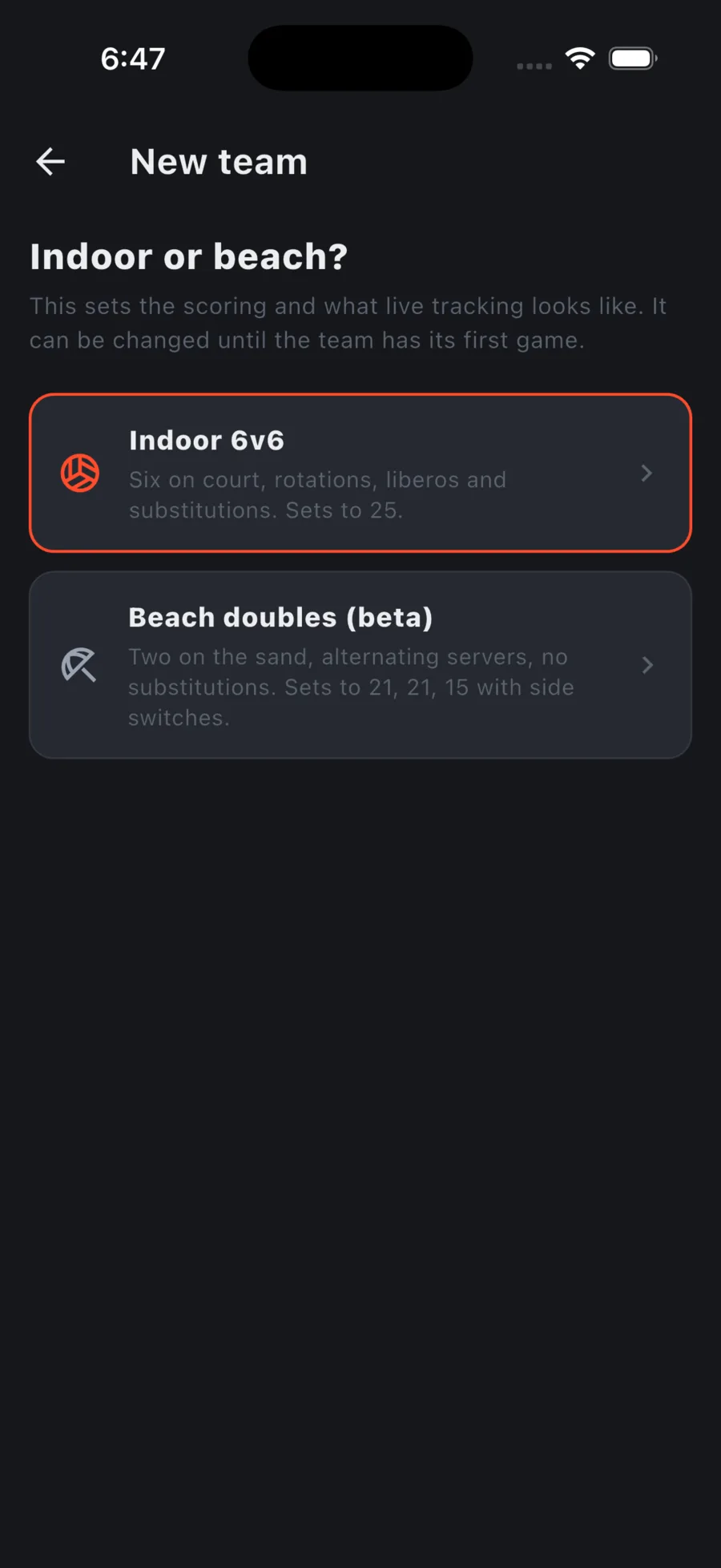
- Pick Indoor 6v6 or Beach doubles (beta). It can be changed until the team has its first game.
- Name the team. You can add optional details for the public directory now or later.
- Tap Create team. You land on the team's Games tab.
- Open the Roster tab and add players. You can also import a roster later.
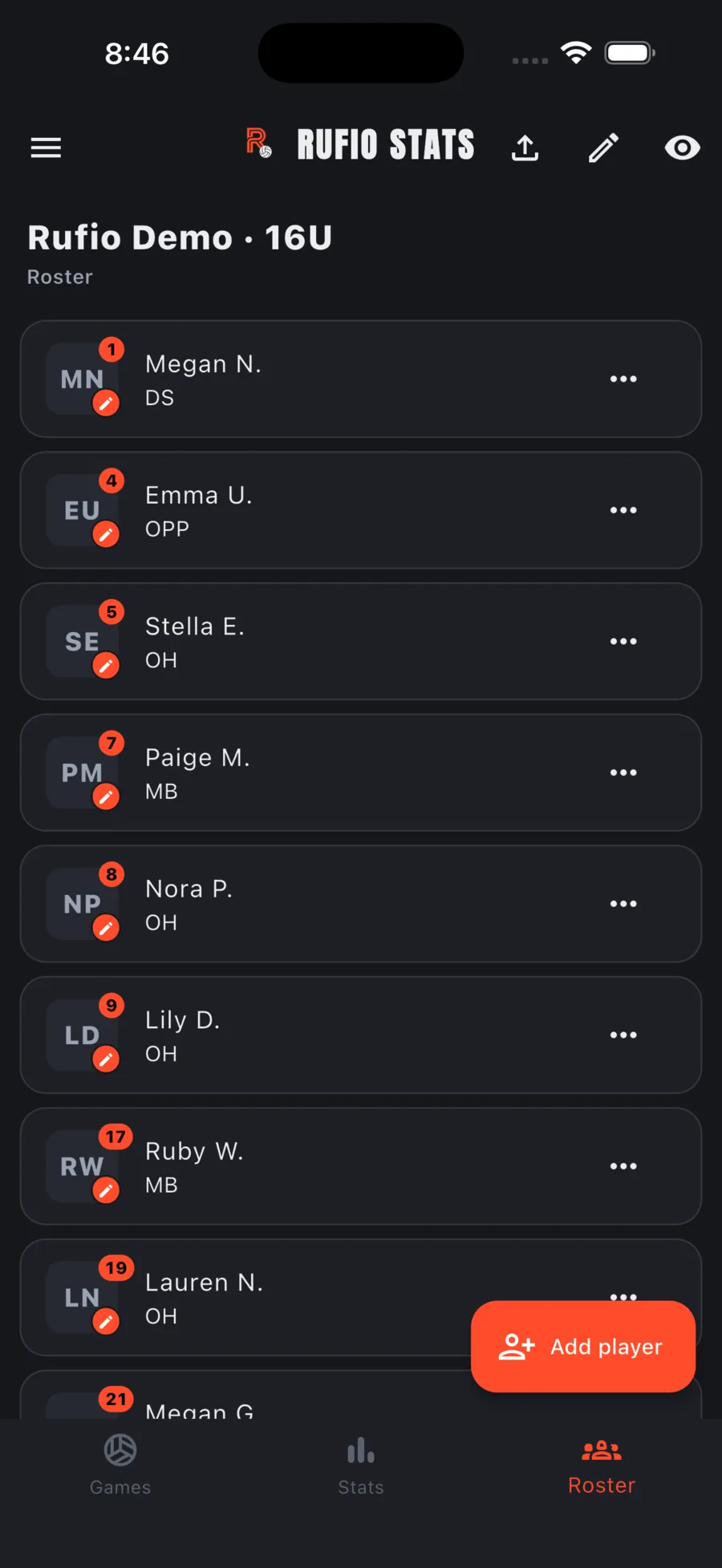
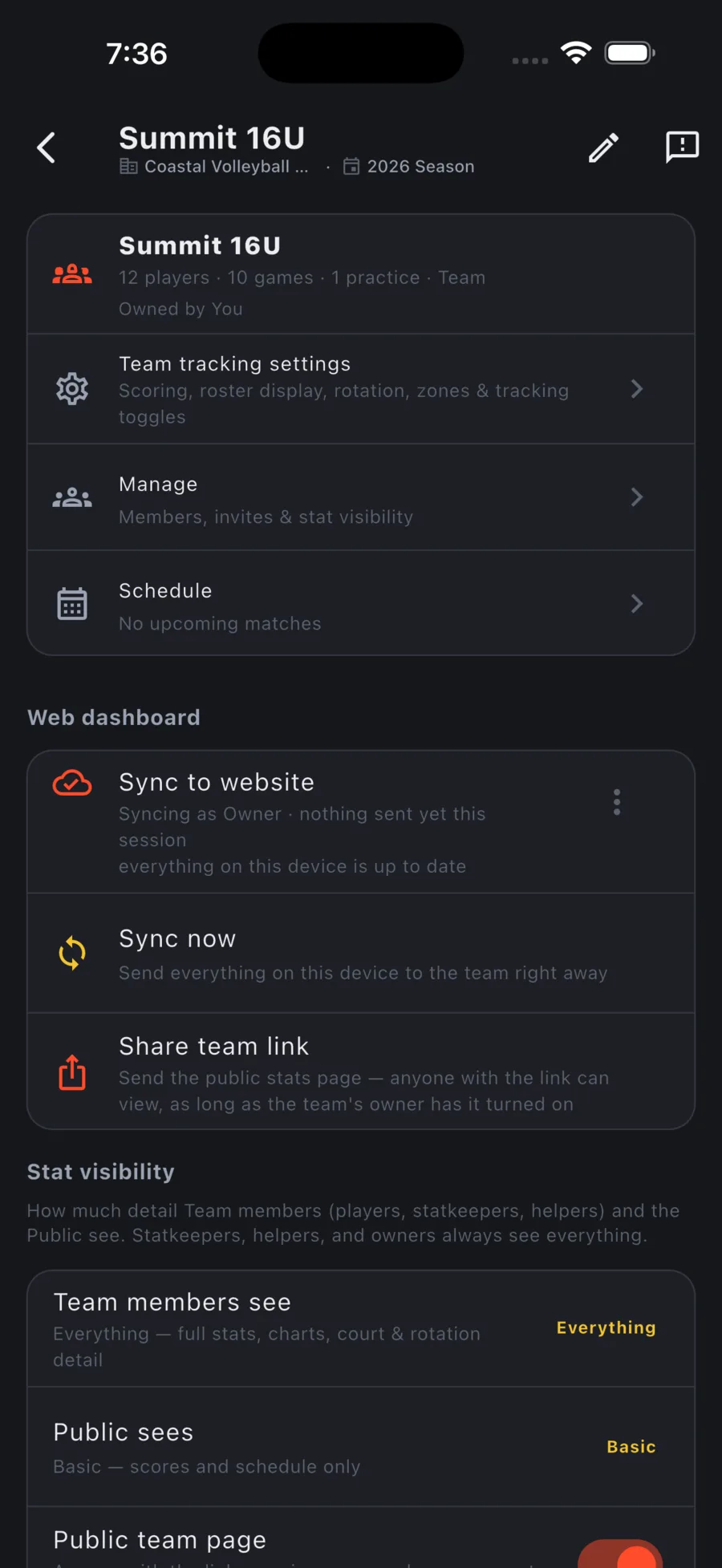
The gear next to the team name opens the team page: tracking settings, Manage (people and invites), schedule, sync, sharing, and what other people can see.
Right after the team is created, three quick questions set up live tracking: which stats this device enters, whether to tap the court for locations, and whether to track set types and attack types. Each question opens with a recommended answer already picked, based on how much this one device is covering. Skip it any time. You can answer the same three questions later from the team's tracking settings, under Choose a tracking level….
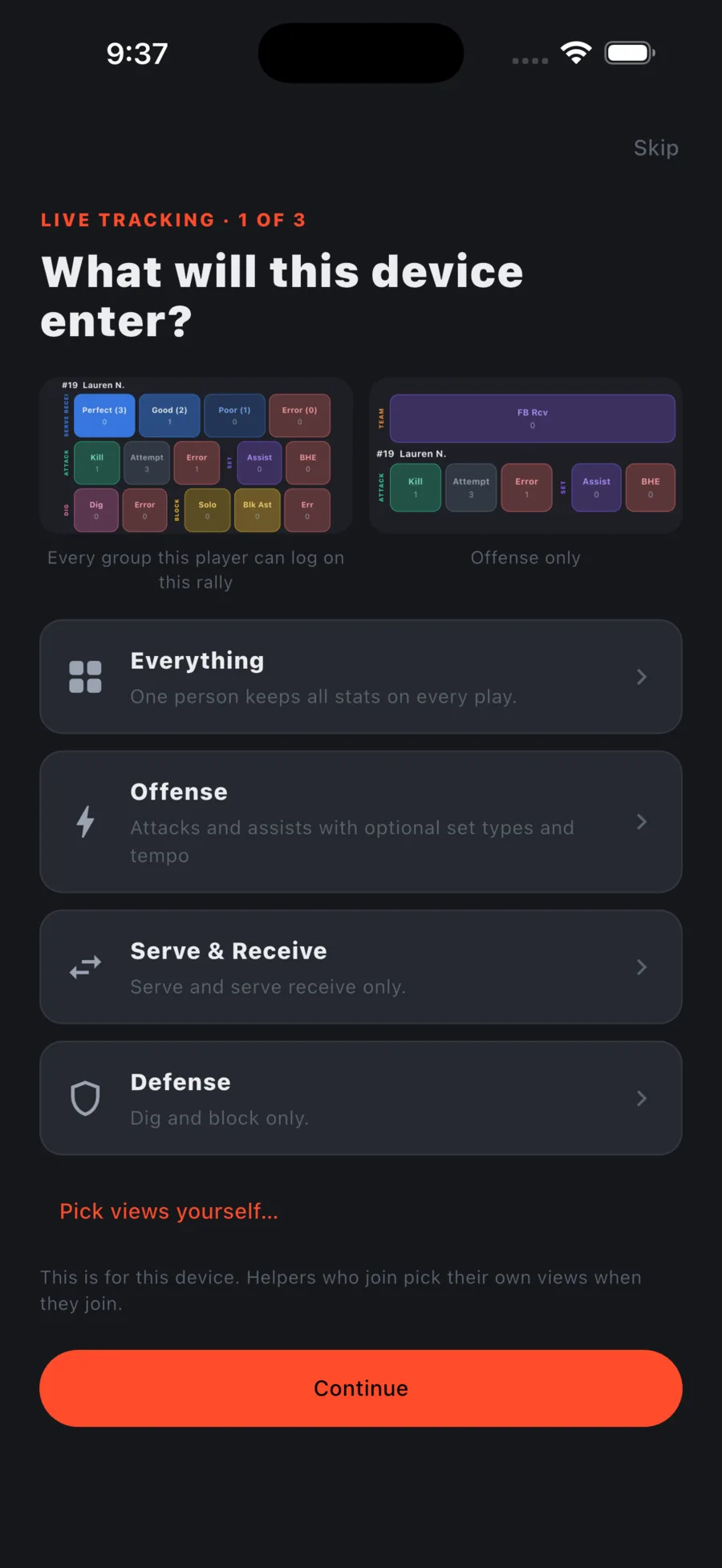
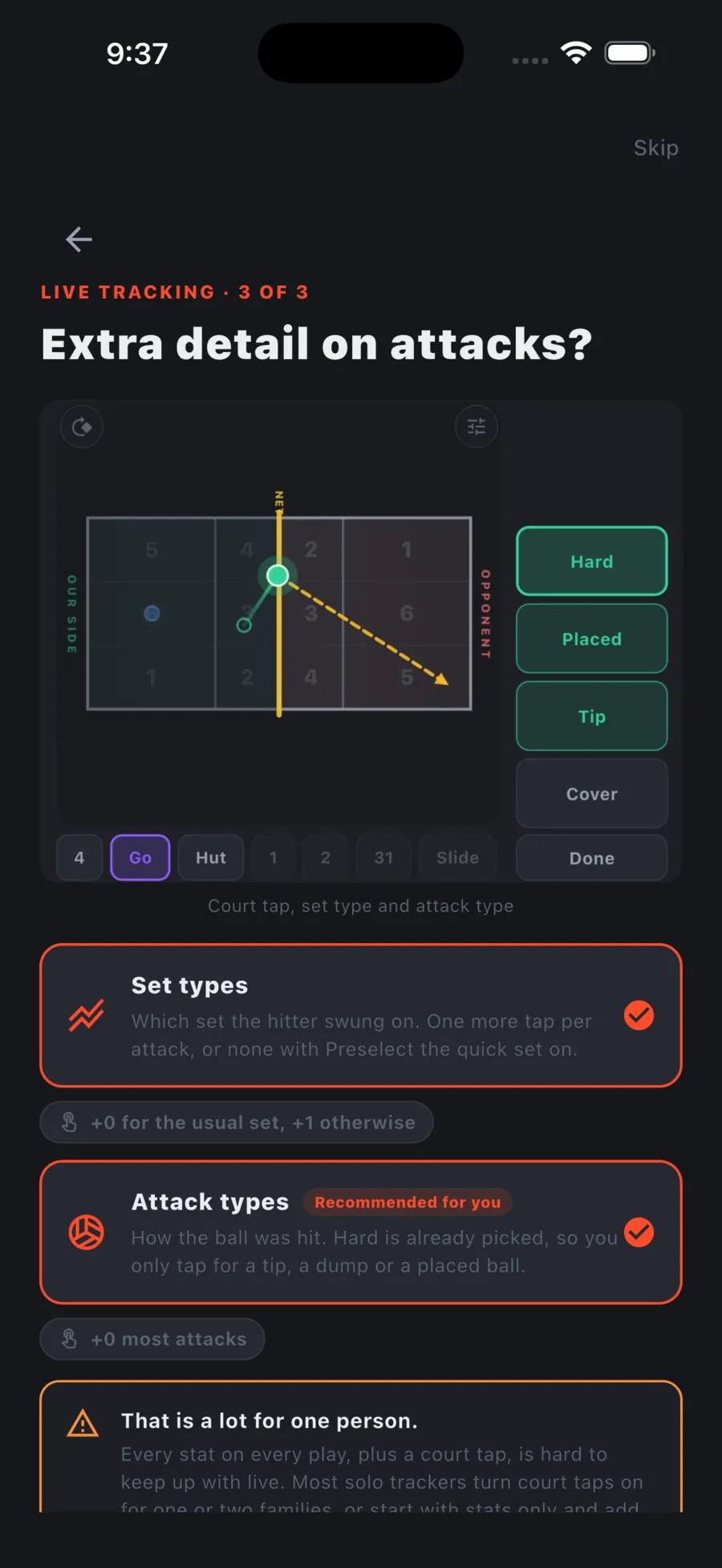
To log stats for the team only, with no player picking at all, pick Team totals only on the first question, or turn on Team stats only later under Team tracking settings.
Tracking a single player
- Tap + next to Players in the menu.
- Enter the jersey number, name, and optionally a position.
- Tap Start tracking.
A player workspace has a Games, Stats, and Player tab. Under the player's tracking settings you choose Simple (score plus core stats, good from the stands) or Advanced (court, rotation, and subs). You can switch any time, even mid-game.
Sync and sharing
Anything you create while signed in syncs to your account automatically. If a team was created offline or before you had an account, its team page shows Sync to website with a Turn on button. Turn it on to back the team up and to use invites and the public page.
- Sync now pushes everything on this device right away.
- Share team link sends the public stats page. It only works once Public team page is on under Stat visibility.
- Use the menu on the sync row if a device stops syncing: Reconnect refreshes its connection.