Browse guides
Rufio Stats
- Getting started
- People and roles
- Device settings
- Team tracking settings
- Beach doubles (beta)
- Live tracking
- Tracking together
- When the connection drops
- Drafts and merging
- Film review
- Game film
- Recording games
- Stream a game to Facebook
- Stream a game to YouTube
- Tournaments
- Stats and dashboards
- Dashboards
- Team dashboard: film and stats
- RufioStats for college & club programs
- The Practice tab
Dashboards
Save named dashboards to your account, publish one to the team, and share or show off a layout.
Arranging a dashboard
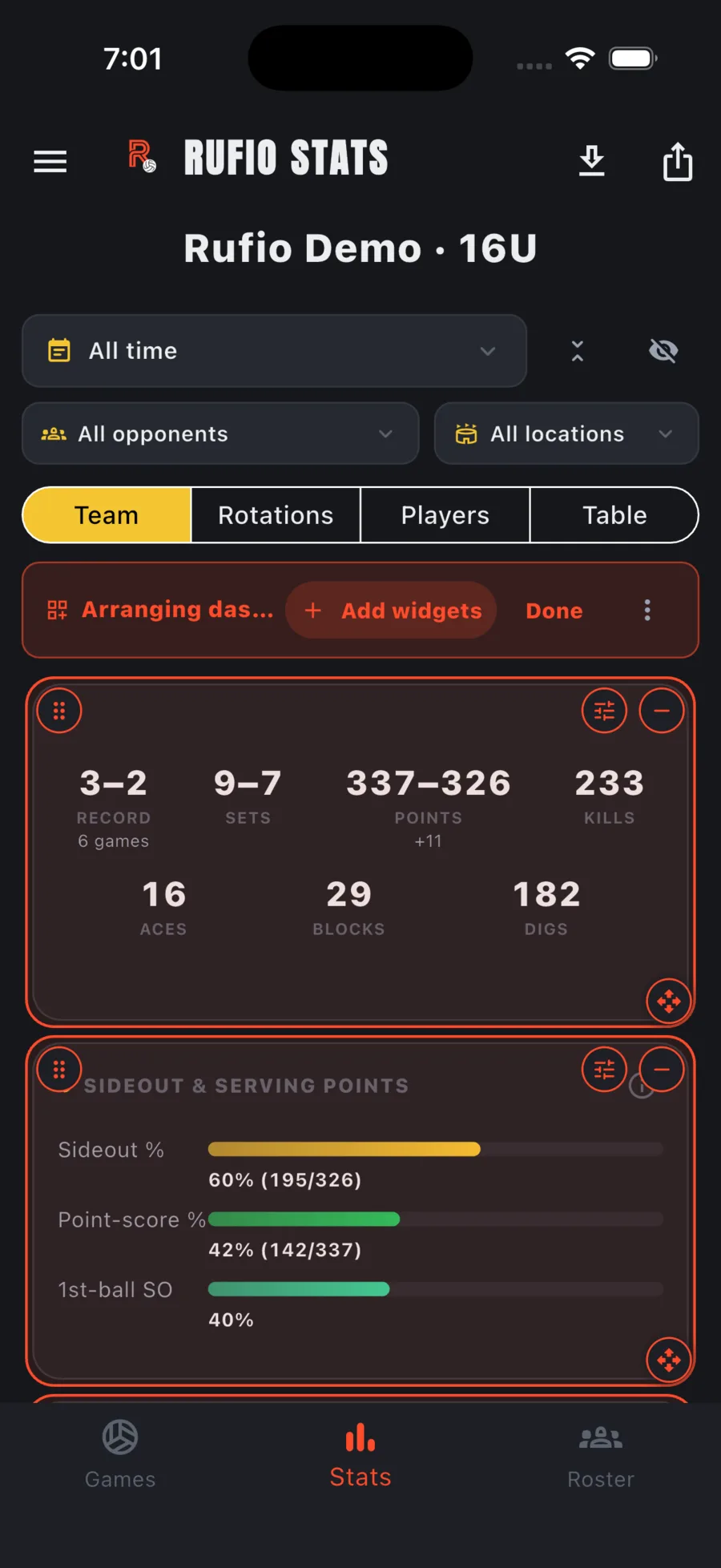
The Stats tab (Team, Rotations, and Players lenses), Coach view, and a public team's Stats page all use the same kind of dashboard: a grid of cards you can rearrange, resize, and swap out.
- Tap Edit (an icon on a phone) at the right of the Stats header, or Customize on a public team page.
- Drag a card by its handle to move it anywhere, gaps included. Drag the corner knob to resize. Double-tap the knob to reset the size.
- Rename… in a card's options gives that one card its own title. The Add widgets list keeps the widget's own name.
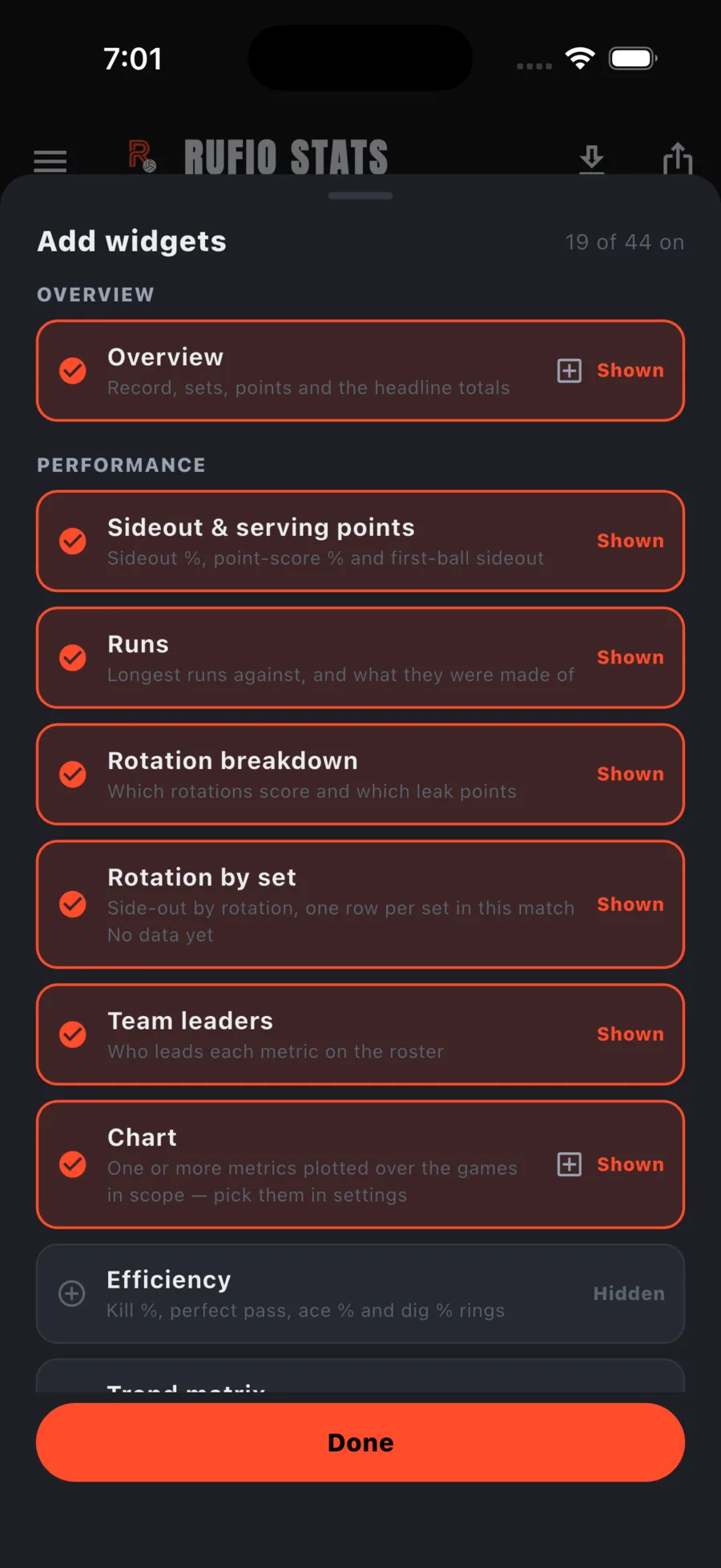
- Tap the eye to hide a card, or Add widgets to turn cards on and off from the full list. Some cards can be added more than once with different settings.
- Tap Done. Reset layout in the options menu puts everything back.
Every card also remembers the view you last picked on it (a lens, a toggle, an expanded row) between visits, on top of its place in the grid.
Named dashboards
Each arrangement is a named dashboard. Use different layouts for match day, serve receive, or the stats you share with your team.
- The dashboard picker fills the Stats header between Filters and Edit (a chip in Coach view) and names the active dashboard. Tap it to switch.
- New dashboard starts a fresh one, from the current layout or from the built-in layout for your device.
- Save as new…, in the edit ribbon, copies what you are looking at into a dashboard of its own.
- Manage… opens the Stats dashboards page. The active layout has an Active label. Drag a row by its handle to reorder it, tap another row to use it, or open its menu for dashboard actions. A deleted dashboard stays under Deleted in the last 30 days with a Restore button.
BUILT IN has one layout, Default, with its own arrangement for phones and for tablets and the web. It is what you see until you pick or save something else. It follows a coach's read of a match: team summary, leaders, trends, setting, then serve, receive, attack, dig and block.
Dashboards follow your account
Named dashboards live on your account, not on one phone or tablet. Sign in on a new device and the same dashboards, and the one you had active, are there. They still work offline; changes sync once you are back online.
This needs an account. Signed-out use and the demo team keep the older, on-device layout instead. The first time you sign in on a build with named dashboards, whatever you had already arranged on that device comes along automatically as My dashboard.
Publishing to the team
Owners and statkeepers can publish a dashboard to the team. Members with no dashboard of their own, and anyone visiting the team's public page, land on the team's published default.
- Arrange a dashboard the way the team should see it.
- Open the layout editor's ⋮ menu and tap Publish to team…, or tap the dashboard chip, then Manage…, and use Publish under TEAM DASHBOARDS.
- Name it. Make this the team default is checked automatically the first time the team has none.
- Tap Publish.
The picker's TEAM section lists everything the team has published, with a Default badge on the one members land on. Viewing a team dashboard does not change your own selection; editing it forks your own copy, the same as any other read-only entry. On the Manage screen, a published dashboard's menu has Republish from current (update its content), Set as default, Rename, and Unpublish.
Public team pages
A team's public page links straight to its Stats tab, at the level set under Stat visibility. Visitors land on the team's published default dashboard, or the built-in one if the team has not published anything.
Customize on that page lets anyone try every widget the team tracks, including ones outside its stat-visibility preset (those show locked, with why). Nothing a visitor changes there is saved, and it never touches your own dashboard if you are signed in and looking at your own team.
A one-time banner explains it: "Want to see every stat we track? Tap Customize to add, move and resize widgets. Nothing you change is saved." While customizing, a strip stays up saying so, with a Sign in to keep this layout link for a signed-out visitor. Signing in saves what you arranged as your first dashboard.
Share the page itself from the team page's Share team link, which offers Link to stats alongside the regular team link.