Browse guides
Rufio Stats
- Getting started
- People and roles
- Device settings
- Team tracking settings
- Beach doubles (beta)
- Live tracking
- Tracking together
- When the connection drops
- Drafts and merging
- Film review
- Game film
- Recording games
- Stream a game to Facebook
- Stream a game to YouTube
- Tournaments
- Stats and dashboards
- Dashboards
- RufioStats for college & club programs
- The Practice tab
Live tracking
Keep stats during a match. Pick the player, tap what happened, enter the point.
Keep score or track stats
- In New Game, choose a Tracking view. Score only has points, serve and timeouts. Track stats uses your usual player and stat controls.
- For scorekeeping, tap Keep score. Tap Point on the rally winner’s side. Tap Serve to choose or correct the serving team. The rally winner serves next.
- Each team’s timeout button shows timeouts used in this set. Undo takes back the latest score-only point or the timeout you just entered. Use Point history to correct a rally that has player stats. Tap End set to finish the current set.
- To change views during a game, open Quick settings, then Tracking view. Finish or undo the current rally first. The choice applies to this game on this device; entered stats stay saved.
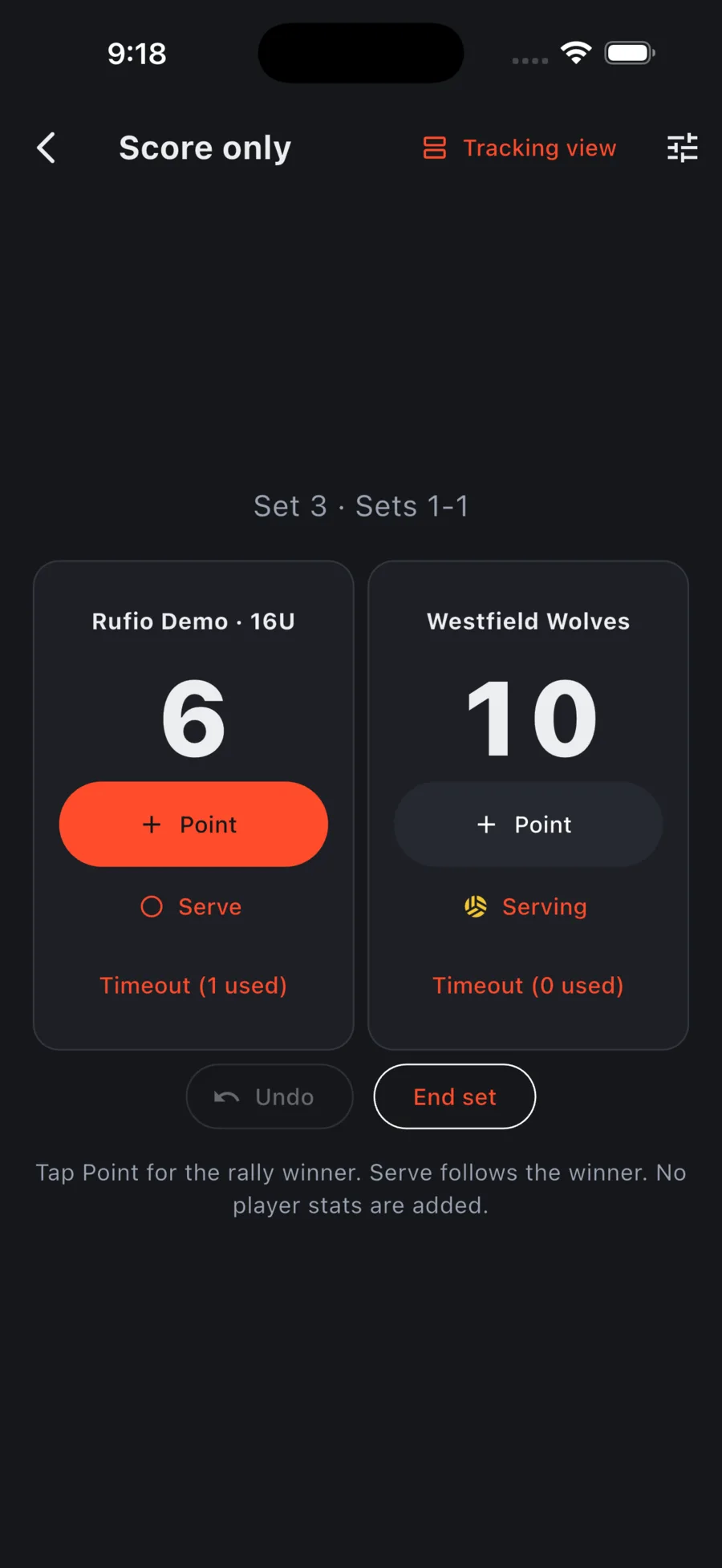
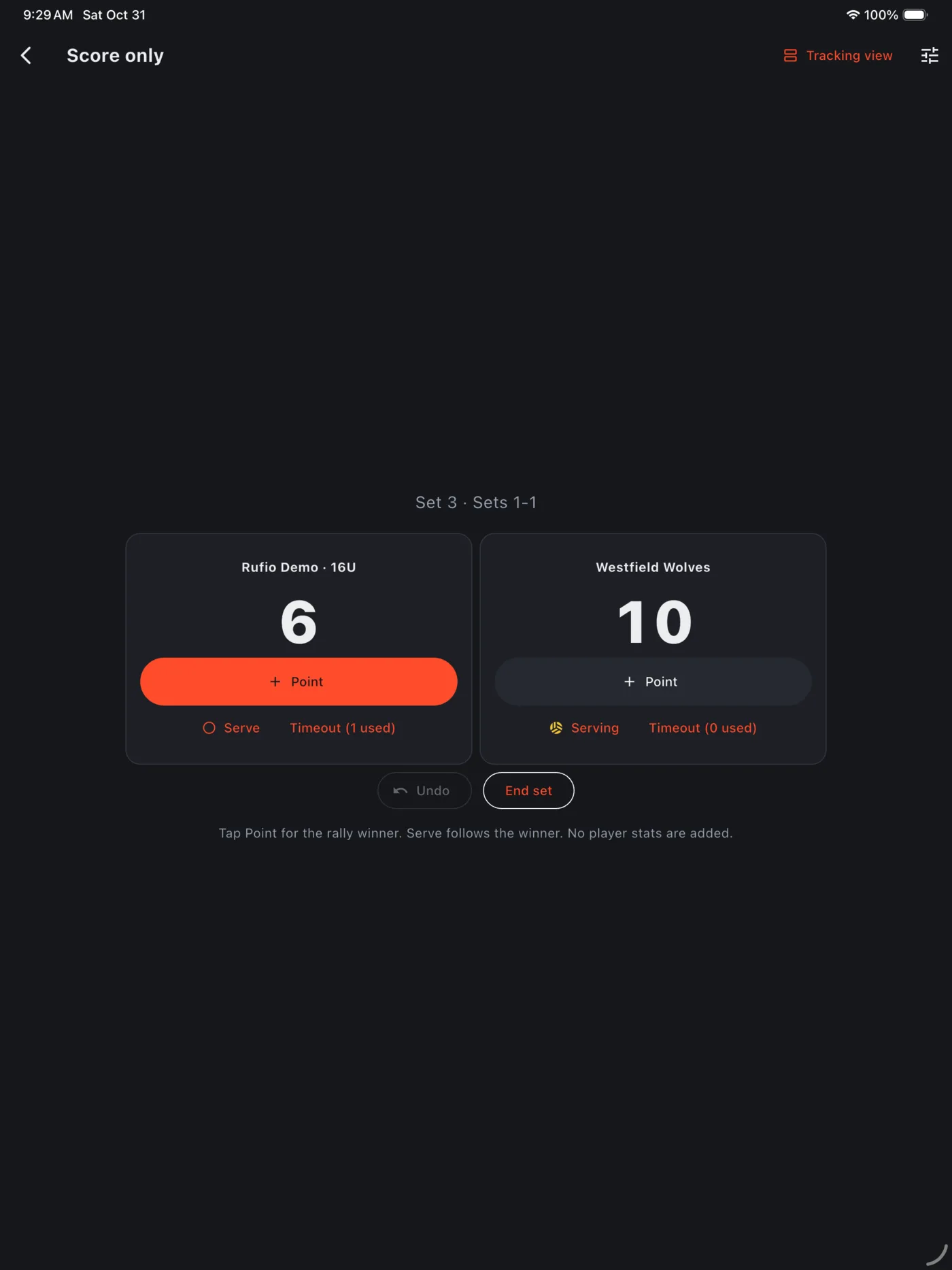
A score-only match opens a match summary with set scores and timeouts. If anyone entered player stats, the match keeps its stat charts. Joined live trackers use Stat assignment to change the stats they cover.
To film and score with one phone, choose Score only, then Film and keep score on a supported filming device. On an existing game, open Film this game, then tap Score here on the camera screen. The camera has the same point, serve, timeout and undo controls. You can hide them while filming. Scoring here requires permission to manage the game and no active live scorekeeper on another device.
Starting a game
- On the Games tab, tap New Game. If the match is already on the schedule, tap Start on its card instead.
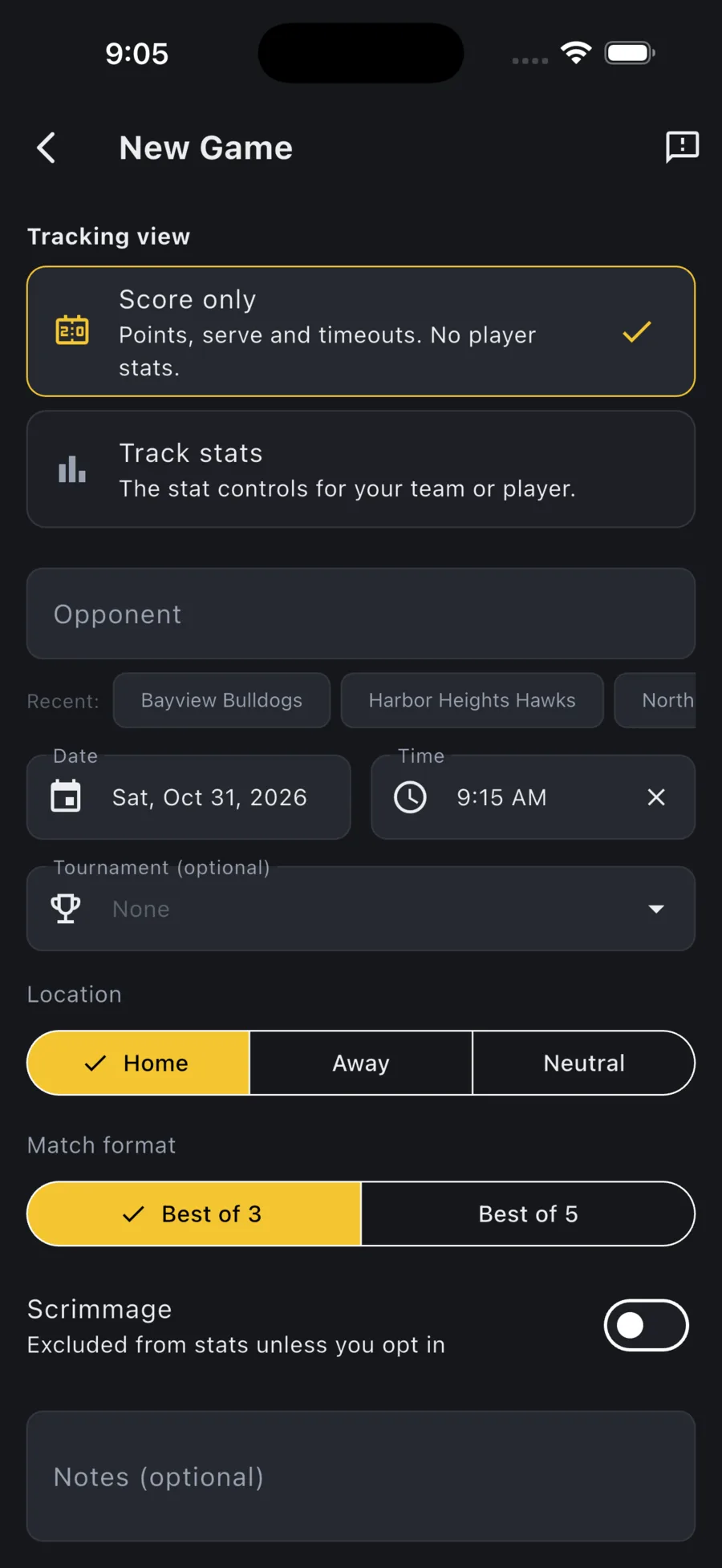
- Choose a Tracking view, then enter the opponent (recent opponents show as chips), the date and time, Home / Away / Neutral, and the match format.
- Choose Score only and tap Keep score, or choose Track stats and tap Track live. Add to schedule saves the game for later.
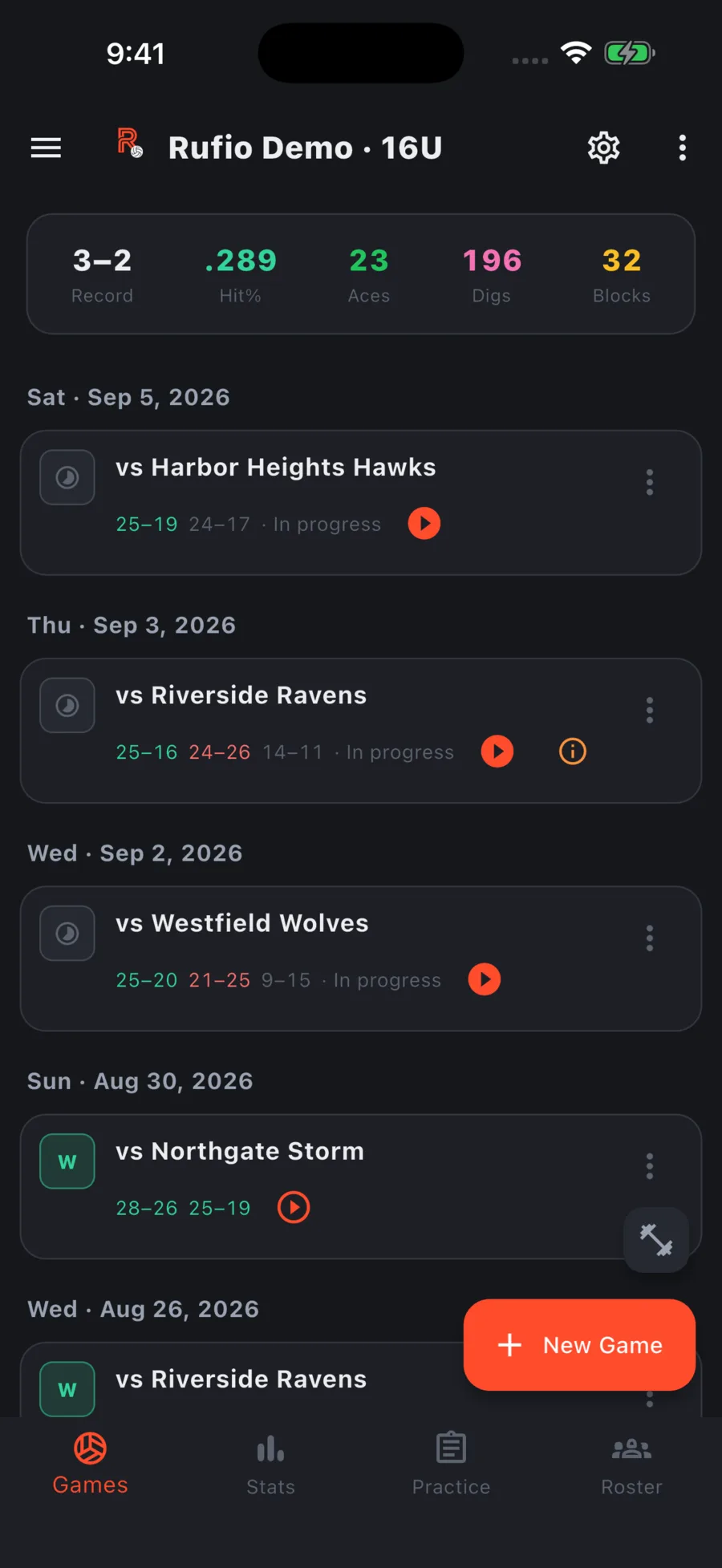
A synced team goes live automatically when the Statkeeper starts a game. Anyone on the team then sees Join on that game. Helpers cannot start a team game; they see Track a draft instead.
A team has one game live at a time. Starting another says which game is live and on which device, so you can end it there. A game whose device goes quiet ends on its own after 10 minutes. One account can enter stats on only one device per game; watching from a second device is fine.
Tap a finished game to open its stats: the whole match, or one set from the chips at the top. Point history sits beside the score and lists every rally; pick a set, or tap Find point and enter a point number or a score like 18-17. Edit match, Film review and the rest are under the ⋯ button on the card (or a long press). If a finished set has rallies but is missing a whole stat group, no digs recorded, say, the card also shows a Missing stats badge naming which sets and groups, with a one-tap way to start a film pass covering just what is missing. A stats card built from a group that is missing from part of the games in view carries a small mark in its title for the same reason.
On phones, the Film pass, Missing stats, and Home / Away / Neutral tags on a game card show as icons only, so a long opponent name is not crowded off the row. Tap a tag to see what it means.
The live screen
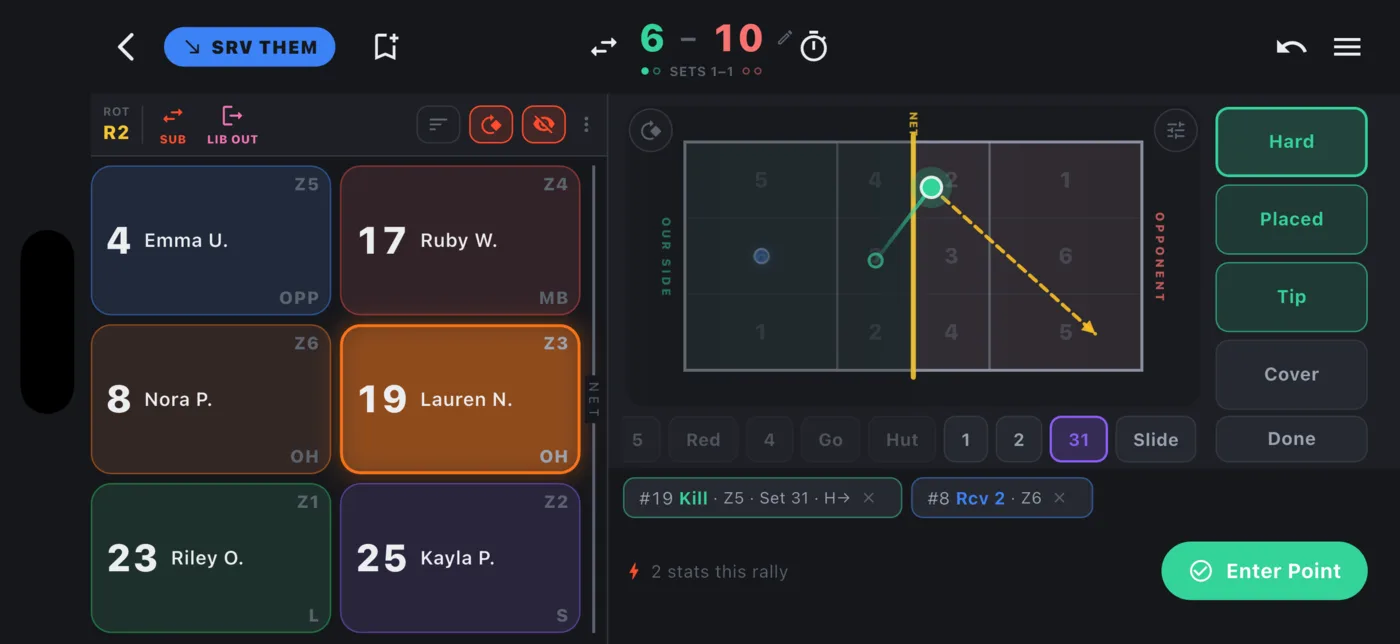
- The top bar has the serve indicator (SRV US / SRV THEM, tap to flip), the score and set count, a flag for film review, Switch sides, a timeout button, undo, and the quick settings menu.
- Press and hold the score for a full-screen scoreboard with team names, sets and timeouts, big enough to read from a camera. The ✕ closes it.
- The lineup ribbon shows the current rotation (R1 to R6) with SUB and libero buttons next to it.
- Player tiles lead with the jersey number beside the name. There is no stat line under it on the live screen. The six on the court sit in their zones; the bench is below. A small NET tag marks which edge of the grid the net is on, so it still reads correctly after you rotate it.
- The stat deck is grouped by row: Serve, Serve Receive, Attack, Set, Dig, Block, and a Team row for free balls.
- Next to the Court-only toggle in the lineup ribbon, Rotate player grid turns the grid a quarter turn at a time so it matches the side of the court you are watching from. Court position and Base position sorts only. It is saved on this device and changes nothing but the layout.
- Sort players sits on the ribbon too, left of the rotate button, so you can change how players are ordered without opening quick settings.
- For leagues that swap ends every set, Switch sides flips the scoreboard, the timeout dots, and the who-scored and who-called-timeout prompts, and turns the court and player grid around with them. It is also in quick settings under Actions, which is where a phone in portrait finds it.
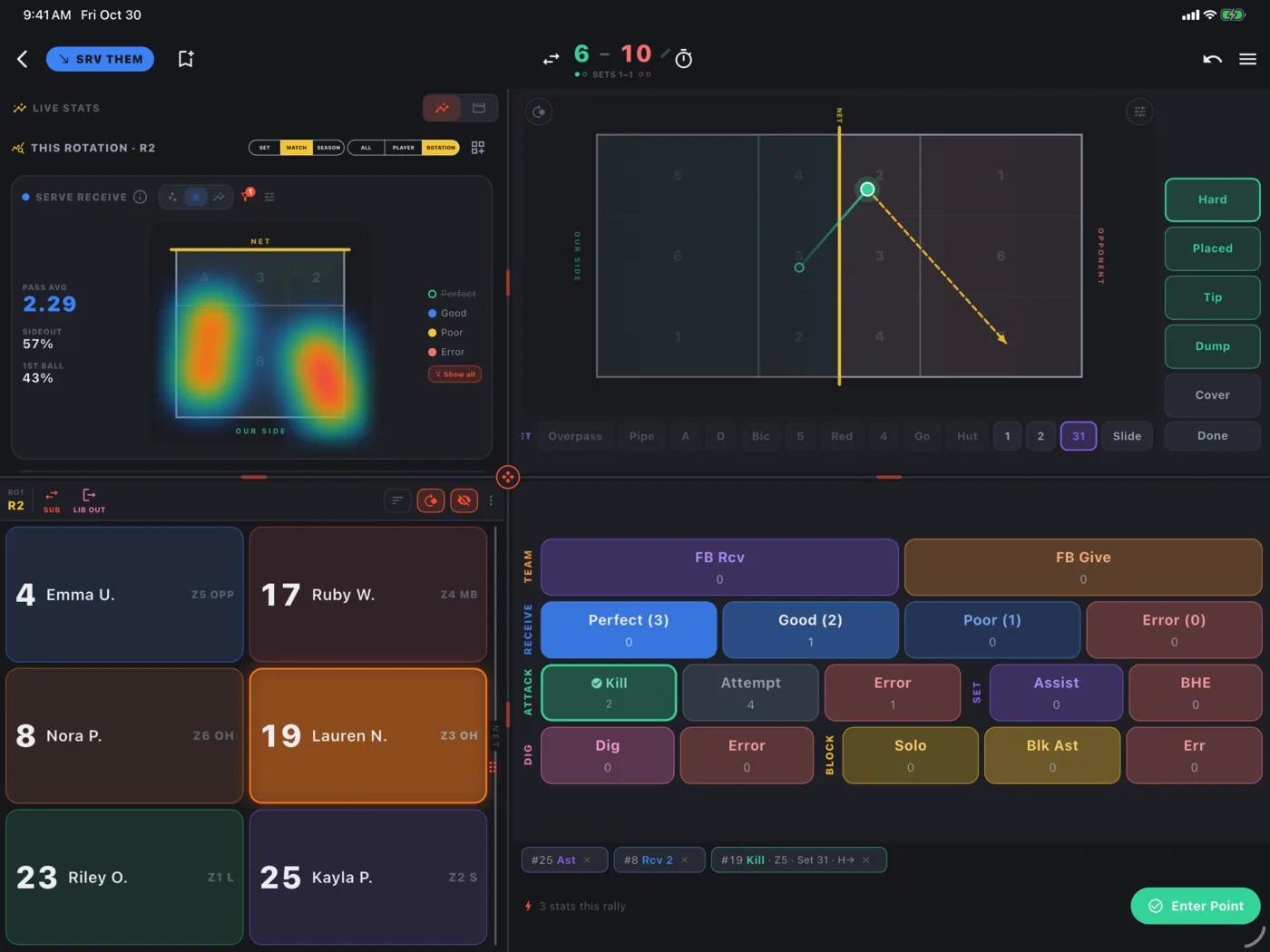
On a tablet the screen is four panels. Drag a divider to resize, or drag each half of a divider on its own so one pane gets more room without moving its neighbor. Drag a half back next to its partner to line the border up, or double-tap the center knob to do it for you. A small grab handle on the right edge of the player panel pulls it in to a narrower width without moving anything else; double-tap it to put the panel back to full width. It remembers its width on that device. If game film is attached it plays in the top-left panel; see Game film.
With Team stats only on there is no player to tap first, so the layout changes a little. On an iPad, the stats panel takes the whole left column and the court stays in its usual top-right spot. On a phone, the stats panel sits where the player grid used to be and scrolls. Stat buttons work the moment the screen opens, with nothing to pick first. Court taps work exactly as before, on or off, and a drawn opponent attack still logs with one drag on their side.
Lineup and rotation
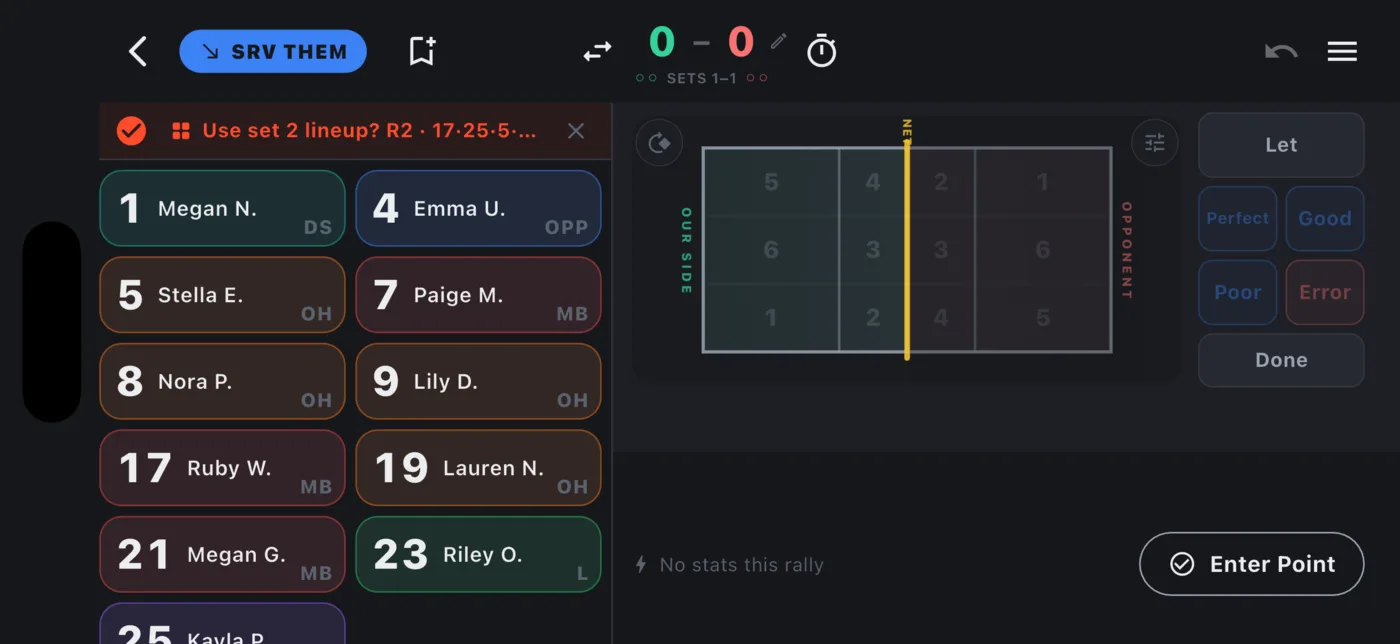
When a set starts, a banner over the player grid offers a lineup, already turned to your starting rotation and named by its R number. With a Default lineup set, set 1 offers it: Use default serve lineup? or Use default receive lineup?, depending on who serves. Later sets offer the one before (Use set 1 lineup?), and a team with no default lineup opens a match on Use last lineup?. Flip SRV US / SRV THEM and the offer turns with it. Tap the check to accept it, or the ✕ to open the lineup sheet with it filled in so you can change it first.
At the start of set 1, and of the deciding set, a Who serves first? banner asks for the coin toss. Tap Us or Them, which is the same as tapping the serve badge, or the ✕ to keep the default. Other sets alternate on their own, and a scrimmage only asks in set 1.
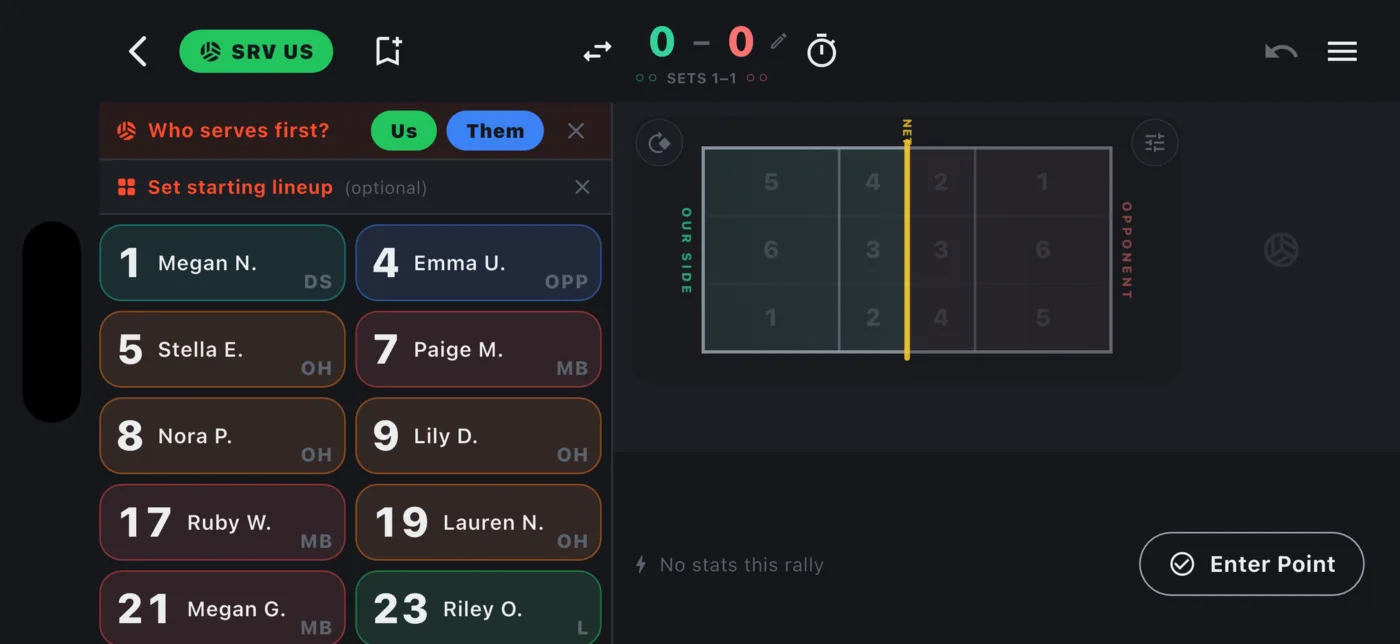
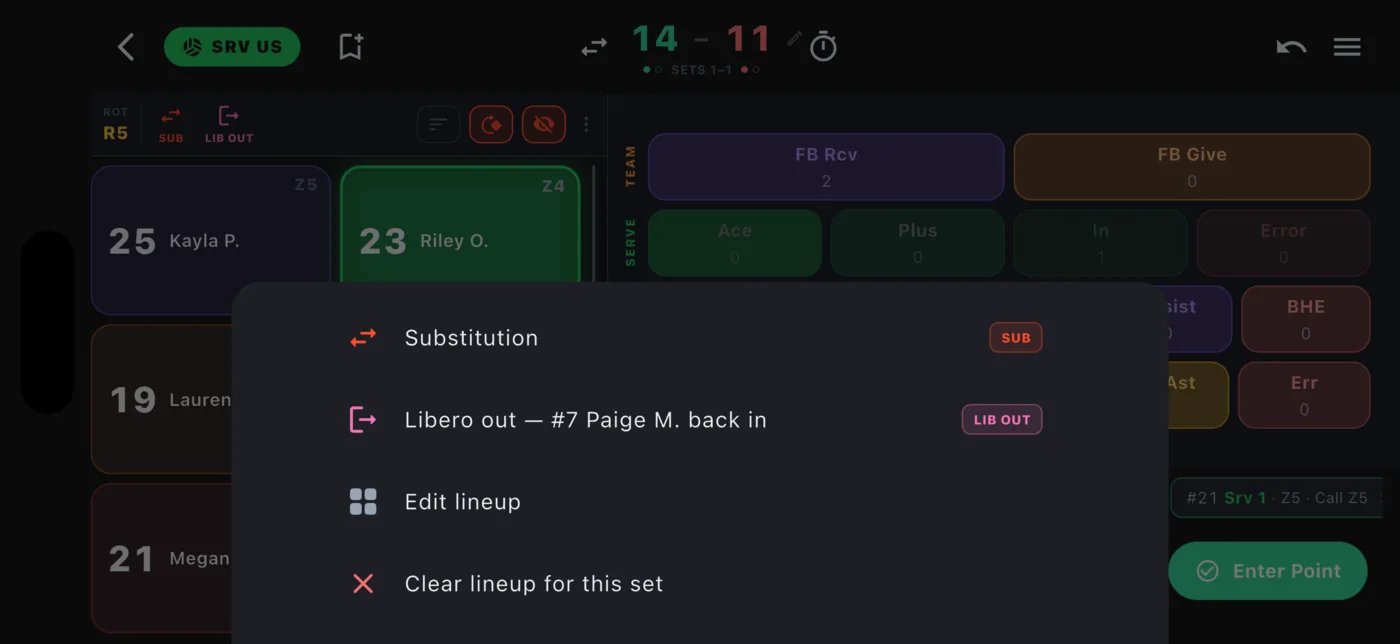
The lineup menu (tap ROT) offers Substitution, Libero in / out / swap, Edit lineup, and Clear lineup for this set.
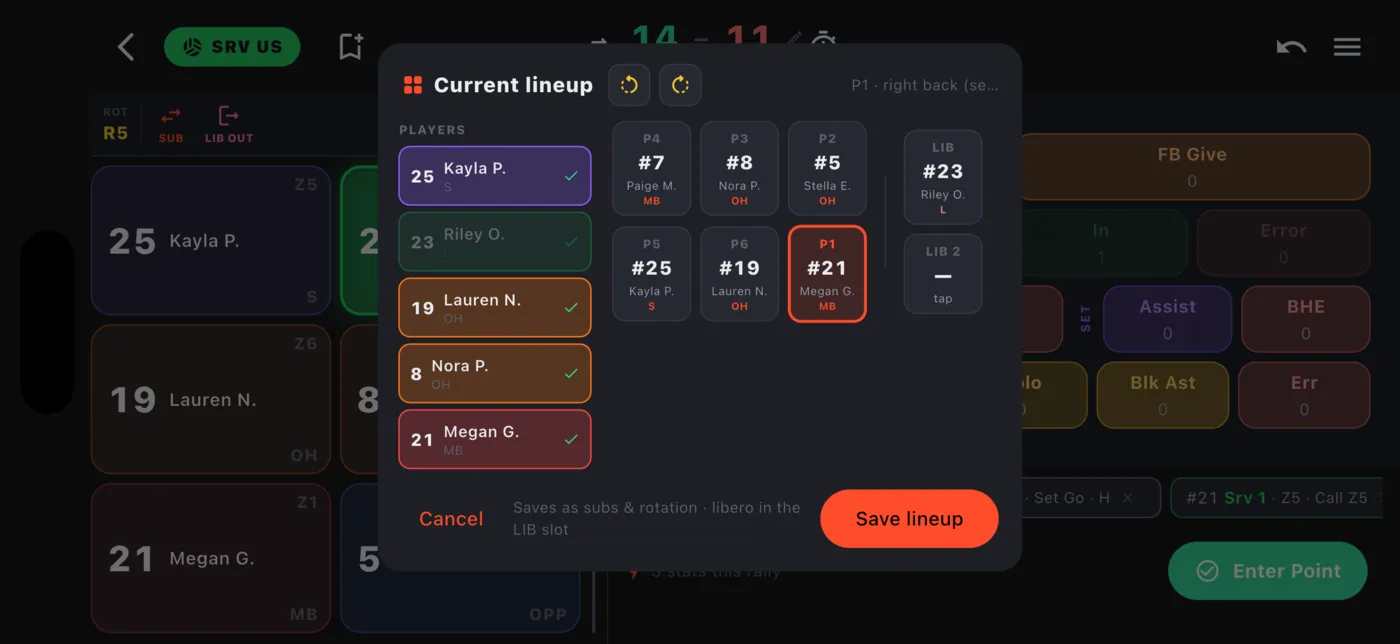
On the starting lineup sheet, drop players into slots in any order, then tap the rotation you are starting in under SETTER STARTS and the six rotate to match, so you decide where the setter opens without having to place players in rotation order. The R pills are laid out like the court: each one sits in the zone the setter stands in for that rotation.
Rotation happens on its own when you win a point on their serve. A partial lineup still works, but rotation is off until all six are filled.
Editing the lineup mid-set shows the player a libero is covering in their court slot, with the libero in its own LIB slot. Use LIB IN and LIB OUT on the ribbon to bring a libero on or off. Moving people around, or subbing for a covered middle, keeps the libero on court.
Between rallies, banners suggest subs and libero swaps. With a rotation plan set up in Hybrid arrangements, they follow who you play in each rotation, including a planned sub coming in ("Sub #5 in for #9?") and, with two liberos, which one. Teams without a plan keep the suggestions learned from the match. Dismiss a suggested sub and it stays dismissed until your next sub for that player.
Logging a stat
- Tap the player.
- Tap the stat (for example Kill, Dig, or a serve receive rating).
- If court locations are on for that stat, tap where it happened on the court. For serves you can drag from the server to where it landed.
- At the start of a rally the serve and pass ratings sit in the column beside the court, right where your drawing hand already is, so you can draw the ball and rate it without moving. On iPad and on the single-player court the same ratings are still on the deck below, and the two stay in step: rate on either one and both light up, so you can always see what stuck.
- Draw a serve that lands out, or dies in the net, and it is logged as a serve error the moment you lift your finger, with the path and the miss type (net, long, wide) already on it, so Enter Point is the only tap left. Redraw it in bounds and the error is taken back, drawing and all, so you can rate the serve yourself. An ace is never assumed from a path: where a serve lands says nothing about whether they got a hand on it.
- On serve receive, draw their serve the same way. If it comes down outside your lines or dies in the net, a chip appears saying the point is yours to enter, and Enter Point commits it as their serve error without asking who scored or why. Nothing is logged against a player: an opponent serve error is not one of your stats. Rate the pass anyway, or redraw the serve in bounds, and the chip goes away.
- You can rate serve receive without picking a player first. When they are serving, the court comes up as soon as the rally starts, so you can draw their serve and rate the pass right away; tap the passer any time before the rating and it goes to them instead. With court taps off, the entry buttons show a Team row while nobody is selected. A pass rated with nobody picked still counts in your passer rating and serve receive charts. It just shows as Team wherever stats are listed by player.
- On the live court, you can also draw their attack with nobody selected at all. A path from their side to your floor records their kill; one that lands out or dies at their net records their attack error, with where it landed. The chip is coloured for what it means to your side: their kill reads red, their error green. Tap the chip afterwards to bring the drawing back, or tap one of your players and the same drawing becomes that player's dig or block instead, pulling their attack back off the rally.
- If an attack comes down at the net, drag a second time starting on the ball you just placed to show where it went. A path that crosses back over the net records a ball your own side had to cover. One path ending at the net records nothing extra, so this is always optional.
- On iPad and on the single-player court you can also work the other way round: tap the player, then draw the path on the court that is already on screen while the ball is still in the air. Your side is the near half. Draw across the net for one of your attacks: it goes in right away as an attempt, or as an error when it lands out or dies in your own net, and the attack panel opens with the path already drawn, so tap Kill or Error only if the result was different. If it died at the net, drawing a second path off the ball to show where the block sent it turns that error back into an attempt, because a ball the block carried on did not go into the net. It stays one attack either way. Draw back from their side for a dig or a block and a chip shows the path is waiting: the buttons that fit it stay bright and the rest dim, and tapping the result puts the path on that stat. A path that comes back down on their own side keeps only the block buttons bright, since a ball that never reached your side cannot be a dig. If the ball came down near the net you can drag a second time starting on it to show where the block sent it. Every dimmed button still works, and if the result does not fit the path the path is dropped and you tap the spot as usual. Tap the small gear in the top right corner of the court and turn on the full court view, so the far half has its real depth to draw into.
- Tap Blk Ast and the player grid takes over: the screen dims, the blocker you tapped stays lit, and a caption counts the wall. Tap the other blockers on the grid, up to three in all, and tap a lit player again to take them off. Done beside the caption ends it, and so does a tap anywhere outside the grid. Block locations are asked once for the whole wall: the panel stays on the first blocker while you pick, and the spot you tap after that goes on every assist in the play.
- On an attack attempt, a Cover button sits with Hard / Placed / Tip / Dump (only when attack types are on). Tap it: the screen dims and the player grid lights up, then tap whoever covered the blocked ball to credit them, or tap anywhere else to keep the cover without naming a player. Tap Cover again to remove it.
- A row of optional chips may appear (set type, error type, called zone). Tap one or ignore it; the next stat never waits on it. The set-type row includes Overpass: pick it when your hitter swung at a ball that came over on a pass, and on a dig or block when they attacked one of yours.
- The undo arrow in the top bar reverses the last stat.
- Long-press Attempt to remove one.
- Before a serve, the CALL row lets you call the zone the server is aiming at.
- On a tablet with court taps off, set types show as a grid of square buttons, one row per position, with the likely row at the bottom near your thumb. Error types, and Hard / Placed / Tip / Dump when attack types are on, get their own rows. A dig or a block offers a Their set? pick when set types are tracked.
- A dig has a Pancake toggle (a pill on the court panel, or a chip when locations are off) for an open-hand save off the floor. Edit it afterward from point history or film review.
With Serve type tracking on (see Team tracking settings), each serve opens with the type that server last used already picked (Float, Jump Float, Jump Spin, or Topspin), so most serves need no extra tap. Serve receive offers the same pills for what you faced, defaulting to whatever you last saw in that rotation, and Film review offers them too.
All of the drawing-based guessing above (the auto-logged attack and serve errors, the likely set type lit from where a swing came from, and drawing before you tap a stat) comes from one Smart court entry switch under Tracking options, in Team tracking settings and in the live quick settings. It is on by default; turn it off and the flow is always tap the player, tap the stat, then tap the court.
Entering the point
When your taps already decide the rally (a kill, an ace, an error), Enter Point turns green or red and one tap ends the rally. Otherwise it asks Who scored? and, if Ask why the point ended is on, why.
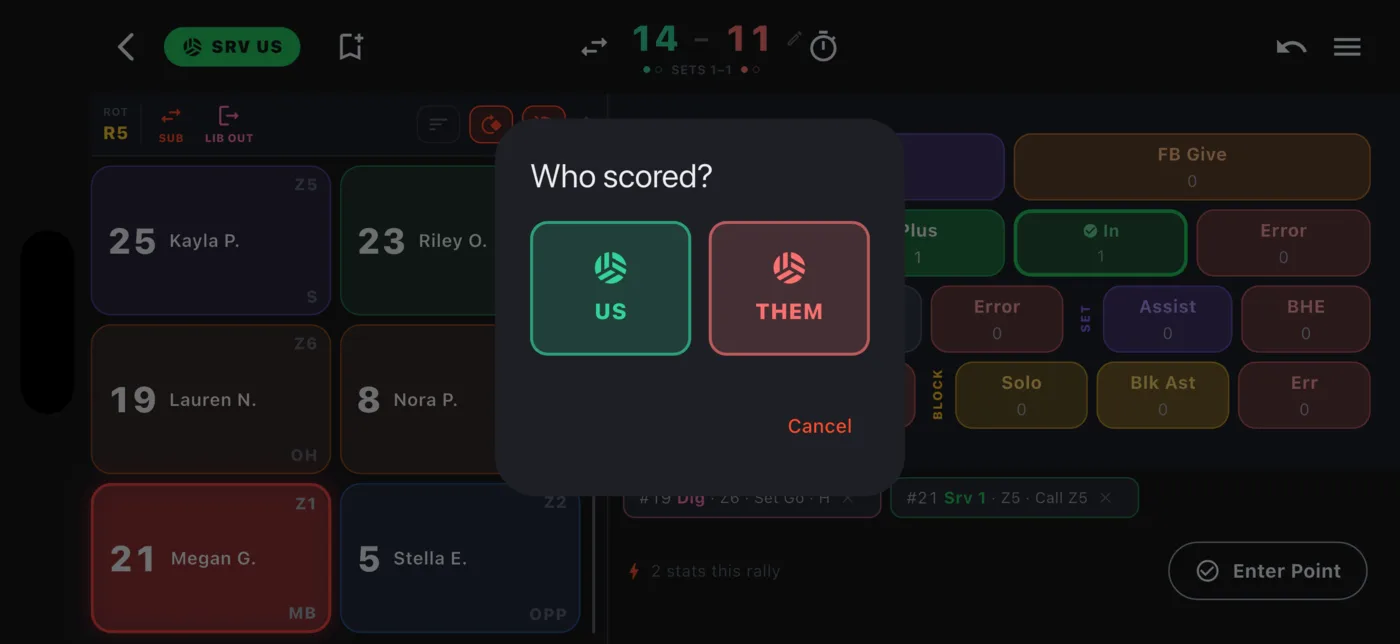
Reasons are grouped as opponent error, opponent earned it, we gave it away, and other. Picking one of your own mistakes lets you optionally name the player. Tap Skip to move on, or Don't ask again to turn the prompt off for this team.
Quick settings
The menu icon at the top right opens quick settings without leaving the game. Entry views (or Your stat assignment in a shared session) sits at the top, since it is the thing you change most.
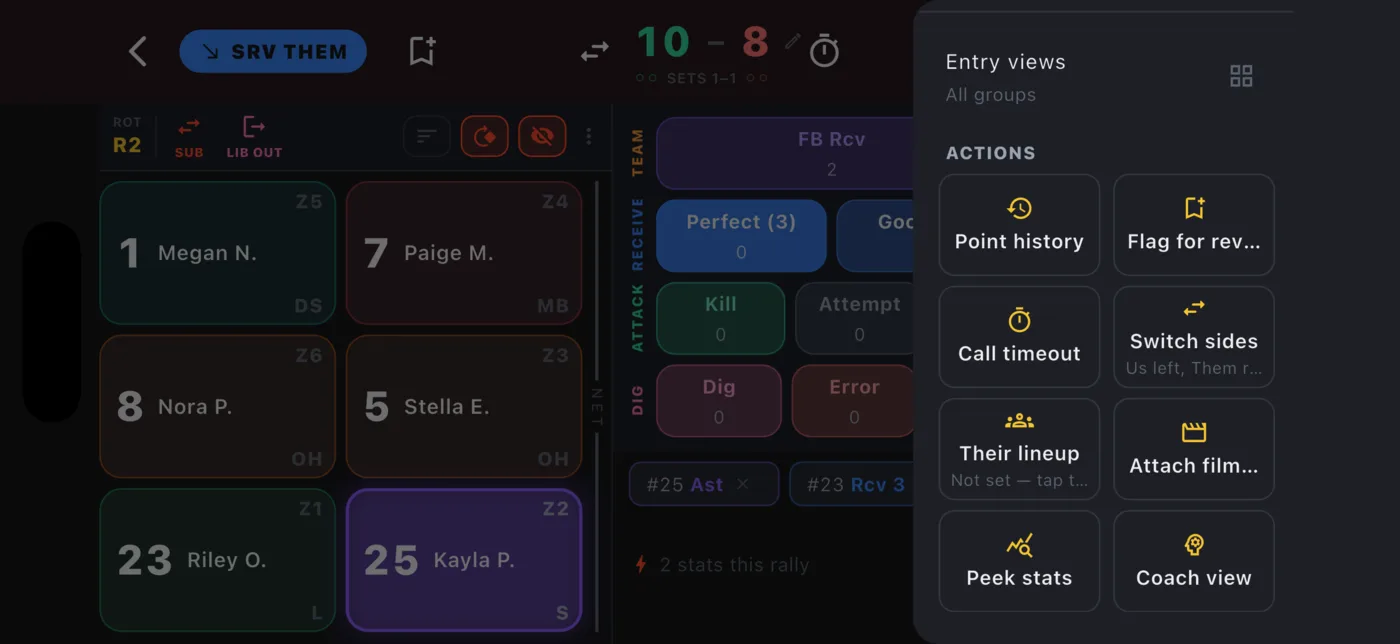
- Actions: a grid of point history (each row shows the running score, us in green and them in red), edit the score, flag for review, call a timeout, their lineup, Switch sides, Attach film… (or the name of the film already attached, to change or remove it; see Game film), Link a camera (see Recording games), Peek stats for a full-screen dashboard, Coach view, and send feedback. End set and Reset set are the full-width buttons beneath it.
- View: orientation, Location entry (draw paths or tap zones, when court locations are on), and Sort players by. Player colors are no longer here; find them under Settings › Display.
- Sub & libero suggestions: turns off the between-rally banners on this device for crews who find them more noisy than helpful. The lineup and rotate-for-serve prompts still show.
- Tracking options: the same switches as Team tracking settings, folded into one group that says how many are on. Open it to change them mid-game. Each switch has an info button saying what it costs you in taps, and the five court tap locations share one master switch.
- Mode: switch a single player between simple and advanced.
Open Point history to review or fix any point. Deleting one also removes the substitutions, libero swaps and timeouts recorded during that rally, and the points after it stay anchored to the right rally instead of shifting. Undo works the same way: once you undo the last point, it stays undone and does not come back while the app is syncing. A thin band marks every run of 3 or more straight points, and each timeout says what run it interrupted ("after a 4–0 run by them").
Ending a set and the game
Tap End set in quick settings. The app confirms the final score, then asks whether to start the next set or finish the game. When your match should already be over by the team's usual format, Finish game is the highlighted button. If a best-of-3 runs out of sets with no winner, you can add one.
When a point reaches the end of a set, the app offers to end it. Saying no asks which you meant: Undo point takes the point back on every device, and Keep playing leaves it standing and lets the set run on.
Started the set with the wrong lineup? Reset set, right under End set, deletes every rally, sub, libero swap and timeout in the set and puts the score back to 0-0, keeps the starting six so you can correct it, and opens the lineup sheet. It cannot be undone.
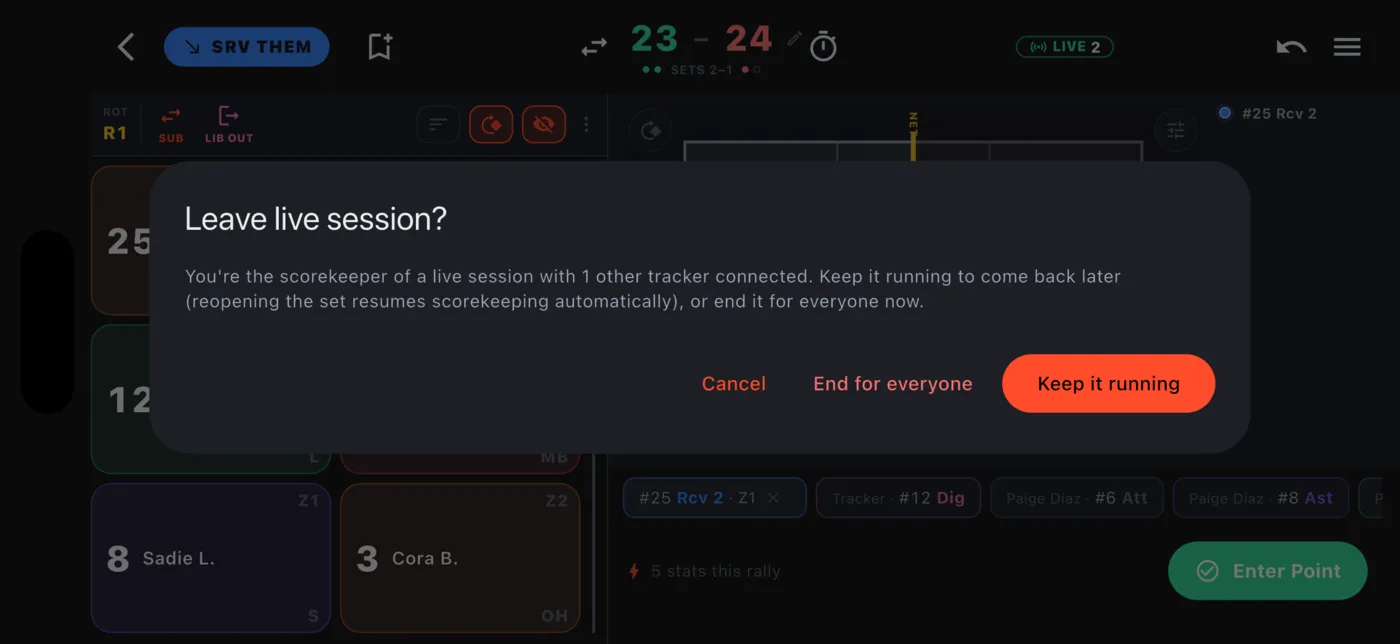
Leaving a live game with the back arrow asks what to do with the session: Keep it running to come back later, or End for everyone.
Practices
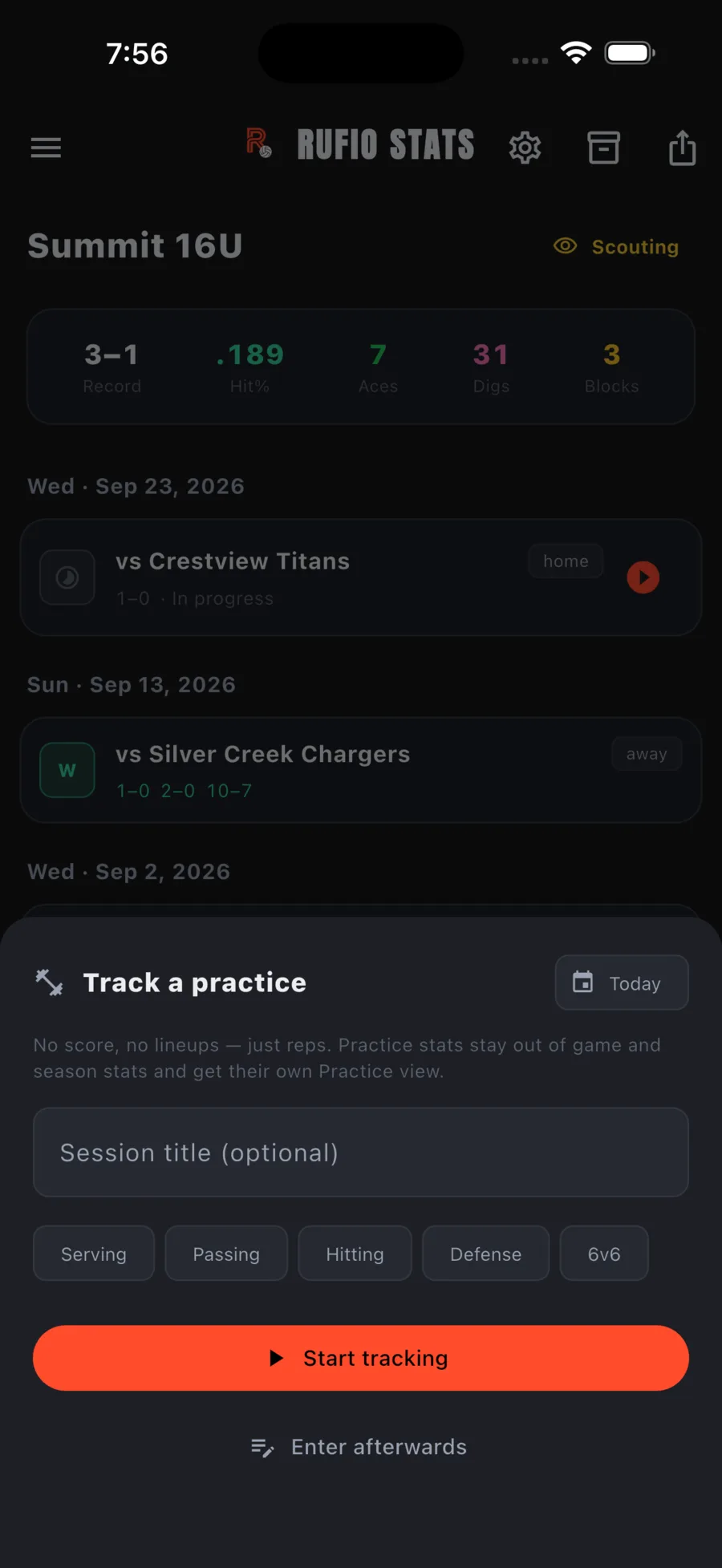
The small button on the Games tab starts a practice: no score, no lineups, just reps. Give it a title, then Start tracking or Enter afterwards. Practice stats stay out of game and season totals and get their own Practice view on the Stats tab.
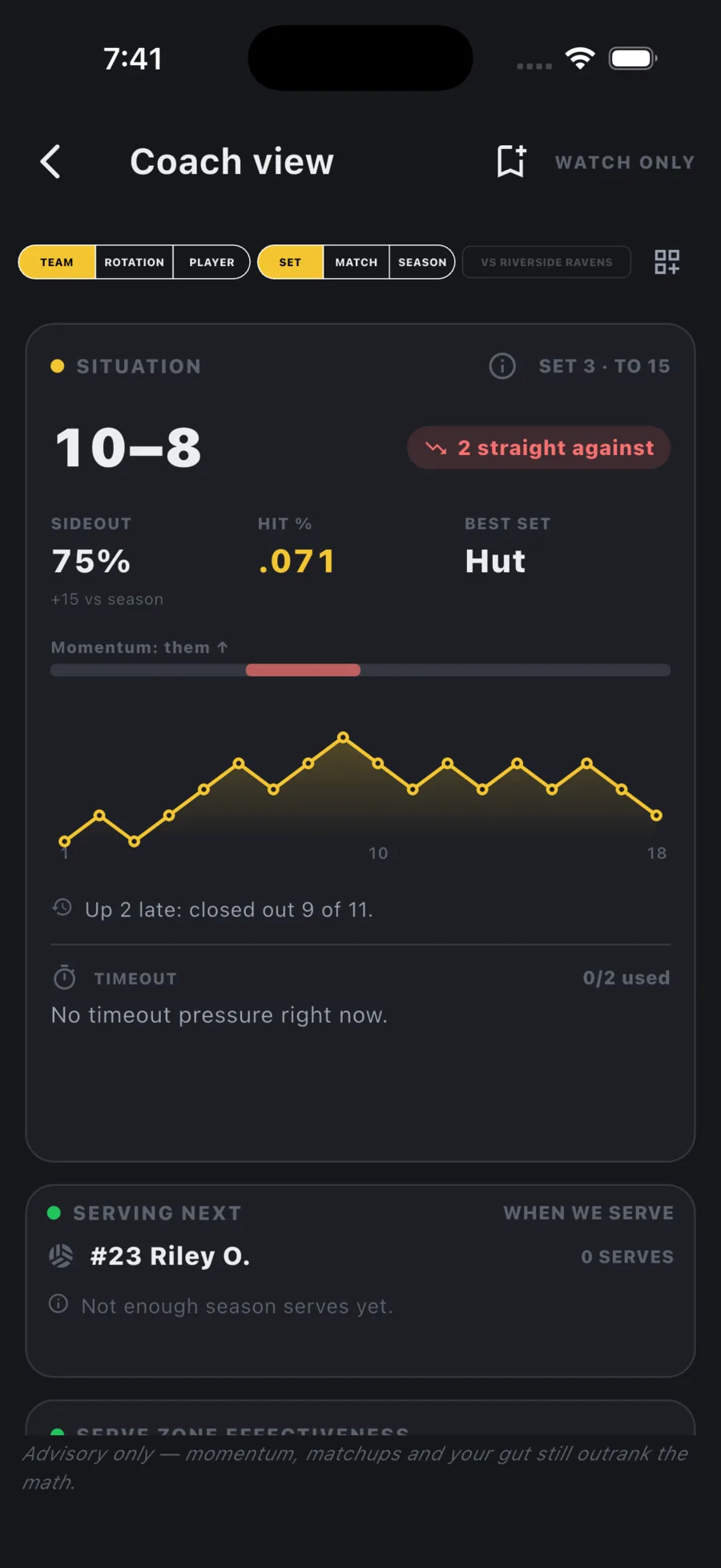
Coach view
Coach view is a watch-only live dashboard for the bench: the situation, who serves next, where they attack, rotation weak spots, substitution nudges, and more. Open it from quick settings, or join a live game as Coach view from another device. It can flag a rally for film review but never enters stats.