Browse guides
Rufio Stats
- Getting started
- People and roles
- Device settings
- Team tracking settings
- Beach doubles (beta)
- Live tracking
- Tracking together
- When the connection drops
- Drafts and merging
- Film review
- Game film
- Recording games
- Stream a game to Facebook
- Stream a game to YouTube
- Tournaments
- Stats and dashboards
- Dashboards
- RufioStats for college & club programs
- The Practice tab
Film review
Step through every rally after the match. Fix, add, reorder, and verify stats.
Opening film review
On the Games tab, tap ⋯ on a played game (or long-press it), open Review & video and choose Film review. It opens on the first set you have not verified yet. Review & video also has Add a film pass and the game's video. The top of the sheet has Edit match (scores, timeouts, sets), Reports & export has Export, and Manage game has Archive game.
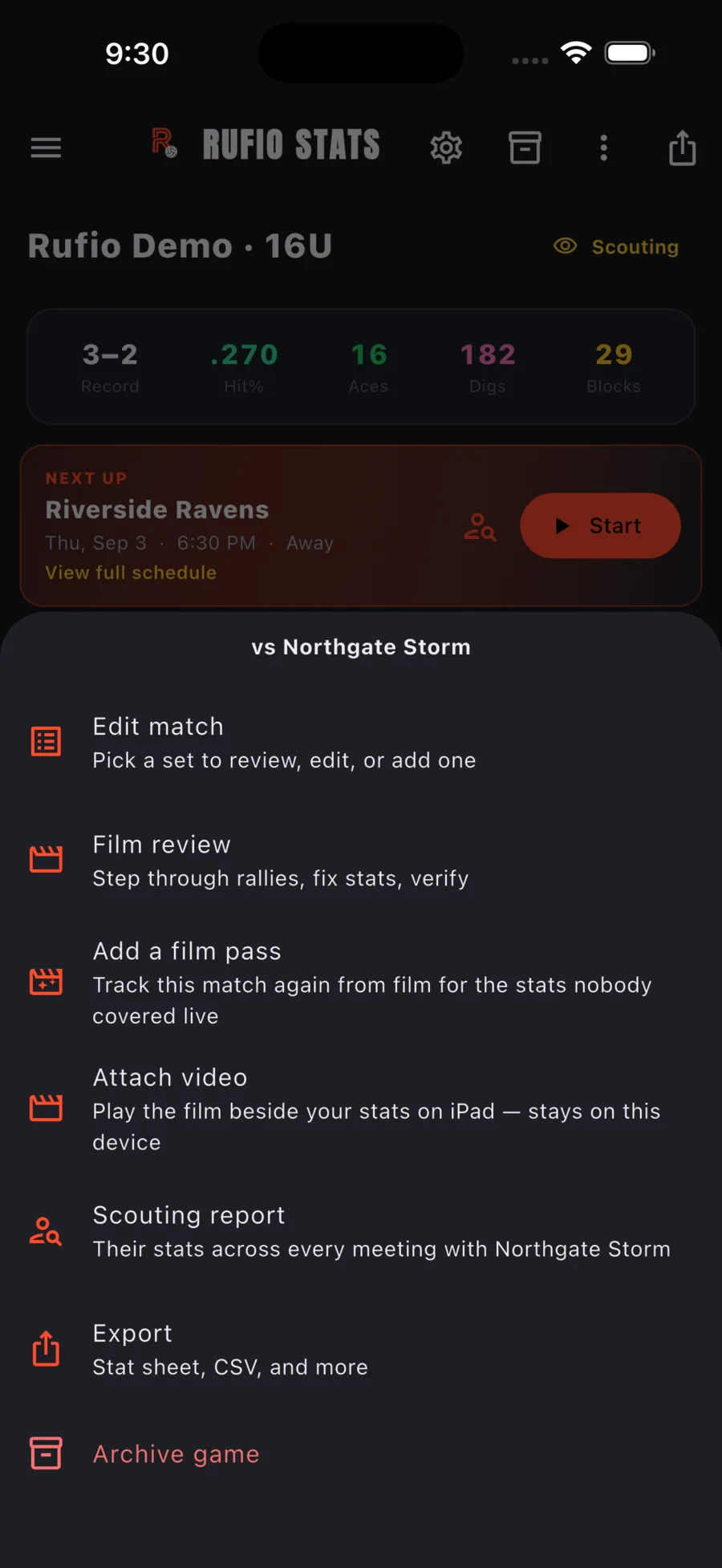
To open a specific set instead, tap Edit match on the same sheet and use the film icon on that set's row.
If film is attached to the game, a Video band sits above the rally list on a phone and a video pane on a tablet. Selecting a rally jumps the film to it, and each stat shows a tappable timestamp. See Game film.
The rally card
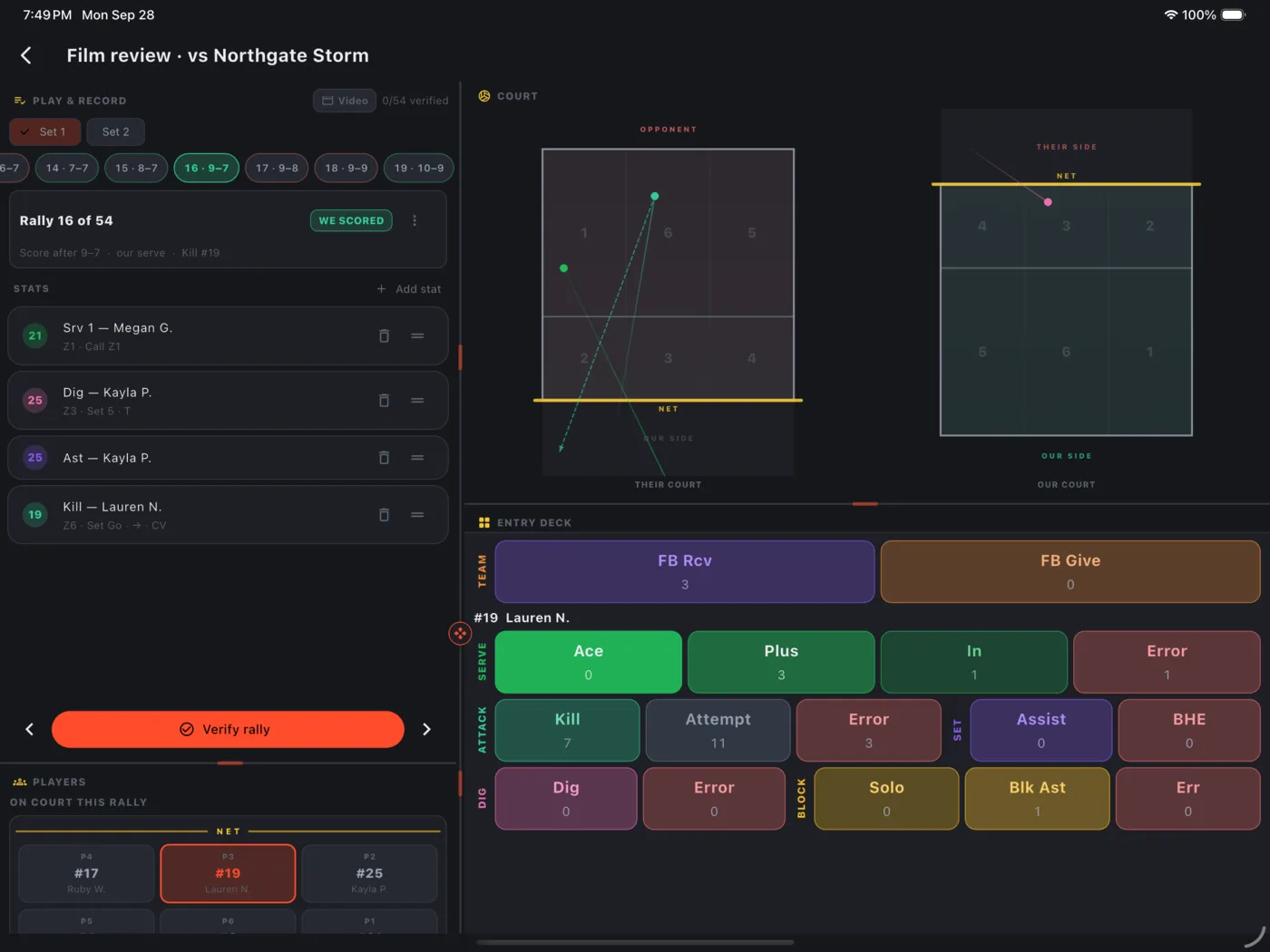
Pick a set, then a rally from the strip. Each rally shows who scored (tap the badge to flip it), the score after, the serve, any reason recorded, mini courts with where the taps landed, and the list of stats in that rally.
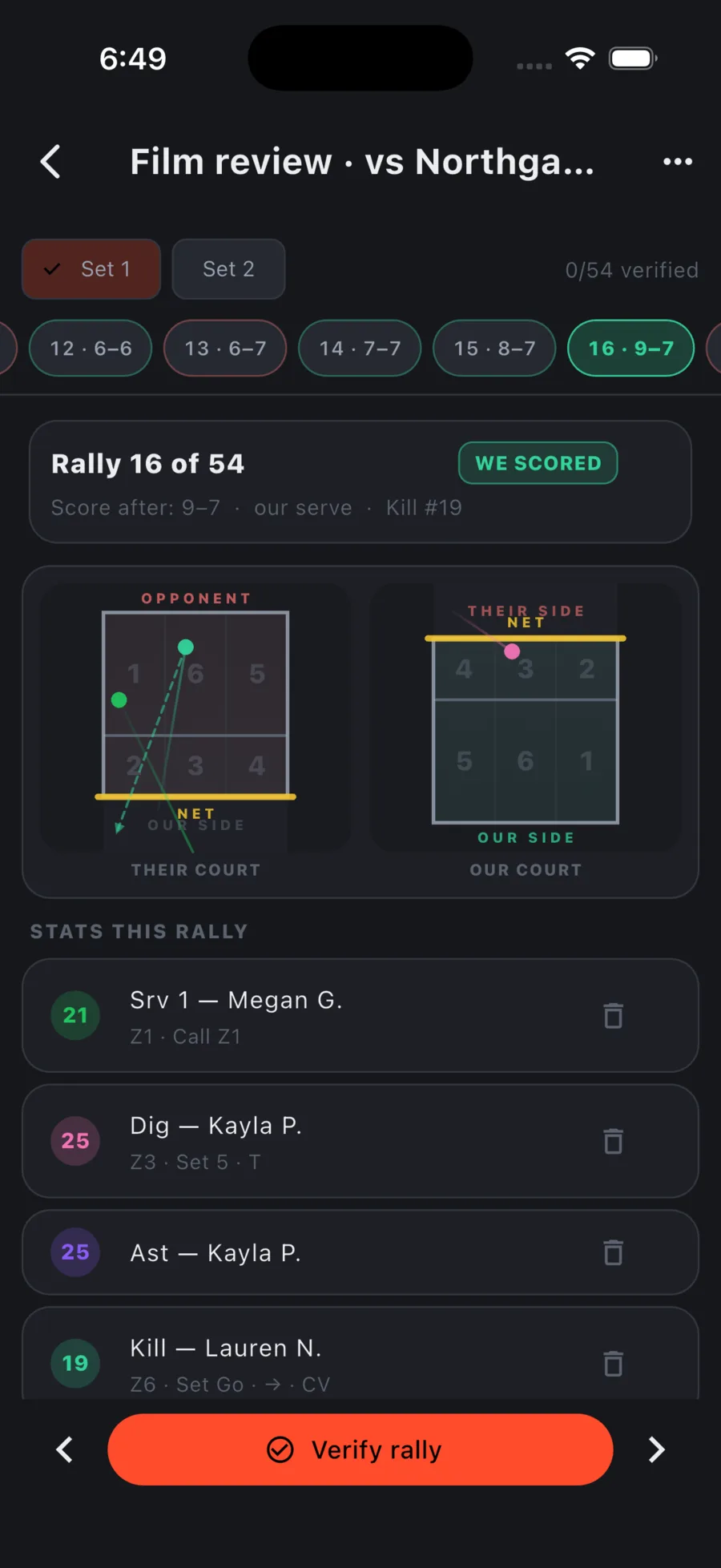
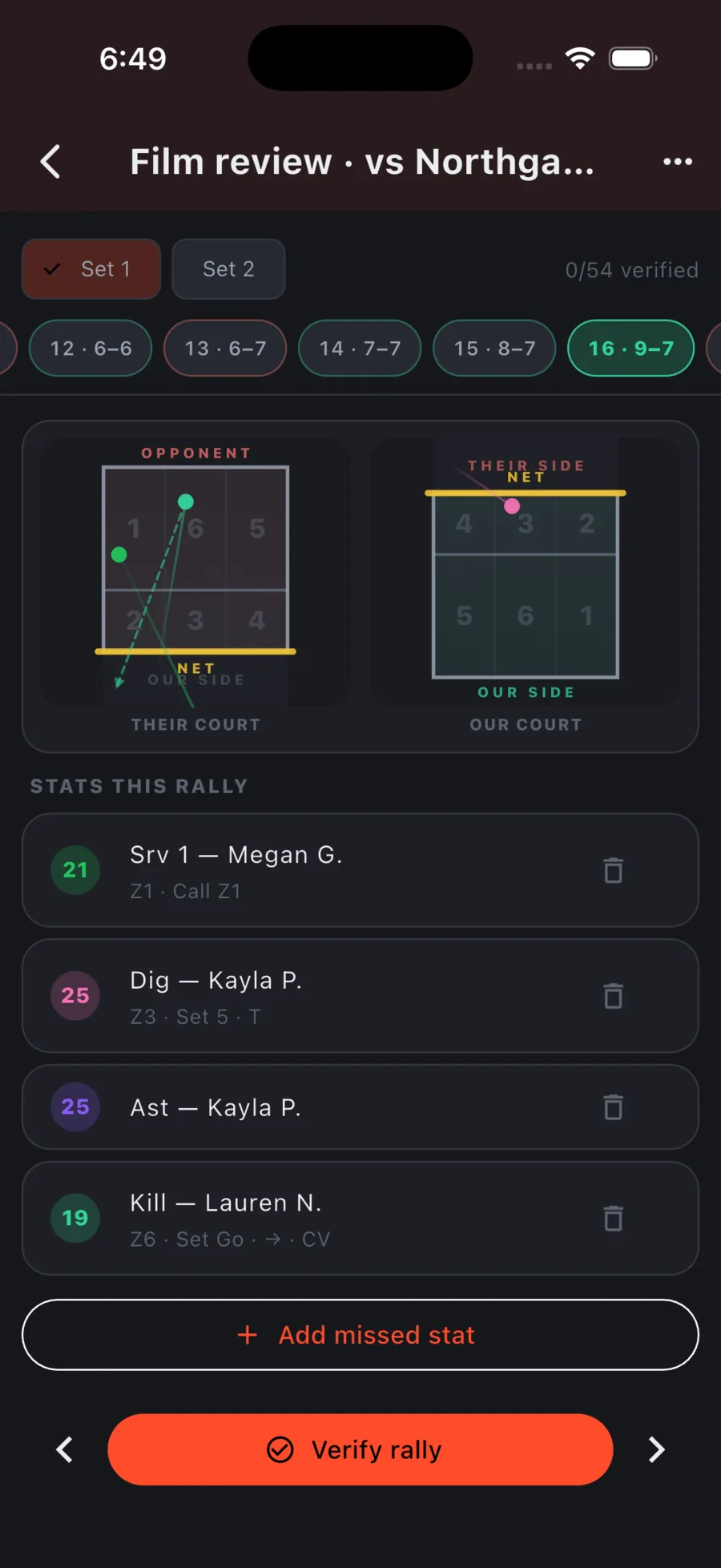
- Tap a stat to edit it: change the player, convert it to a different stat, or move it on the court.
- Drag a stat to reorder it within the rally.
- The trash icon removes a stat. An Undo appears for a moment in case you slip.
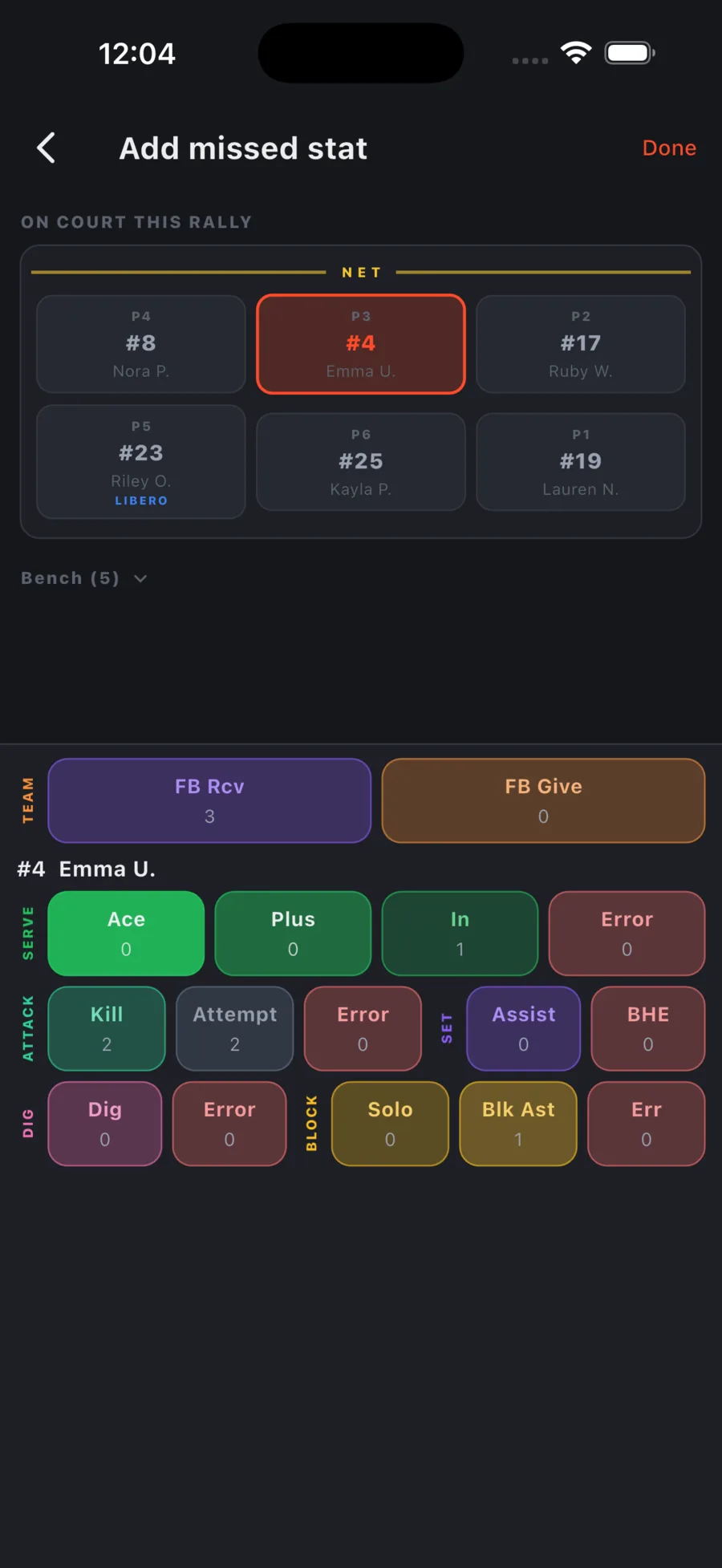
- Add missed stat opens the same player grid and stat deck as live tracking.
Verifying rallies
Tap Verify rally when a rally is right; the app moves to the next one. The count at the top tracks progress per set, and a fully verified set gets a check mark. Editing a rally clears its verification so you know to look again. Flags raised during the game (from the live screen or Coach view) show as chips that jump straight to that rally.
On a tablet
Tablets use the same four-panel layout as live tracking: Play & record (rallies and stats), Court, Players, and the Entry deck. Tap a stat in the list to edit it and the other three panels switch to that stat. Pick a player and stat and tap the court to add one. Drag the panel dividers to resize.
Editing a set
Edit match on the game sheet lists the sets. Each set has its own score editor, a Completed switch, timeouts (who called it, at what score, who was serving), the opponent's setter, and a menu to edit the opponent and notes, delete the set, or archive the game.
The same screen lets you fix the match's date and time, and each set's Set start. Use it for postponed games and for stats tracked later from film, where the recorded clock says when you tapped rather than when they played. Corrections sync to everyone on the team.