Browse guides
Rufio Stats
- Getting started
- People and roles
- Device settings
- Team tracking settings
- Beach doubles (beta)
- Live tracking
- Tracking together
- When the connection drops
- Drafts and merging
- Film review
- Game film
- Recording games
- Stream a game to Facebook
- Stream a game to YouTube
- Tournaments
- Stats and dashboards
- Dashboards
- RufioStats for college & club programs
- The Practice tab
People and roles
Invite helpers, players, and fans, and control what each of them can do.
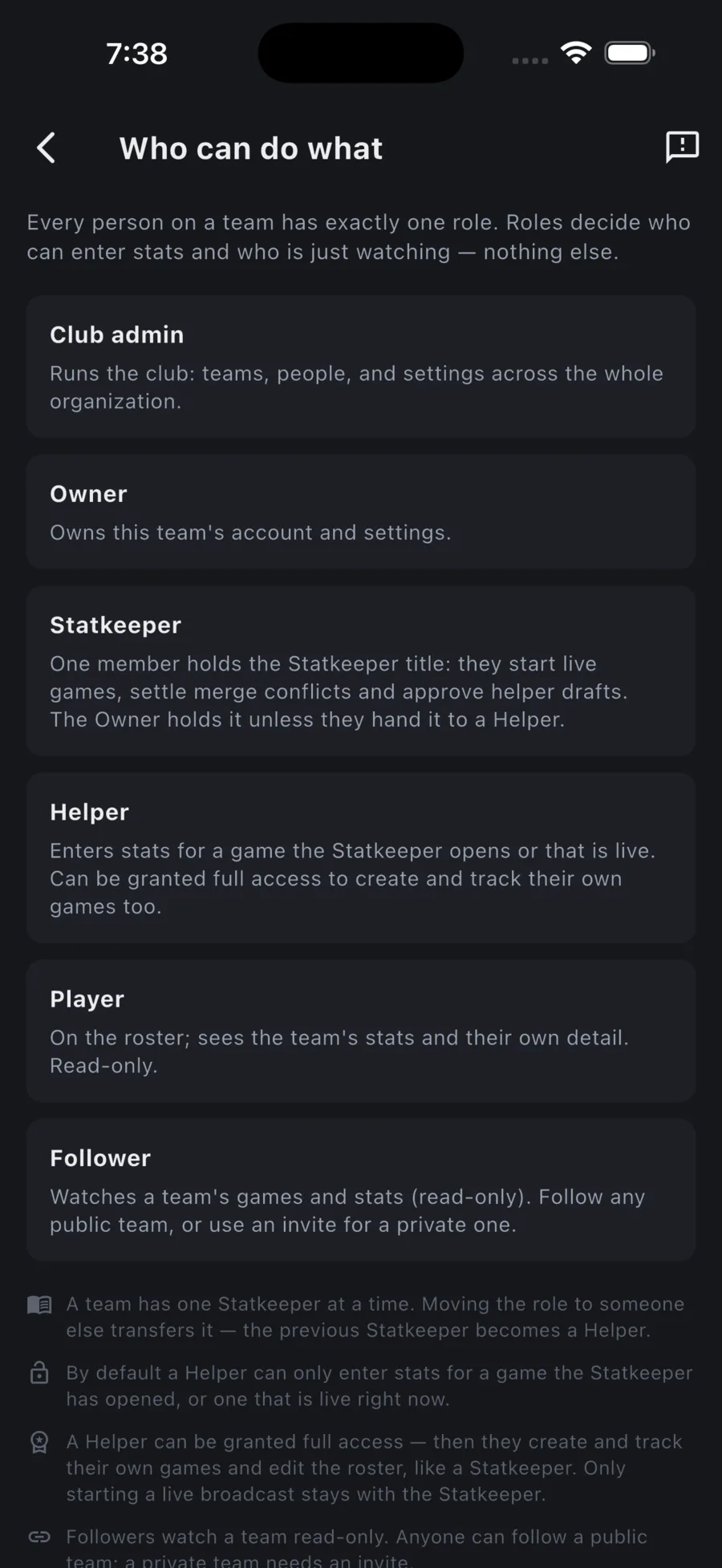
The roles
| Role | What they do |
|---|---|
| Club admin | Runs the club: teams, people, and settings across the whole organization. |
| Owner | Owns the team's account and settings. Holds the Statkeeper title unless they hand it to a Helper. |
| Statkeeper | One per team. Starts live games, settles merge questions, and approves helper drafts. |
| Helper | Enters stats for a game the Statkeeper opens or that is live. Can be given full access to create and track their own games. |
| Player | On the roster. Sees the team's stats and their own detail. Read-only. |
| Follower | Watches games and stats. Read-only. Anyone can follow a public team; private teams need an invite. |
The Manage screen
Open the team page (gear next to the team name) and tap Manage. Only the Owner and Statkeeper can open it.
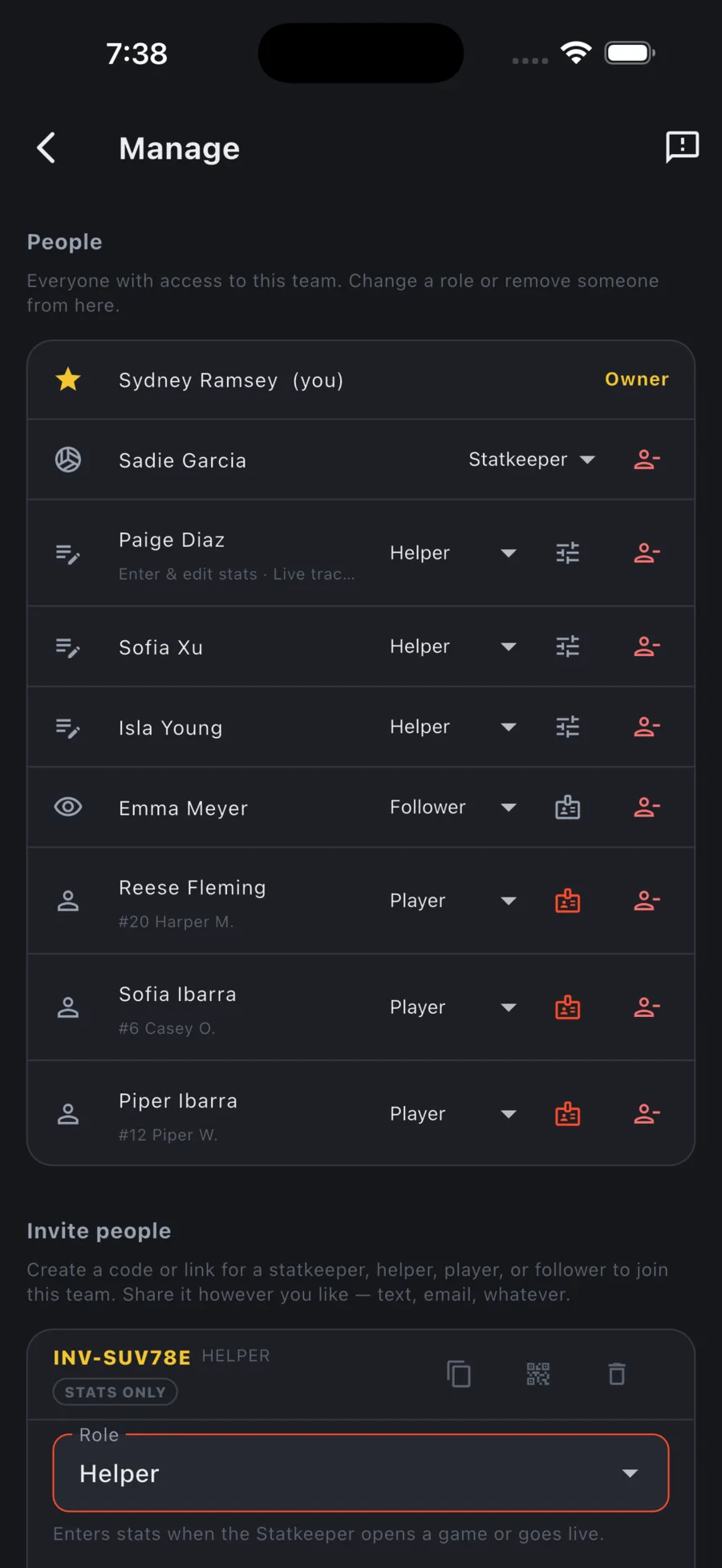
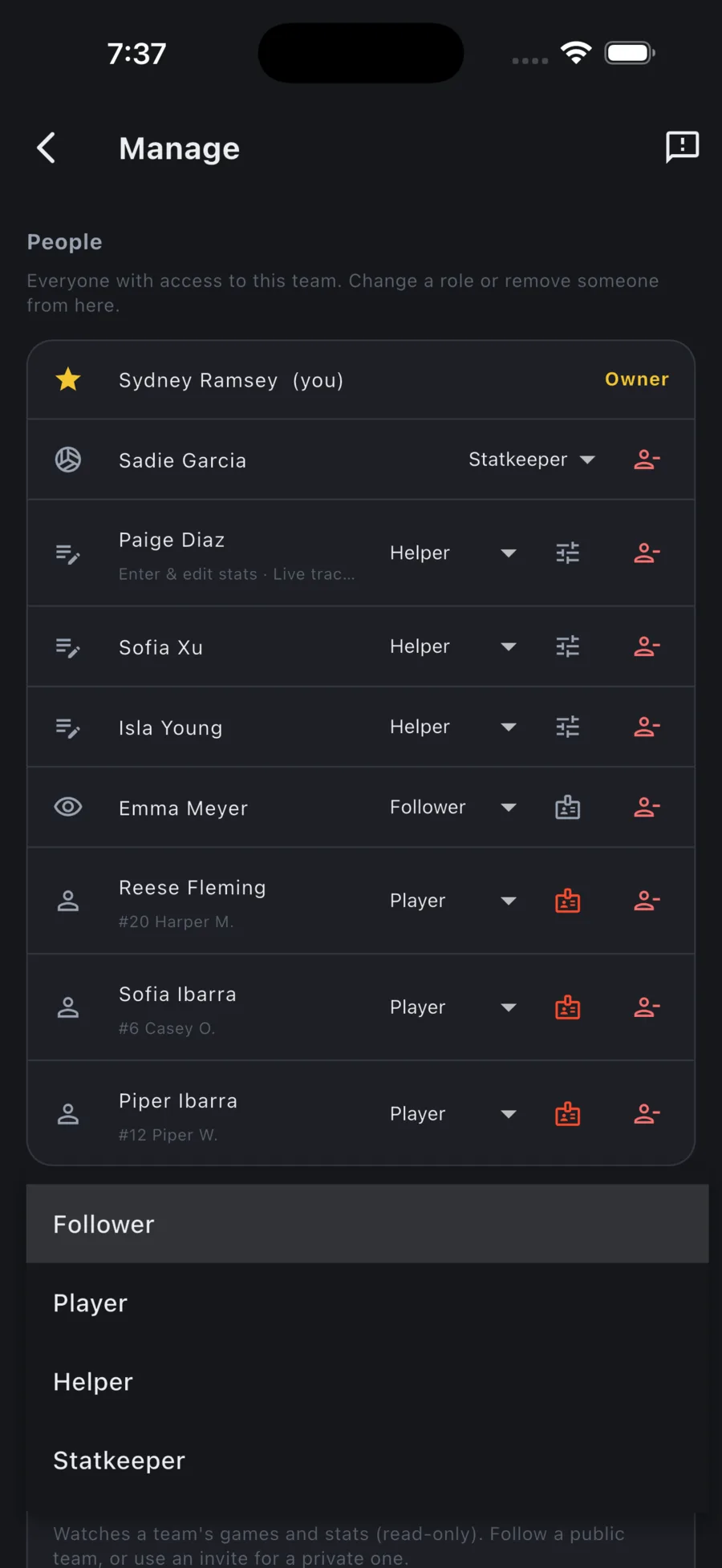
- Change someone's role with the dropdown on their row. Ownership is not a dropdown option; it moves only by transfer.
- The sliders icon on a Helper row opens Helper permissions.
- The badge icon on a Player or Follower row links them to a spot on the roster, so their account shows the right stats.
- The person-minus icon removes someone from the team.
Helper permissions
A new Helper can enter stats and track live games, and nothing else. Two presets cover most cases: Stats only and Full access. Full access lets a Helper create and track their own games and edit the roster, like a Statkeeper. Only starting a live broadcast stays with the Statkeeper.
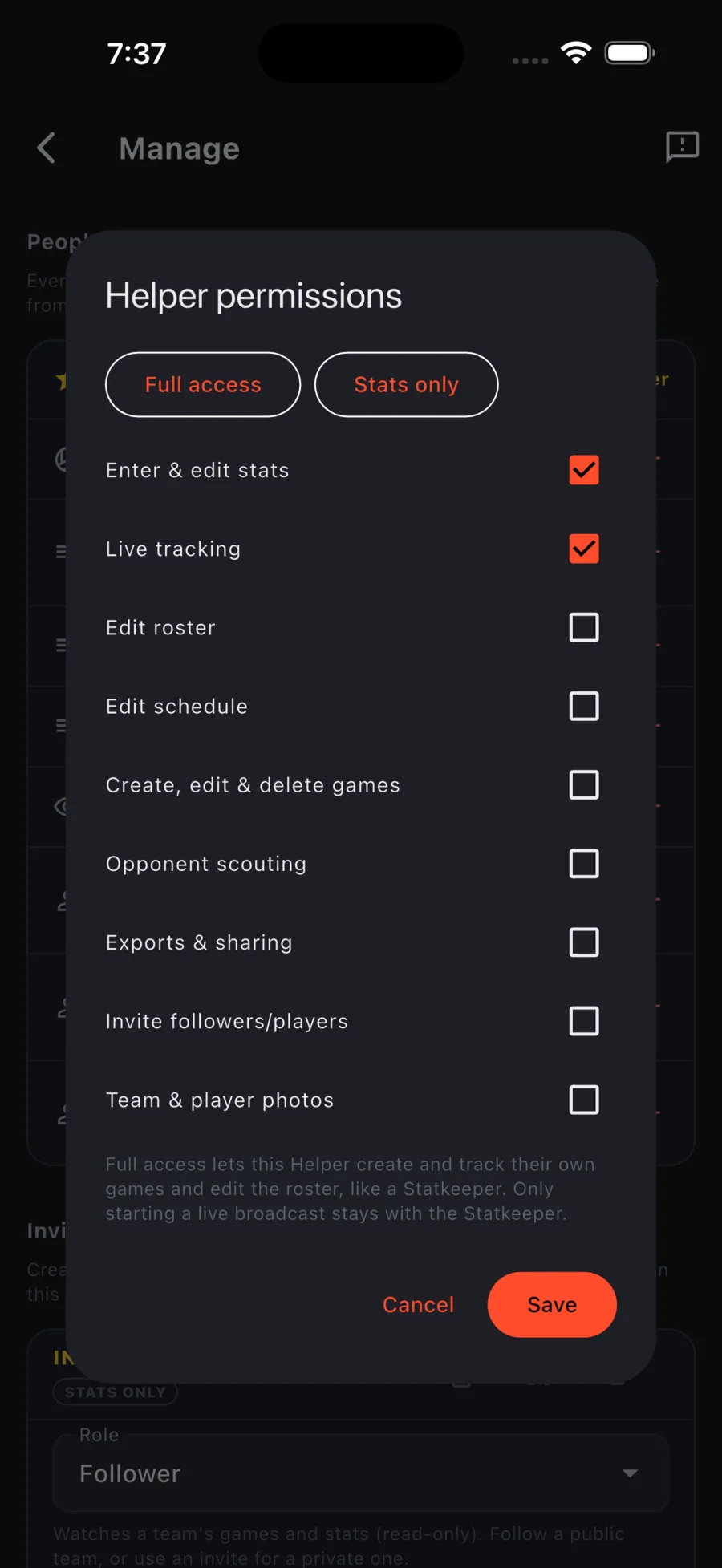
Without full access, a Helper who starts a match from their own device tracks a draft instead of a team game. See Drafts and merging.
Inviting people
- On the Manage screen, scroll to Invite people.
- Pick a Role. For a Helper, switch on Full access if they should create their own games.
- For a Player invite, pick Which player is this? so the account links to the right roster spot. For a Follower you can optionally pick a player they follow.
- Add an email to send the invite automatically, or leave it blank and share it yourself.
- Tap Create invite.
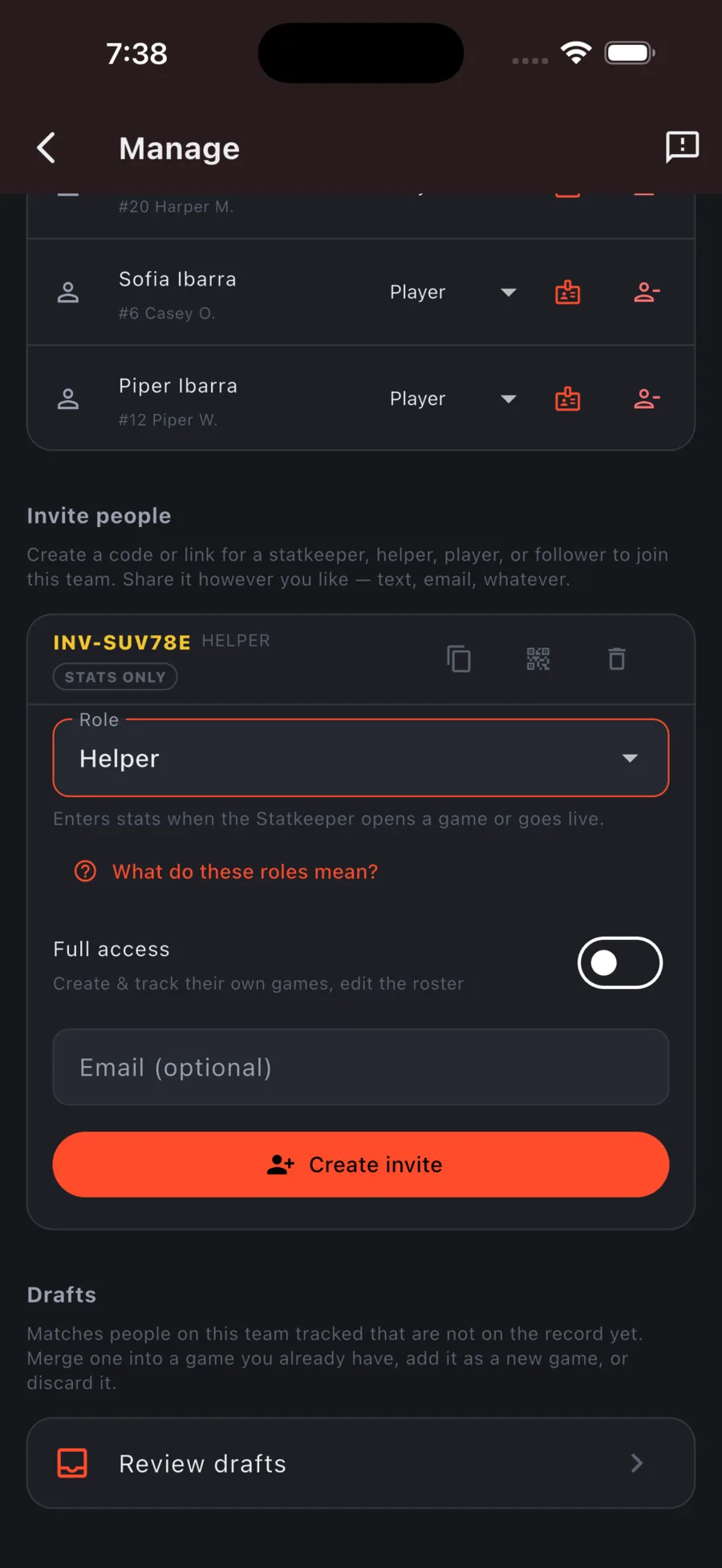
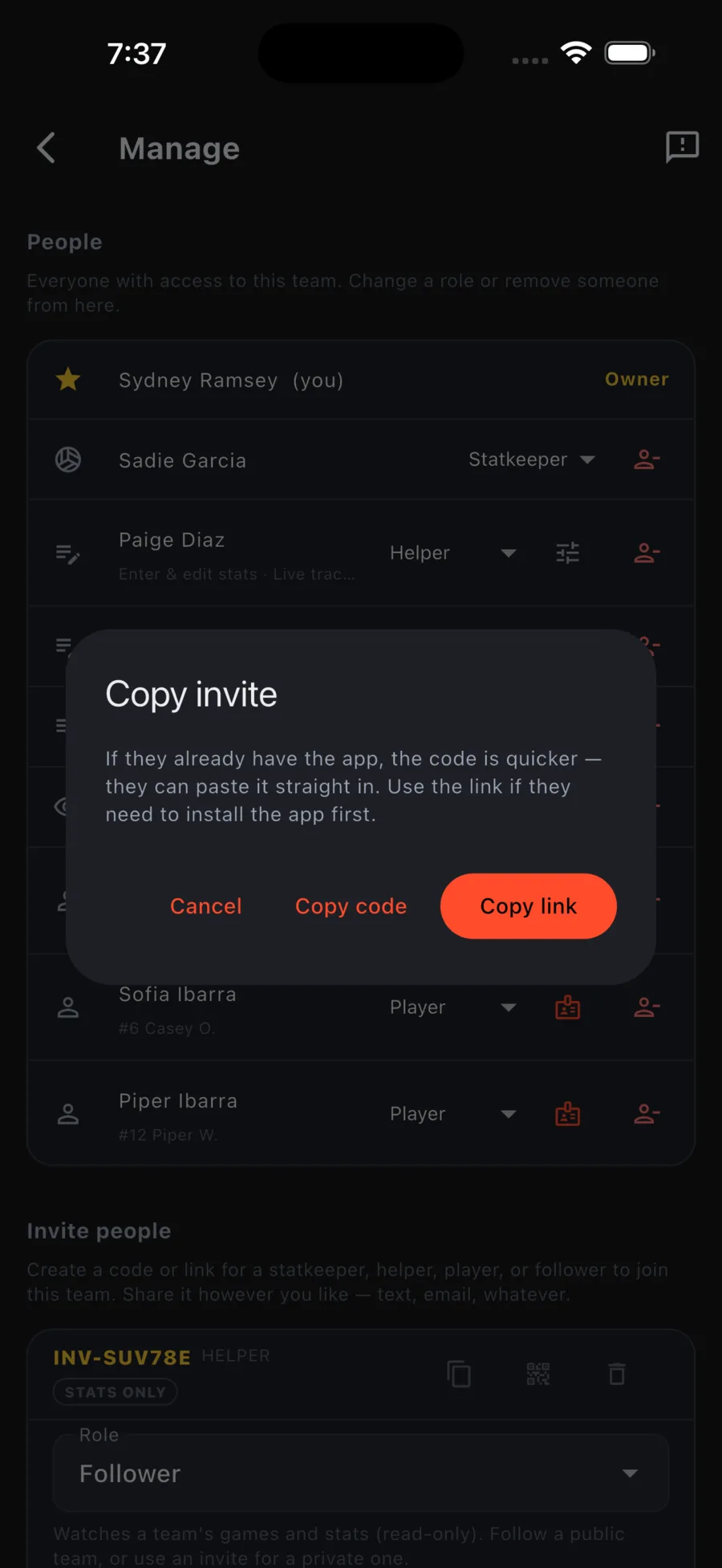
Each invite has a code (like INV-SUV78E) and a link. When you tap copy or share, the app asks which one you want:
- Code: quicker if they already have the app. They paste it into Setup or Join a team with a code.
- Link: better if they still need to install the app. It opens a page that shows the team and role, then takes them into the app.
- QR code: shows the link as a QR code for people standing next to you.
Joining a team
If you got a link, open it. You will see the team name and the role you are joining as, then Join (or Sign in & join).
If you got a code, open the menu and tap Setup, then I was invited to a team, and enter the code. The same option is in Settings under Join a team with a code. Codes start with INV-.
What members and the public can see
On the team page under Stat visibility, the Owner sets two levels: what Team members see (players, helpers, statkeepers) and what the Public sees. Each can be Everything, Standard (box scores, no court or rotation detail), or Basic (scores and schedule only).
- Public team page: anyone with the link can view, no account needed. Off means members only.
- List in public directory: lets people find the team by searching. Your link works either way.