Browse guides
Rufio Stats
- Getting started
- People and roles
- Device settings
- Team tracking settings
- Beach doubles (beta)
- Live tracking
- Tracking together
- When the connection drops
- Drafts and merging
- Film review
- Game film
- Recording games
- Stream a game to Facebook
- Stream a game to YouTube
- Tournaments
- Stats and dashboards
- Dashboards
- RufioStats for college & club programs
- The Practice tab
Device settings
Preferences that live on this phone or tablet and apply to everything you track on it.
Where to find them
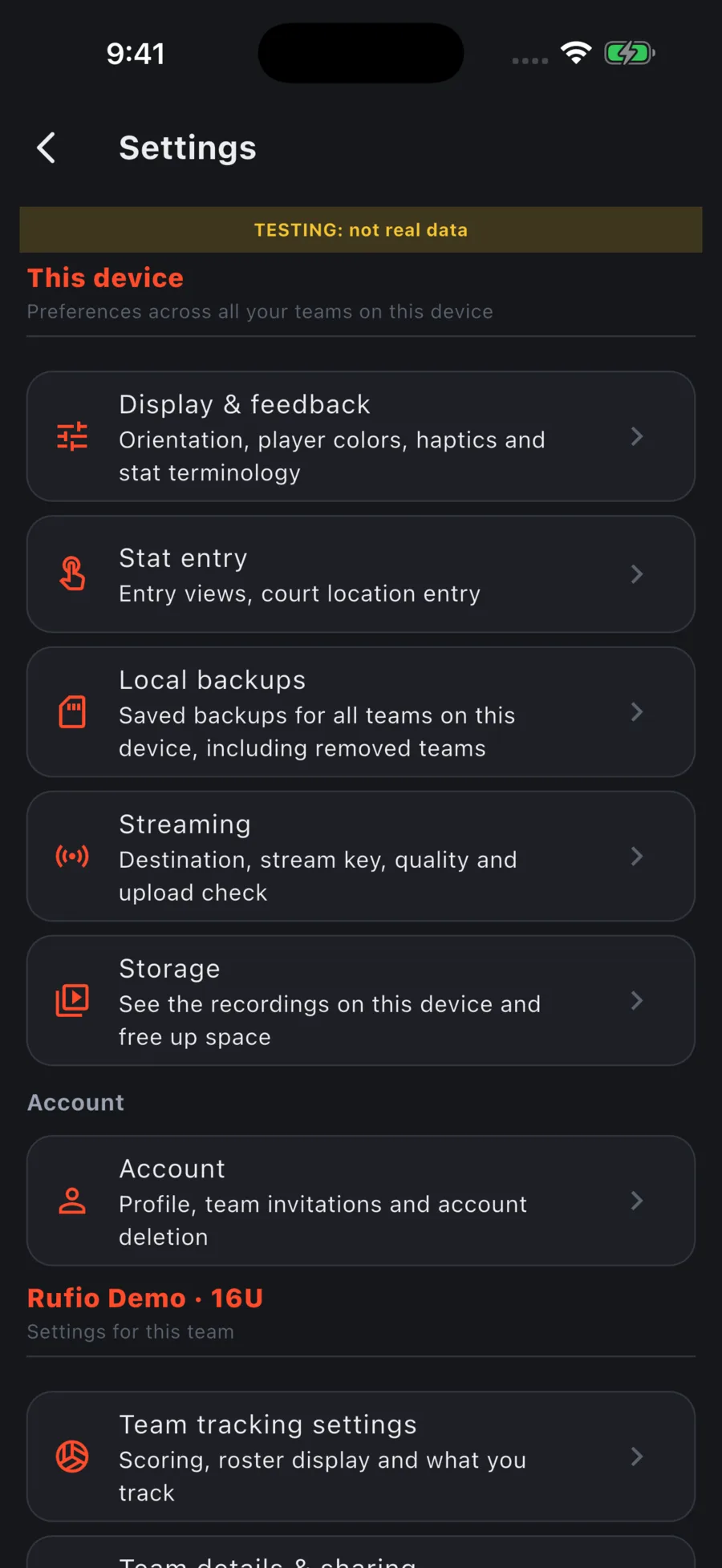
Open the menu and tap Settings. Display & feedback and Stat entry apply across teams on this device. Account holds your profile, invitations and account deletion. Data & storage holds backups for the active team, import and export, plus every backup and recording on this device. Team tracking settings and sharing open from the gear next to the team in the menu.
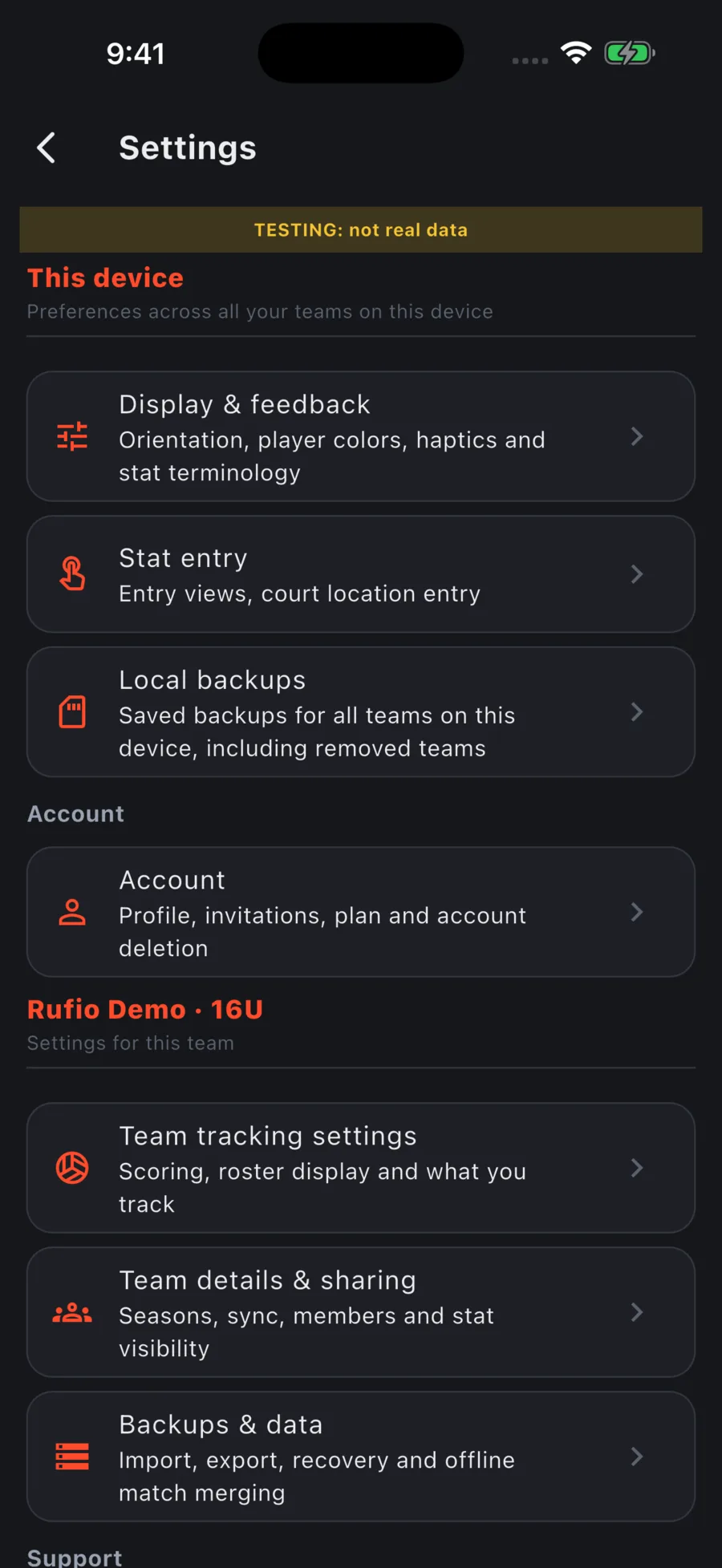
Streaming
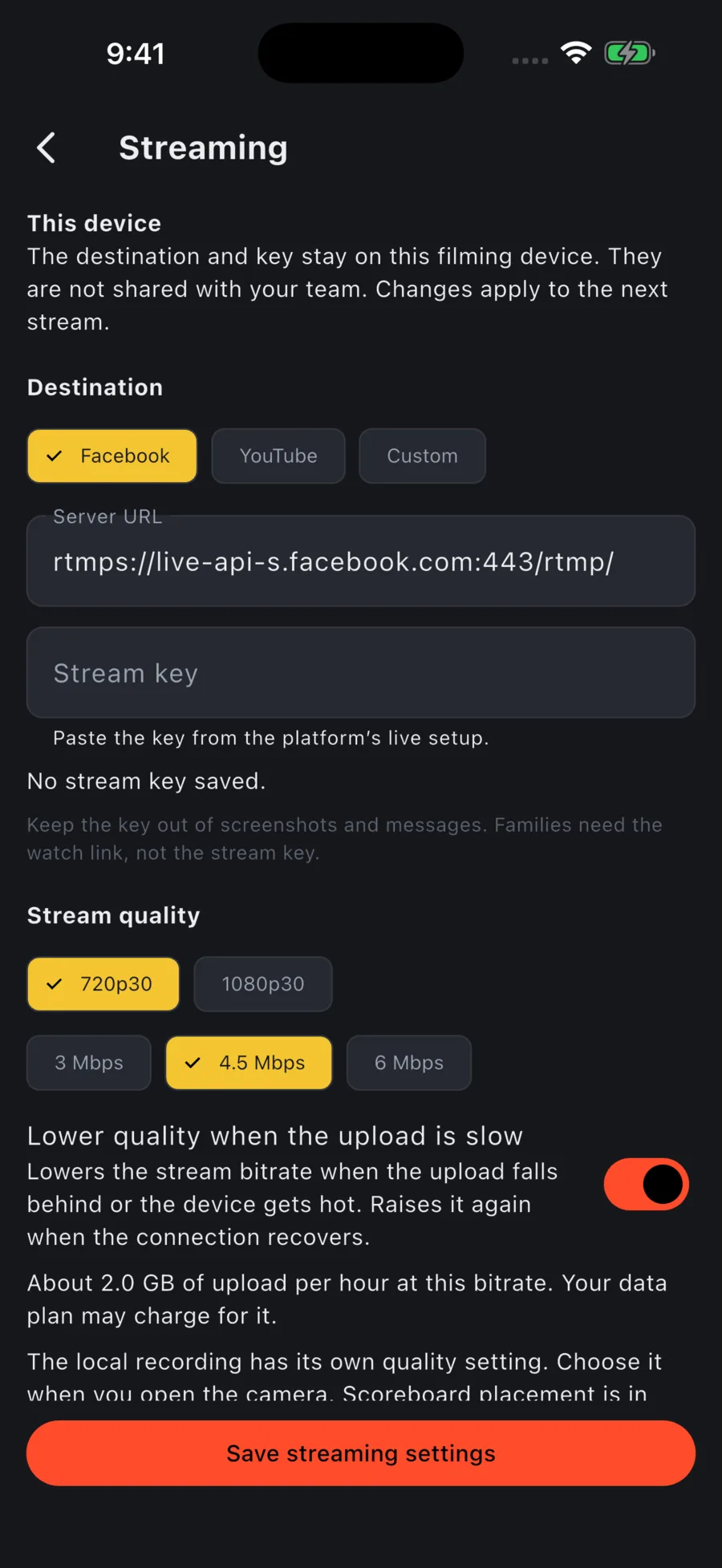
On the filming iPhone or iPad, open Settings, then Streaming under This device. Set the destination, server URL, stream key and quality here, then tap Save streaming settings. The key stays on this device and is not shared with the team. You do not need team-edit permission.
Check upload measures the current connection using up to 16 MB of test data. The local recording quality is chosen separately when you open the camera. See Facebook setup or YouTube setup for the platform steps.
Display & feedback
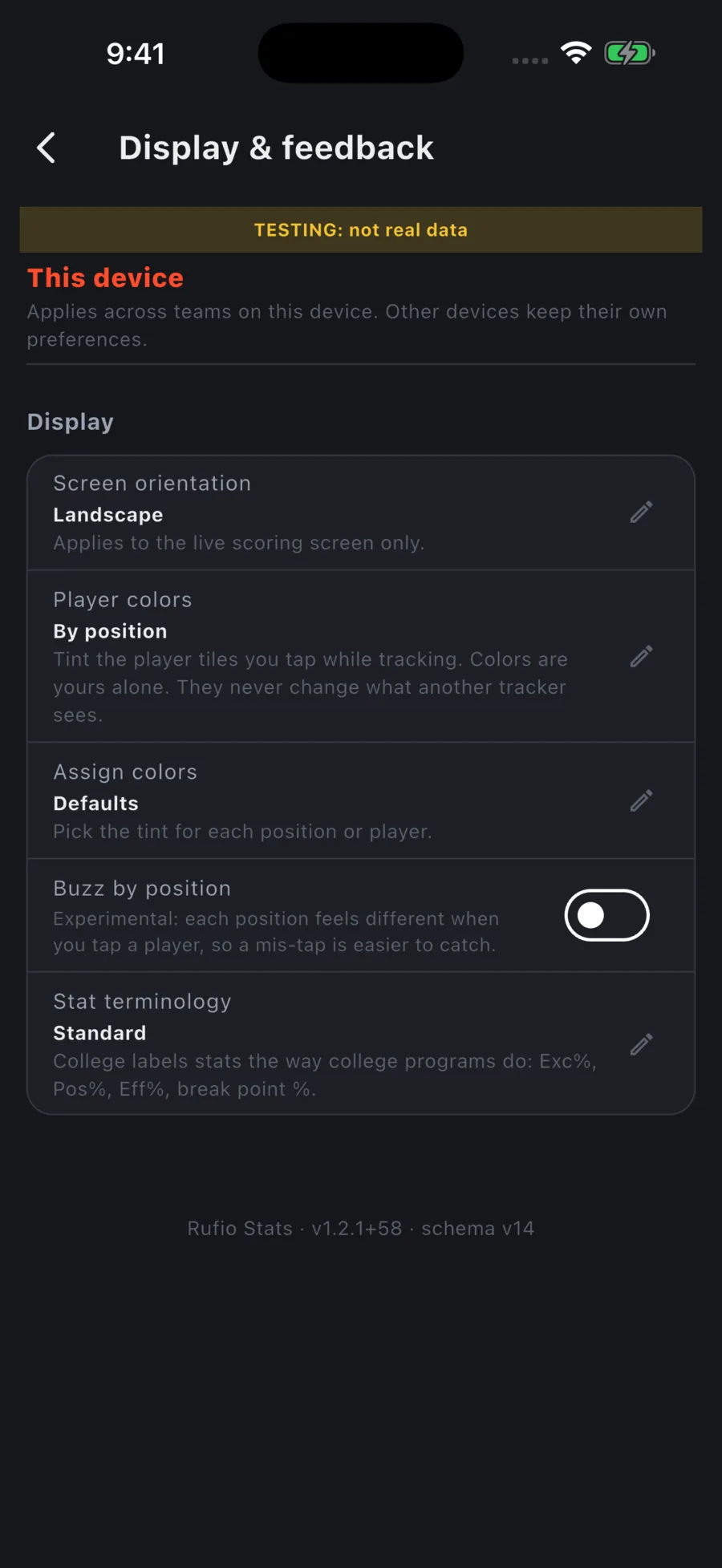
- Screen orientation: applies to the live tracking screen only. Auto rotates with the device. Phones in advanced mode default to landscape; simple mode defaults to portrait; tablets rotate freely.
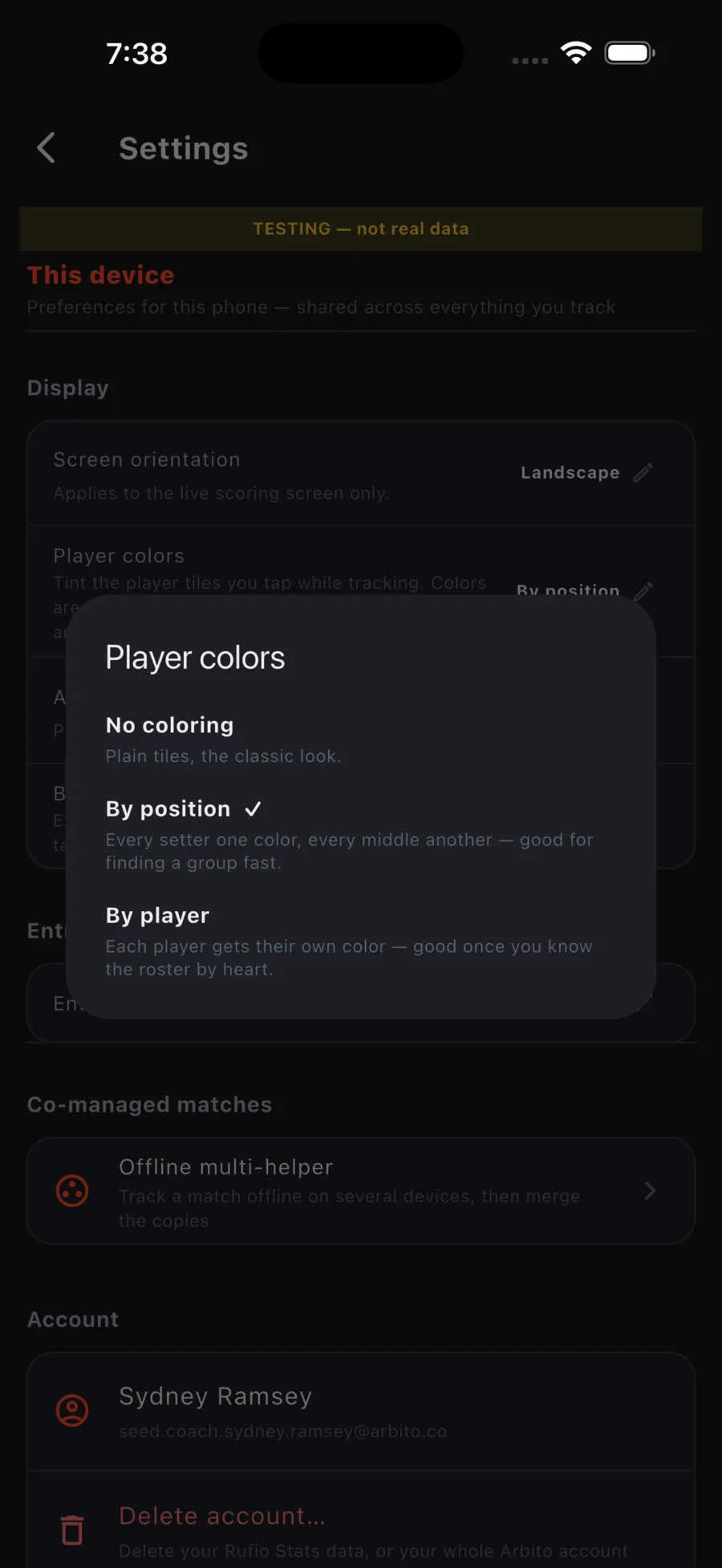
- Player colors: tints the player tiles you tap during a game. By position gives every setter one color and every middle another. By player gives each player their own. Colors are yours alone and never change what other trackers see.
- Assign colors: pick the tint for each position or player.
- Buzz by position: an experimental haptic. Each position feels different when tapped, so a mis-tap is easier to catch.
Entry views
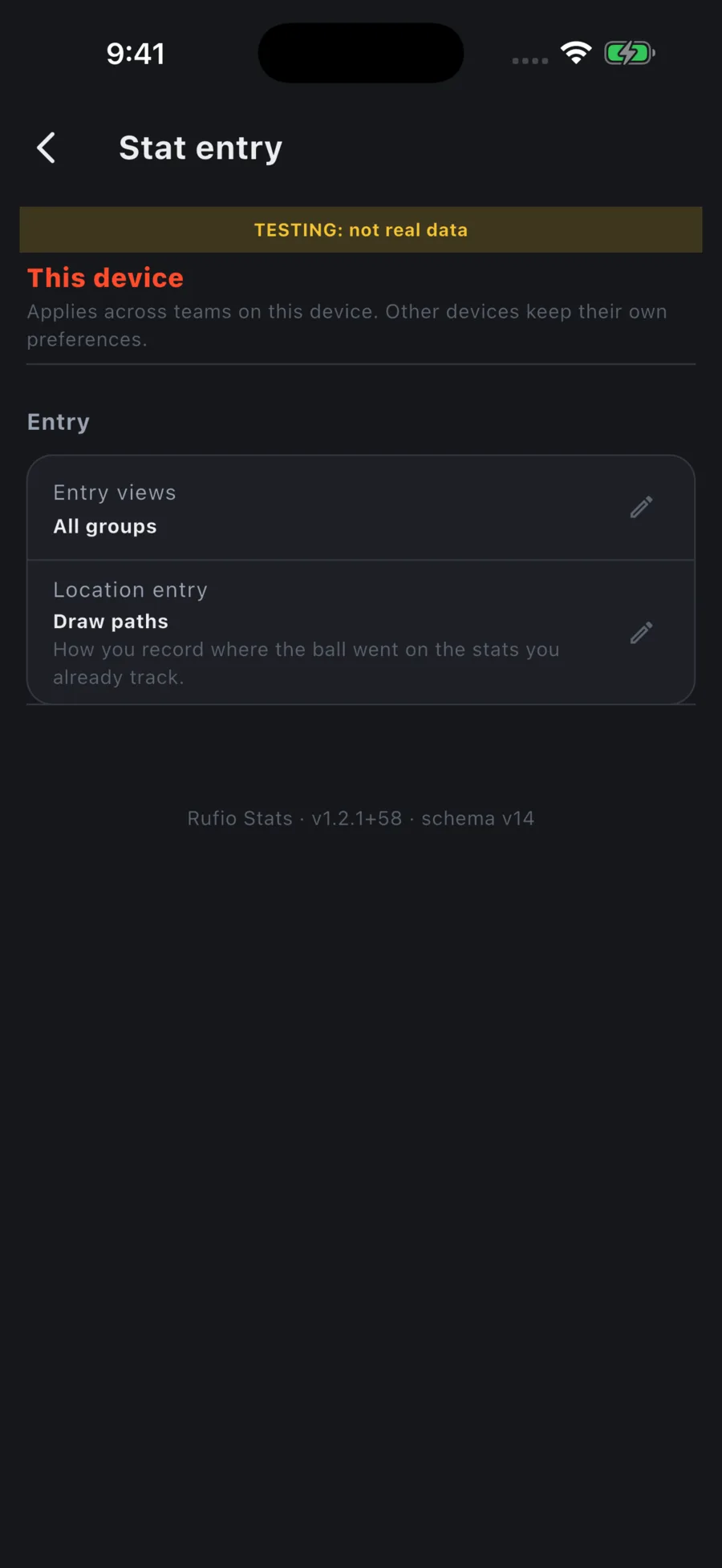
Open Settings → Stat entry. Entry views picks which stat groups this device shows on the live screen: Serve, Serve receive, Attack, Set / BHE, Dig, Block. If you only ever track defense on your phone, turn the rest off and the deck gets simpler. When you join a shared live session, your stat assignment replaces this.
Location entry: draw paths or tap zones
Location entry picks how you record where the ball went, on the stats you already track. It is set per device, so a statistician on a phone can tap zones while the iPad beside them draws paths in the same match. Find it in Settings → Stat entry, in the live quick-settings drawer under View, or on the court-taps page of Choose a tracking level….
| Mode | What you do |
|---|---|
| Draw paths | The default. Tap the exact spot on the court, or drag from the hitter to where the ball came down. The most detail: paths, dots and heatmaps all come from this. |
| Tap zones | The court becomes a grid of large zone buttons. Tap the zone the ball landed in, then the result. On attacks, digs and blocks you can also tap the zone it was hit FROM on the other half, which lights the likely set type the same way a drawn path does. On your own serves there is a row of serve spots behind your end line for where along it the serve was struck. There is an Out strip past the end line for a ball that landed outside. Tap two neighbouring zones for a seam. Every one of these is optional. |
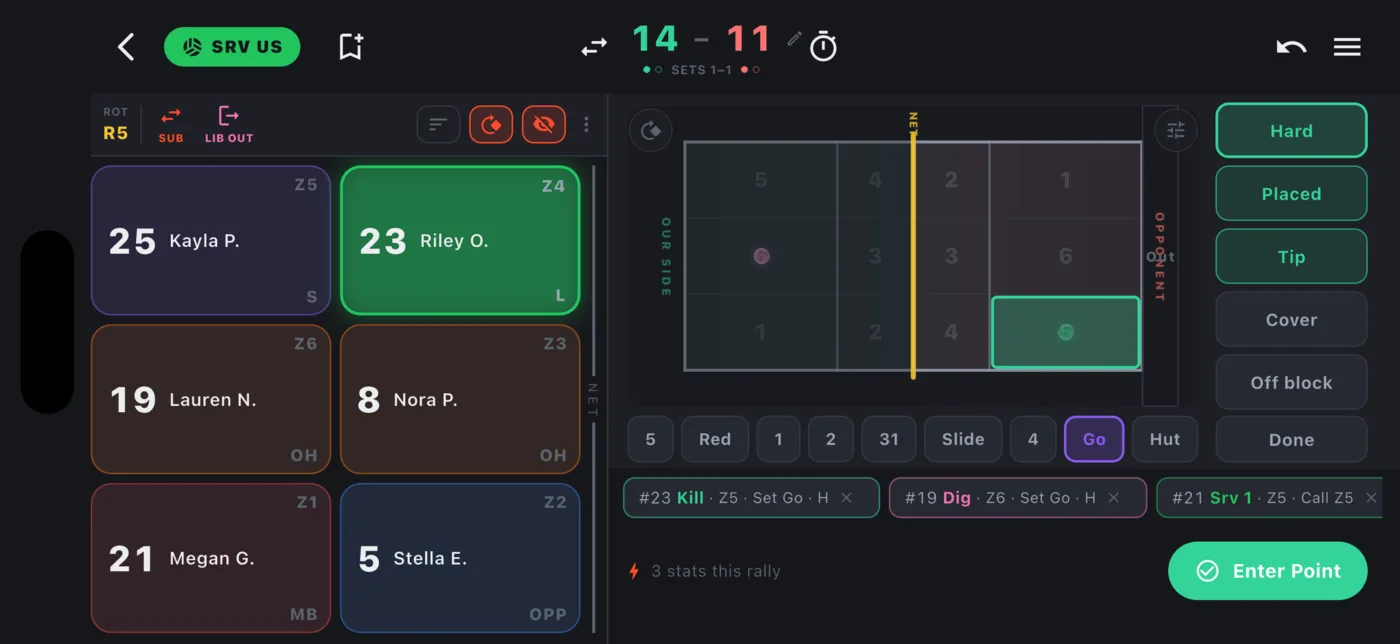
Both modes feed the same stats. Zone taps record a zone and no exact point, so they count everywhere zones are counted (zone charts, tendencies, serve and attack breakdowns) and are left off the dot and heat maps, which need a point. The result on its own still records: a zone is optional and never blocks the tap that logs the stat.
Co-managed matches
- In Settings, open Data & storage → Offline multi-helper. It shows what is waiting to merge from other devices, and lets you review any disagreements. See When the connection drops.
Update notices
Open Settings → Help & about → What’s new for the version history. Show update notices controls brief feature highlights on this device after an update. Turn it off there or tap Turn off update notices on a banner. You can still open the history with notices off.
Data and exports
- Export JSON: a full backup of the selected team or player, including its roster, games and settings. Always free.
- Export CSV: a spreadsheet of this team or player’s stats, either season totals (one row per player) or per game.
- Import JSON: merge a backup into the selected team or player, or replace its data. You get a preview before anything changes. Members with read-only access do not see import or recovery options.