Browse guides
Rufio Stats
- Getting started
- People and roles
- Device settings
- Team tracking settings
- Beach doubles (beta)
- Live tracking
- Tracking together
- When the connection drops
- Drafts and merging
- Film review
- Game film
- Recording games
- Stream a game to Facebook
- Stream a game to YouTube
- Tournaments
- Stats and dashboards
- Dashboards
- RufioStats for college & club programs
- The Practice tab
Game film
Attach a video or a YouTube link to a game, watch it beside the court while you track, and jump to any rally afterwards.
Attaching film
A YouTube link and its sync markers are shared with team members. Files and direct media links stay on the device that attached them. Open the game and, on a tablet, tap Attach film… in quick settings. On any device, tap ⋯ on a played game's card in the Games tab, open Review & video and use Attach video; Film review has the same option under Film options. To film the game in the app instead, see Recording games. Two sources:
| Source | What it does |
|---|---|
| Choose a file | A match video from this device. It is copied into the app on this device and never uploaded. |
| Paste a link | A YouTube link (watch, youtu.be, shorts or live) or a direct https .mp4 or .m3u8 file. YouTube links sync to team members; direct media links stay on this device. YouTube's own player handles playback, so expect the ads you would see on YouTube. A Hudl page link will not work; Hudl has no player the app can embed. |
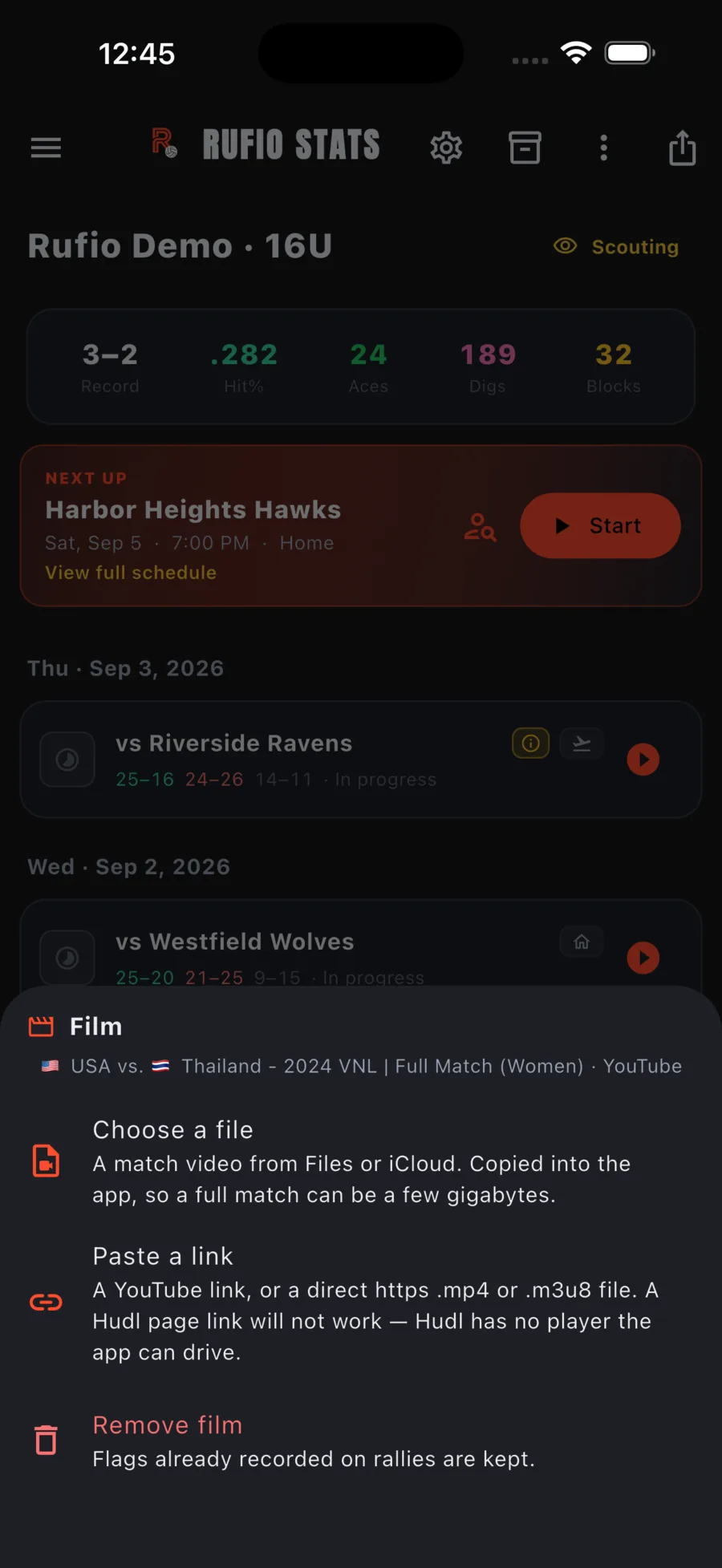
The sheet also asks Is this one continuous recording? Answer no for a live stream that dropped or a paused or edited recording. For a video with gaps, Watch game only jumps to rallies you mark instead of estimating where they are. Change it later under Video options in Watch game.
Watching a game and player highlights
Tap the Watch game play icon on a game card, or choose Watch game from its menu. Team members can watch without editing stats. Pick a player and a stat such as Kills or Aces to list matching rallies, then tap any rally to jump to its start. On a phone in landscape the list and filters move to a Rallies drawer.
To line up live stats with film, select the first rally of a set and pause at the serve. Open that rally's Rally options and choose Sync set from this rally. Every rally in the set moves to match. Do it once per set, then check a few rallies near the middle and end, and sync again from a rally after any pause or cut in the recording.
Syncing uses the times recorded while you tracked the game. Fix this rally only moves one rally that is still off, and works for stats entered from video or imported, which have no recorded times. For a video with gaps, pause at a rally's serve and use Mark rally start here. Reset sync in Video options starts over. Jumps start 7 seconds before the rally; game editors can pick 5 or 10 seconds or no lead-in.
A recording made in the app is lined up for you. See Recording games.
Film while you track
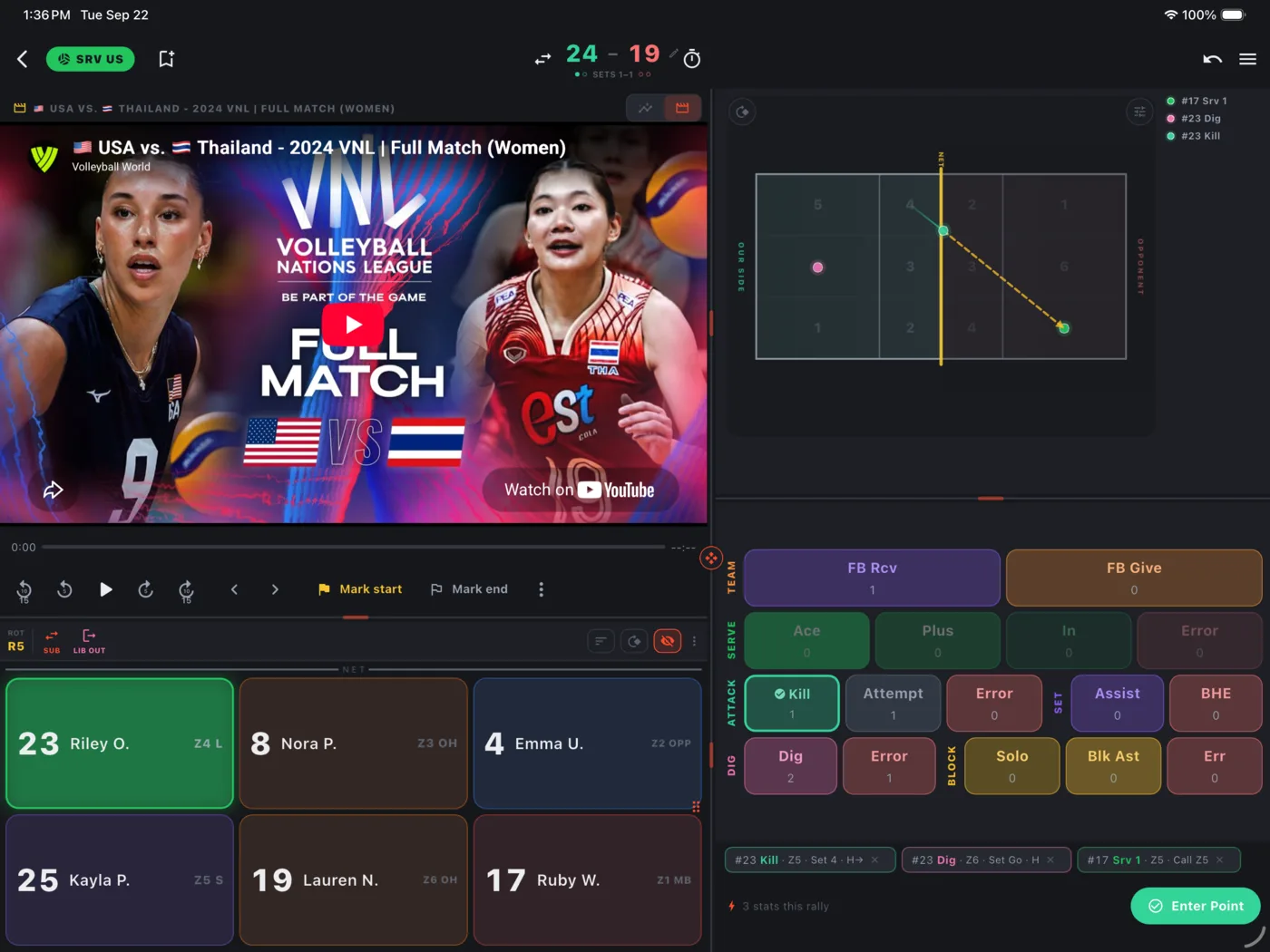
On a tablet the film plays in the top-left panel while you track. The controls run on one row: the time, the scrub bar and the play controls. The ⋮ menu holds rally jumping, the rally marks, frame stepping, playback speed (its own submenu with six choices), full screen, Change video…, and Condensed controls for the wider two-row layout.
- Every rally you enter puts a flag on the scrub bar. Flags from earlier sets stay, so you can jump back across the whole match.
- Stats you log while the film plays remember where in the video they happened.
- The film keeps playing when you tap a stat, and it stays where it was when the next set starts.
- A phone has no room to show film beside the court, so tracking with film open needs a tablet. A phone can still attach film for review afterwards.
Film in Film review
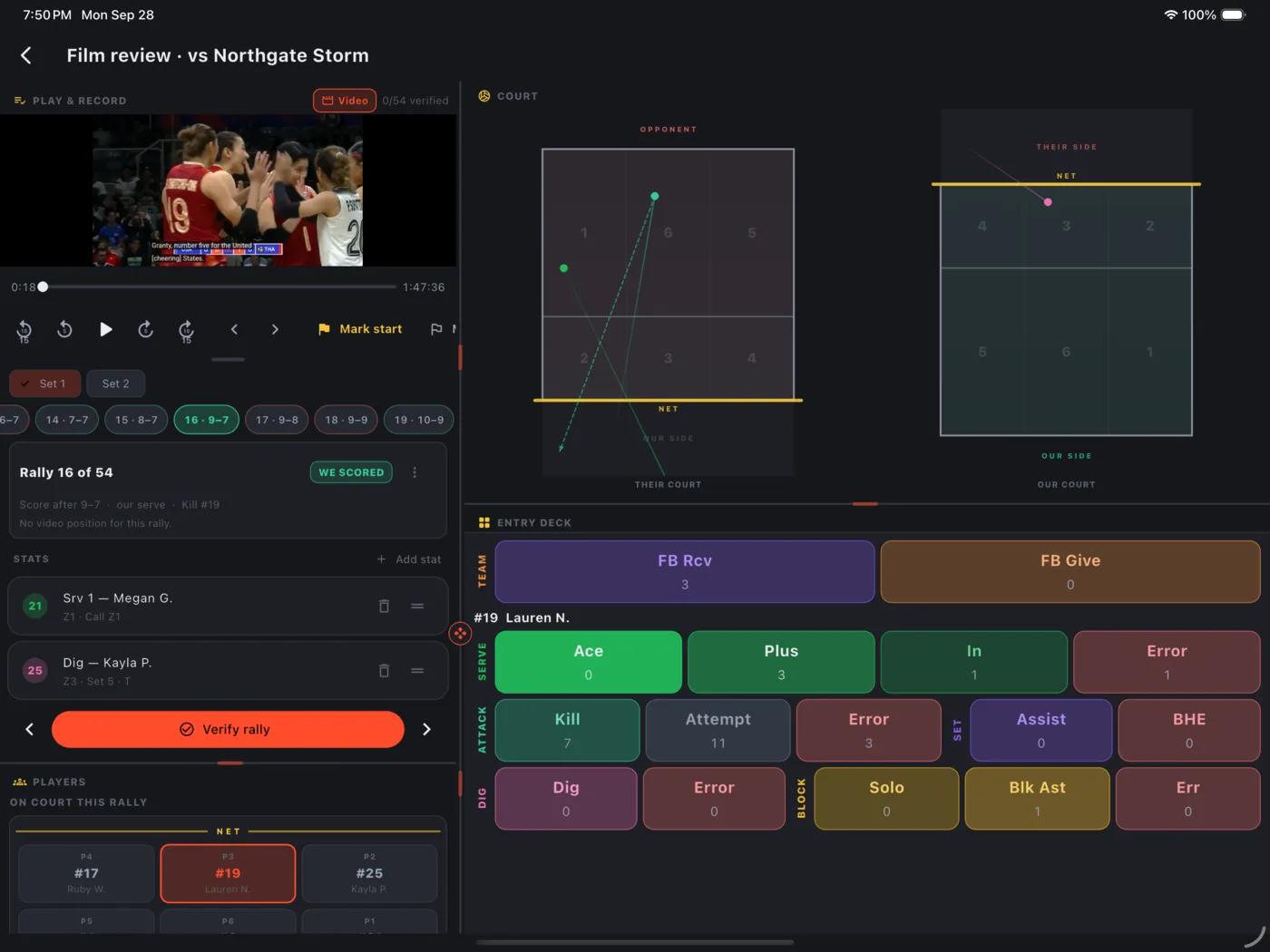
Open Film review on a game with film attached. On a tablet the video pane sits next to the rally list; on a phone a Video band sits above it. Select a rally and the film jumps to it. Each stat in the rally shows a tappable timestamp that seeks the video to that moment.
Changing or removing film
Open the attach sheet again (quick settings on a tablet, or the video row under Review & video on the game's sheet) and pick a new source, or tap Remove film. Removing a file frees its space on this device. Flags already recorded on rallies are kept either way.