Browse guides
Rufio Stats
- Getting started
- People and roles
- Device settings
- Team tracking settings
- Beach doubles (beta)
- Live tracking
- Tracking together
- When the connection drops
- Drafts and merging
- Film review
- Game film
- Recording games
- Stream a game to Facebook
- Stream a game to YouTube
- Tournaments
- Stats and dashboards
- Dashboards
- RufioStats for college & club programs
- The Practice tab
Stream a game to YouTube
Enable your channel, prepare Live Control Room and send the match from your filming device.
Enable live streaming before match day
- On a computer, open YouTube Studio. Check the channel name, especially if your Google account manages more than one channel.
- Choose Create, then Go live. If YouTube asks you to verify the channel or request live access, complete that process before match day. First-time activation can take up to 24 hours.
- Return after activation and confirm you can open Live Control Room. Confirm the account satisfies YouTube’s age requirements and has no live-streaming restrictions in the past 90 days.
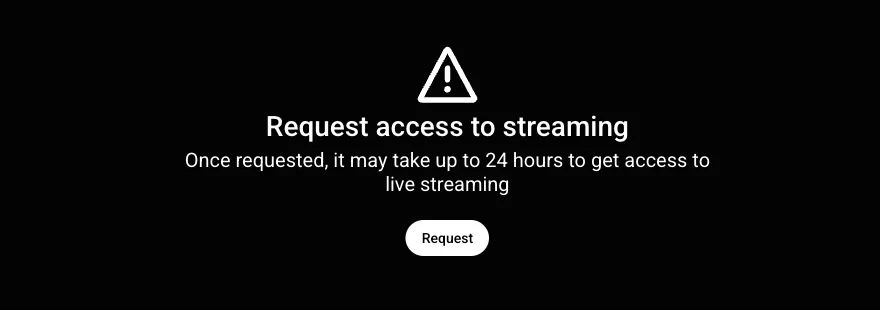
Rufio Stats sends video as an external encoder. Use YouTube Studio’s encoder setup, not the YouTube app’s mobile Live button. YouTube lists a 50-subscriber minimum for its mobile-app workflow; its encoder setup has separate requirements. Check getting started and YouTube’s mobile requirements if you see a subscriber message.
Prepare the match in Live Control Room
- In Live Control Room, open Stream for an immediate broadcast. For a match later, open Manage, choose Schedule stream and Create new, or reuse an earlier broadcast’s settings.
- Enter the match title and description. Review the intended audience and the Made for kids answer using YouTube’s audience guidance. Do not choose an answer just to keep chat enabled.
- Choose Visibility. Use Private for a connection test. For families, use the visibility your team has agreed on.
- If you schedule the match, copy its watch link for families. At match time, open that exact event from Manage so you connect to the event you shared.
| Visibility | Who can watch |
|---|---|
| Public | Anyone. The stream can appear in search and on the channel. |
| Unlisted | Anyone with the link, including someone it is forwarded to. This is not team-only access. |
| Private | You and the accounts you explicitly invite through YouTube. Families need the invited accounts to watch. |
Check the visibility settings rather than relying on the default. For an ordinary match stream, Normal latency is a reasonable first test; lower latency can mean more buffering. Stream settings
Copy the secure server URL and key
- In the intended stream or event, find Stream settings and Stream key. Copy the key without putting it in a message or screenshot.
- Find Stream URL. YouTube may show an
rtmp://address first; use the lock control to show the secure RTMPS address, then copy it. - Keep Live Control Room open. The server URL belongs in the Server URL field in Rufio Stats and the key belongs in Stream key. Do not join the two values together.
Use the address shown for your broadcast instead of copying an example server from a tutorial. YouTube RTMPS instructions
Enter the destination in Rufio Stats
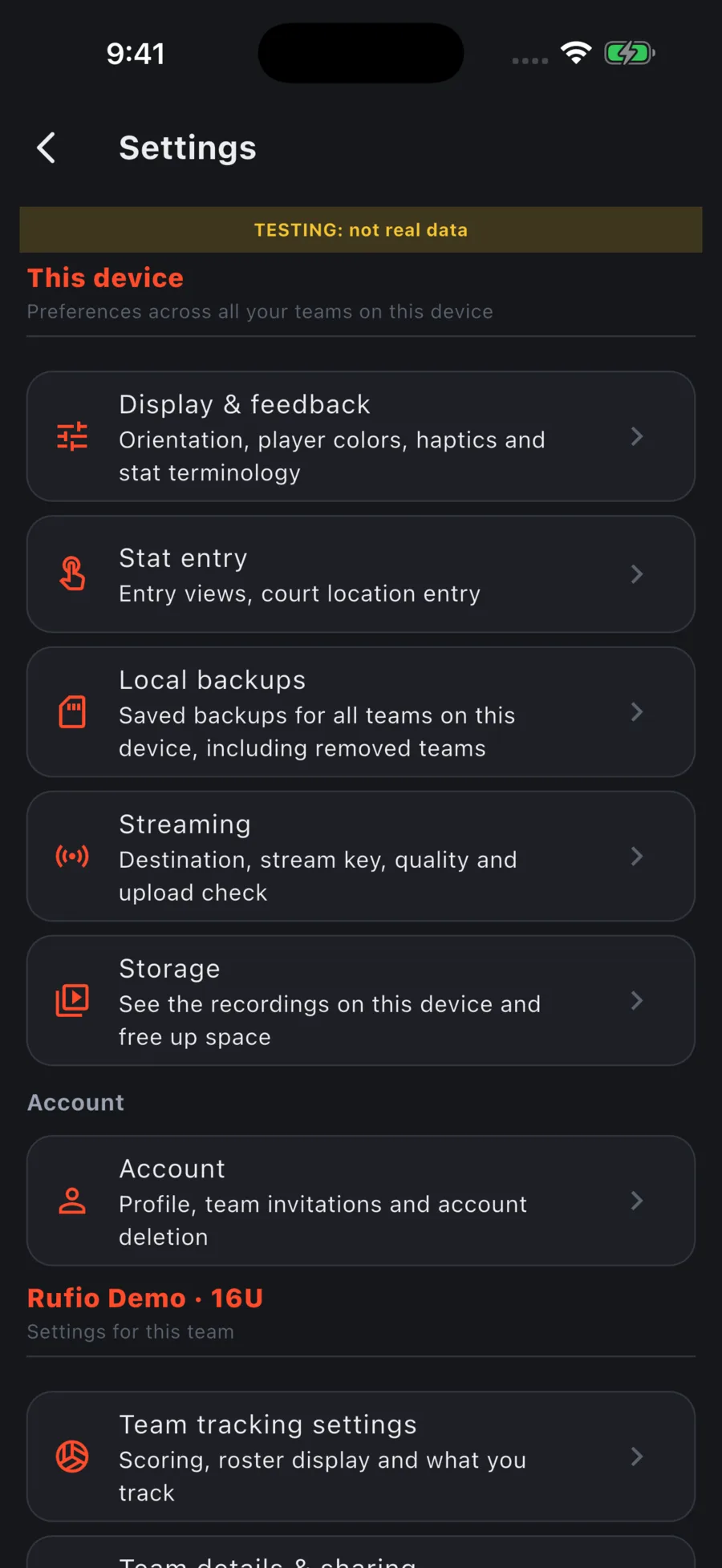
- On the filming iPhone or iPad, open Settings, then Streaming under This device. You can set up your filming device even if you cannot edit the team.
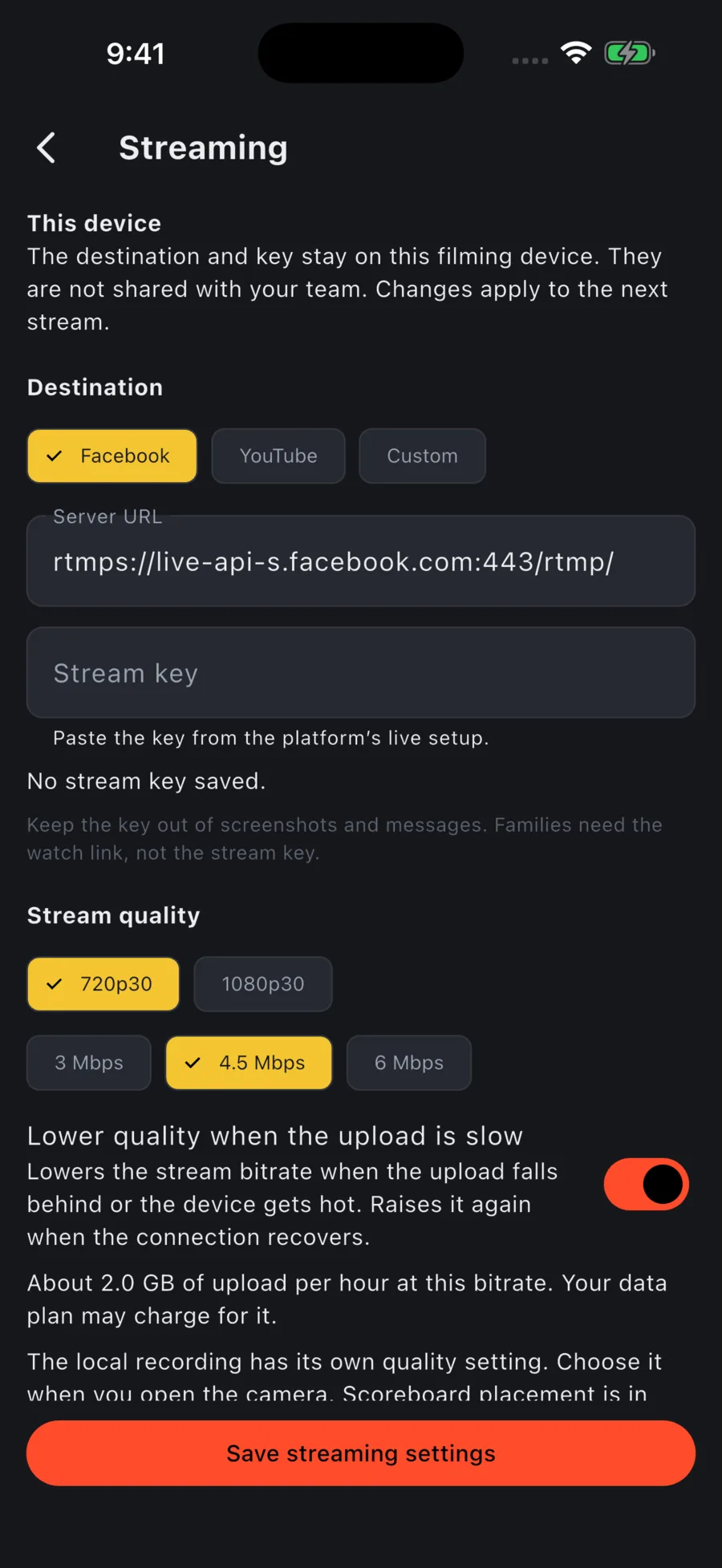
- Under Destination, choose YouTube. Paste the secure RTMPS address from your broadcast setup into Server URL. Keep the key in Stream key.
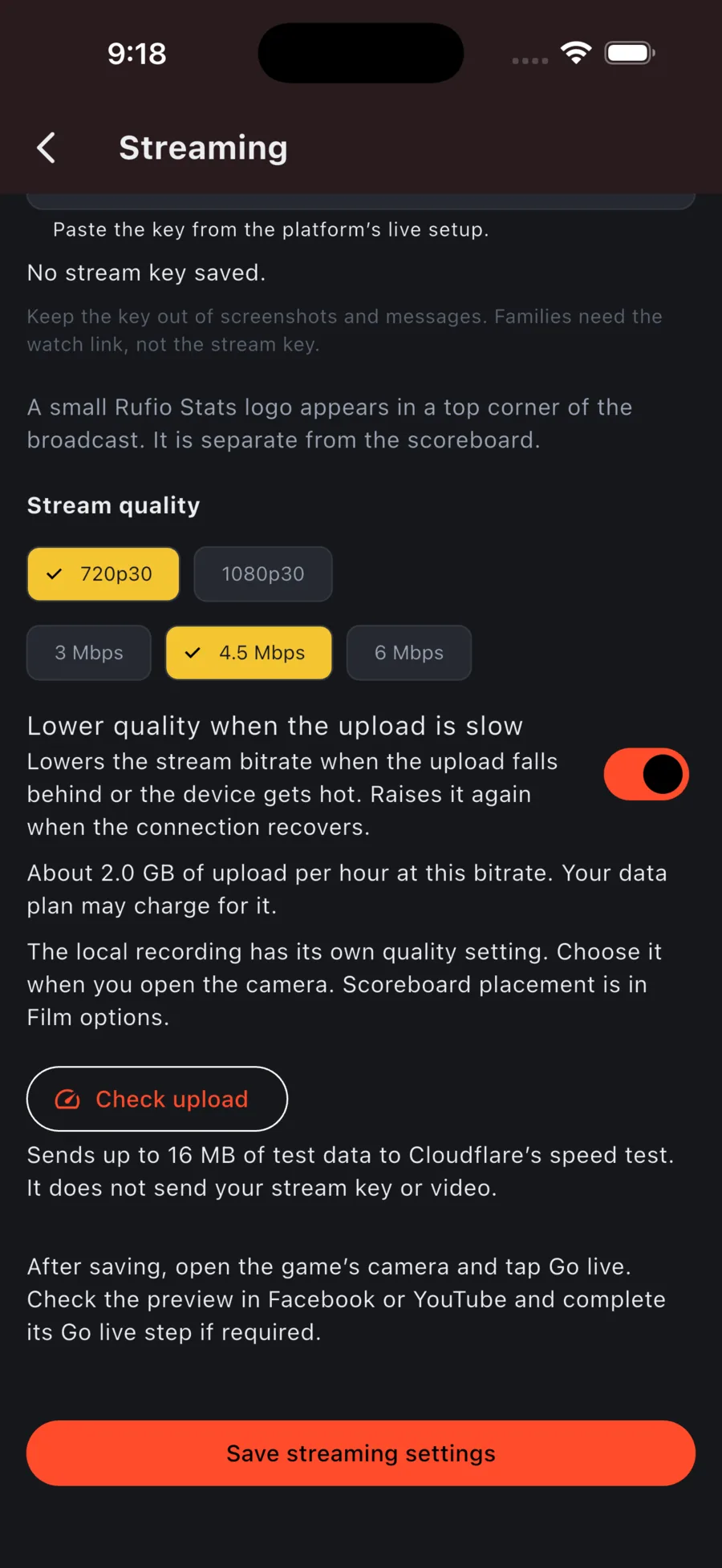
- Paste the key into Stream key. If you are changing only quality for the same server, leave the field blank to keep the saved key. A different server needs its own key. Remove key deletes the saved key from this device.
- Choose 720p30 for a first gym test. Leave Lower quality when the upload is slow on. Check upload sends up to 16 MB of test data and suggests a bitrate for the current connection.
- Tap Save streaming settings. Wait for Streaming settings saved. before leaving. Saving does not open the camera or start a broadcast.
- On the game card, tap ⋯, choose Film this game, pick a recording preset and tap Open camera. Allow camera and microphone access when prompted. Start recording before the broadcast if you want a local copy.
- With one filming phone, tap Score here for points, serve, timeouts and undo. It keeps score on the filming phone without player stats and does not start a separate live stat session. Available when you can manage the game and another device is not keeping the live score. A paired camera uses its stat device’s score. Score-only setup
- If another device is taking stats, use Link a camera. Keep the filming device in Rufio Stats while it streams. Use a computer or another device for the platform controls.
Send video and check the watch page
- Check the current stream’s visibility and automatic-start setting before you send video. An immediate stream can go public as soon as it receives the feed; keep tests Private.
- On the Rufio Stats camera screen, tap Go live. In Live Control Room, wait for the preview and check the connection-health message.
- For a scheduled broadcast with automatic start off, check the preview and click Go live in Live Control Room when ready. If automatic start is on, YouTube starts the broadcast when the event’s start conditions are met. Check its status before sharing the watch link.
- Open the match’s watch link on another device. Check video, audio and the viewer’s access. Share the watch link, not the studio URL, server URL or key.
Test motion and sound before the match. YouTube recommends an upload speed test and monitoring stream health. Start with a quality the gym’s upload can sustain; its encoder settings guide explains the tradeoffs.
End the match and check the replay
- In Live Control Room, end the broadcast if that control is shown. In Rufio Stats, tap the live status pill on the camera screen and confirm End stream. Confirm YouTube shows the event has ended.
- Stop the local recording separately. Check it on the filming device before leaving the gym.
- In YouTube Studio, open Content, then Live, and check the replay after it processes. Review its visibility before sharing it.
- To use the replay with the game, attach its watch link using Game film. If the stream dropped, sync after each gap; the local recording is a separate copy.
For the next match, create or select its broadcast and check the assigned key. Reusing a key does not mean the previous match’s watch link belongs to the new game. YouTube’s encoder workflow
If YouTube does not receive the match
- No Go live in Rufio Stats: check that you are using the iPhone or iPad app. If Streaming is also missing from Settings, it is not available in this version on this device.
- The destination refuses the key: reopen the exact broadcast, copy a fresh key and replace the saved one. A key for a different event will not send families to the watch link you shared.
- The picture freezes or reconnects: lower the stream bitrate and test a different upload connection. Keep the filming app open. If the platform ended the broadcast during a dropout, prepare a new broadcast and share its new watch link.
- The local recording and online video have different quality: they use separate settings. A lower stream quality does not lower the local master.
- No preview: check that the saved key belongs to the channel and event open in Live Control Room. Confirm the secure URL, then check the filming device’s upload.
- Preview works but families cannot watch: check scheduled-event start controls and visibility. A Private stream needs explicit invitations; Unlisted needs the correct watch link.
- Access is still pending: wait for YouTube’s activation period. Using the YouTube mobile app does not replace encoder activation.
- YouTube reports a policy or copyright restriction: read the notice in Studio. Replacing the saved stream key does not remove it, and a restricted channel must not use another channel to bypass the restriction.
Platform help
Checked October 30, 2026 against the linked YouTube Help pages. The activation screenshot is from the current interface. YouTube’s controls may differ by channel. Use the linked instructions if its layout changes.