Browse guides
Rufio Stats
- Getting started
- People and roles
- Device settings
- Team tracking settings
- Beach doubles (beta)
- Live tracking
- Tracking together
- When the connection drops
- Drafts and merging
- Film review
- Game film
- Recording games
- Stream a game to Facebook
- Stream a game to YouTube
- Tournaments
- Stats and dashboards
- Dashboards
- RufioStats for college & club programs
- The Practice tab
Stream a game to Facebook
Prepare Live Producer, copy the stream key and check the broadcast before families join.
Before match day
Use a computer for Facebook Live Producer and an iPhone or iPad for filming. Sign into Facebook with access to the Page, profile or group where the match belongs. The destination controls who can watch.
Facebook requires an account at least 60 days old. Pages and professional-mode profiles also need at least 100 followers. Check the eligibility message for your destination before match day; having a stream key does not override a restriction. See Facebook live eligibility and Streamlabs’ summary of the requirements.
Create the Facebook broadcast
- Open Live Producer. Choose the destination under Choose where to post. Confirm the Page, profile or group name before continuing.
- Choose Go live for an immediate broadcast. To prepare a later match, choose Create live video event, enter the date and time, then open that event’s broadcast setup when you are ready.
- Select Streaming software as the video source. Do not choose the computer’s webcam.
- Add the match title and description. Check the audience and post destination. Do not assume a Page broadcast is private; for a group, check its privacy and who can see the post.
- In Streaming software setup, copy Stream key. Find Server URL, opening Advanced settings if needed. Use the secure address beginning with
rtmps://. - Leave Live Producer open. Receiving a preview and publishing to viewers are separate steps.
Facebook changes this layout by account and destination. If a label differs, look for the streaming-software source and the separate server and key fields. Streaming-software setup reference
Streaming to a Facebook group
Group streaming uses a manual stream-key setup. You do not connect the group by signing into Facebook inside Rufio Stats. In Live Producer, select the group, choose Streaming software and get its key. If the group is missing or Live video is unavailable, ask a group admin to check your posting access and whether live videos are enabled.
If Persistent stream key is available under Advanced settings, you can reuse that key until it is reset. It supports one broadcast at a time. Without it, copy the new key for each broadcast. A reusable key does not create the next match’s post or publish it for you. Group setup and persistent-key reference
Enter the destination in Rufio Stats
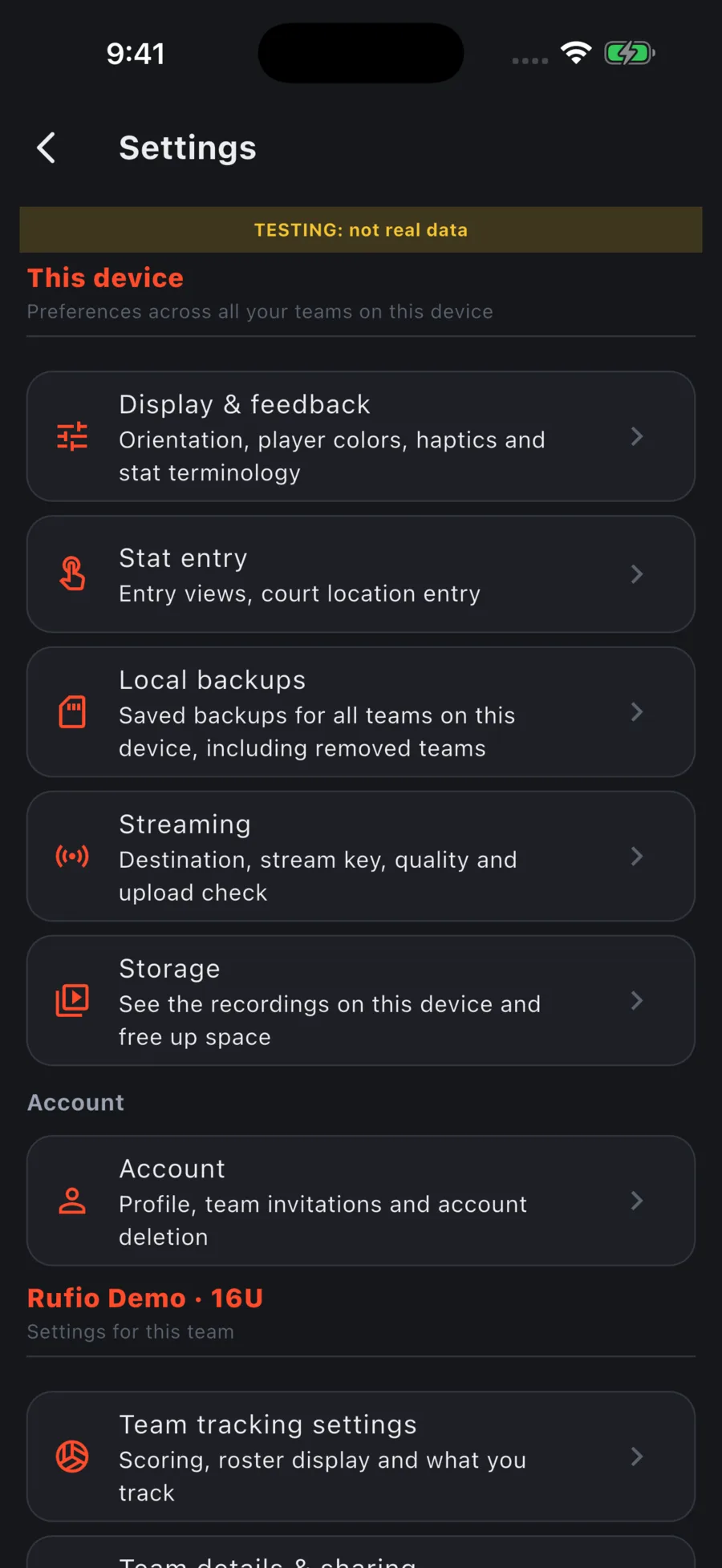
- On the filming iPhone or iPad, open Settings, then Streaming under This device. You can set up your filming device even if you cannot edit the team.
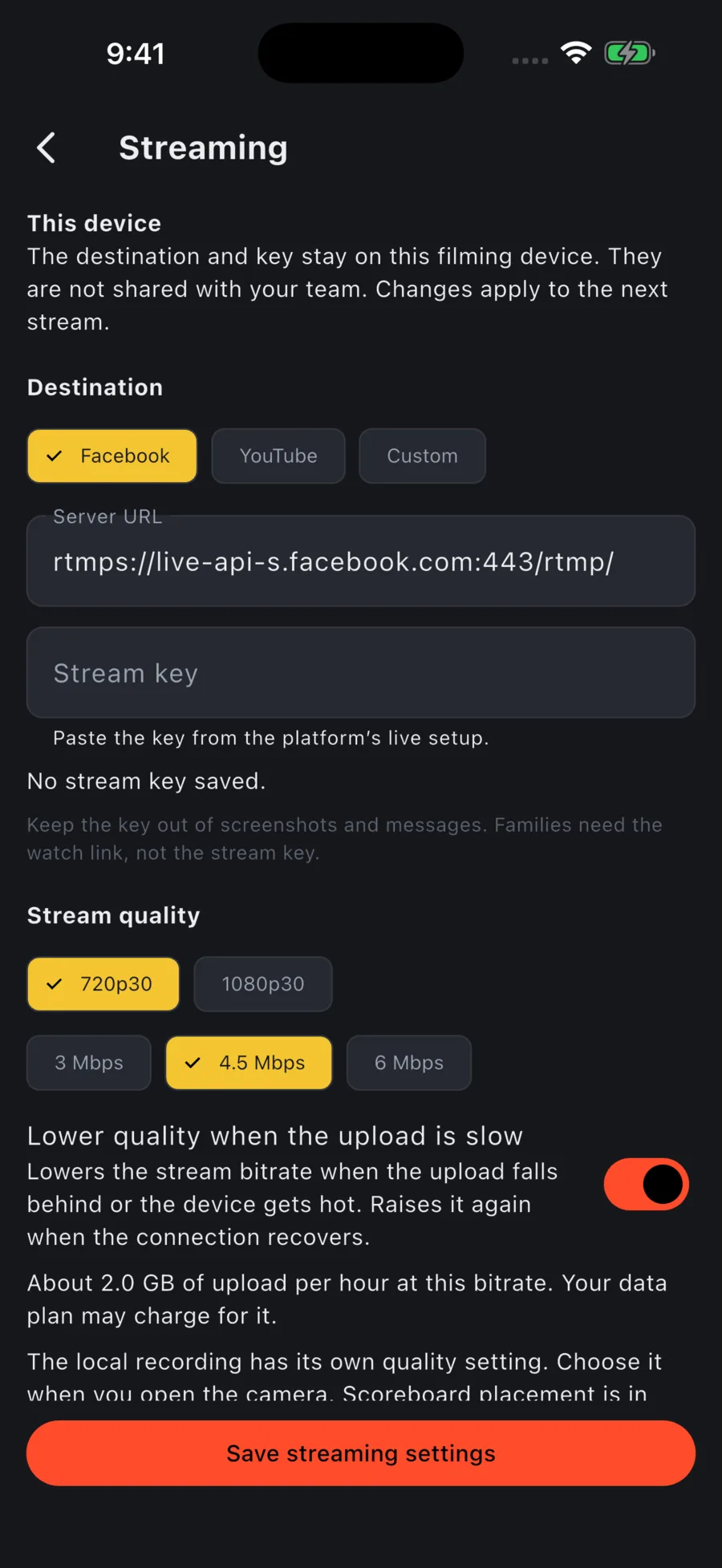
- Under Destination, choose Facebook. Paste the secure RTMPS address from your broadcast setup into Server URL. Keep the key in Stream key.
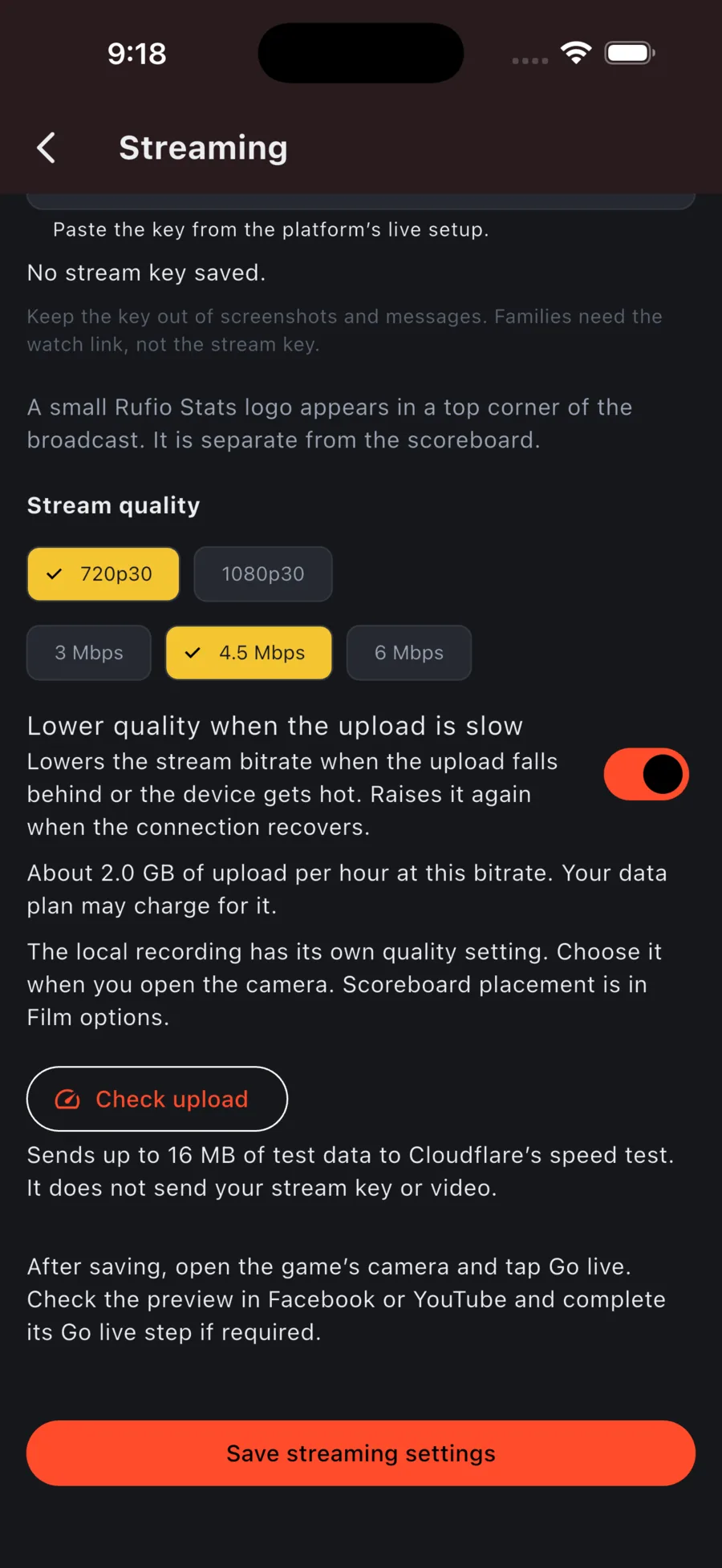
- Paste the key into Stream key. If you are changing only quality for the same server, leave the field blank to keep the saved key. A different server needs its own key. Remove key deletes the saved key from this device.
- Choose 720p30 for a first gym test. Leave Lower quality when the upload is slow on. Check upload sends up to 16 MB of test data and suggests a bitrate for the current connection.
- Tap Save streaming settings. Wait for Streaming settings saved. before leaving. Saving does not open the camera or start a broadcast.
- On the game card, tap ⋯, choose Film this game, pick a recording preset and tap Open camera. Allow camera and microphone access when prompted. Start recording before the broadcast if you want a local copy.
- With one filming phone, tap Score here for points, serve, timeouts and undo. It keeps score on the filming phone without player stats and does not start a separate live stat session. Available when you can manage the game and another device is not keeping the live score. A paired camera uses its stat device’s score. Score-only setup
- If another device is taking stats, use Link a camera. Keep the filming device in Rufio Stats while it streams. Use a computer or another device for the platform controls.
Preview, then publish
- Check the intended destination and any automatic-start setting in Live Producer before sending video. For a first test, use a test-broadcast option if Facebook offers it, or a destination and audience suitable for a test.
- On the Rufio Stats camera screen, tap Go live. Wait for Facebook’s preview to receive video. Check the court framing and audio there.
- In Live Producer, complete any remaining post details and click Go live when ready. If a scheduled event has automatic start enabled, check its status instead of expecting a second Go live action.
- Open the actual post’s watch link on a third device with a viewer’s account. Confirm the picture and sound, then share that link with families. Group viewers may need membership or approval.
End the broadcast and keep the film
- End the live broadcast in Facebook. On the Rufio Stats camera screen, tap the live status pill and confirm End stream. Confirm the Facebook post no longer says it is live.
- Stop the local recording separately when you are finished filming. Ending only the outgoing stream leaves the local recording running.
- Check the saved recording on the filming device. Download any Facebook replay you want to keep instead of relying on Facebook as your film archive.
Meta says new live broadcasts on Pages and profiles are removed after 30 days. Check the current rule and notices for your destination. Facebook’s replay storage policy
If the stream does not appear
- No Go live in Rufio Stats: check that you are using the iPhone or iPad app. If Streaming is also missing from Settings, it is not available in this version on this device.
- The destination refuses the key: reopen the exact broadcast, copy a fresh key and replace the saved one. A key for a different event will not send families to the watch link you shared.
- The picture freezes or reconnects: lower the stream bitrate and test a different upload connection. Keep the filming app open. If the platform ended the broadcast during a dropout, prepare a new broadcast and share its new watch link.
- The local recording and online video have different quality: they use separate settings. A lower stream quality does not lower the local master.
A preview in Live Producer but no video for families usually means the post has not been published or the viewer cannot access its audience. Check the Facebook Go live step, destination, audience and group membership before changing the Rufio Stats settings.
Platform help
Checked October 30, 2026. Facebook’s layout and eligibility can differ by account.