Browse guides
Rufio Stats
- Getting started
- People and roles
- Device settings
- Team tracking settings
- Beach doubles (beta)
- Live tracking
- Tracking together
- When the connection drops
- Drafts and merging
- Film review
- Game film
- Recording games
- Stream a game to Facebook
- Stream a game to YouTube
- Tournaments
- Stats and dashboards
- Dashboards
- RufioStats for college & club programs
- The Practice tab
Recording games
Film a match on one phone or tablet while another keeps stats. The score shows on screen and can be added to the video later.
Filming a game
Recording is in the iPhone, iPad and Android app. Anyone on the team who is signed in can film. The web app does not record.
- On the Games tab, tap ⋯ on the game (or long-press it) and choose Film this game. A practice says Film this practice. Film review has the same item in its video menu.
- Pick a quality preset. The selected preset shows its resolution, frame rate and estimated space per hour. Tap the info icon to compare the presets; the sheet also shows free space.
- Tap Open camera, aim at the court and start recording.
| Preset | Settings |
|---|---|
| Game film | 1080p, 30 fps. The default, right for most matches. |
| Save space | 720p, 30 fps. Smaller files for long days. |
| Sharper | 1080p, 30 fps at a higher quality. |
| Smallest | 720p, 30 fps at the lowest quality, for a nearly full phone. |
| Slow motion | 1080p, 60 fps. |
| Best quality | 4K, 30 fps. The biggest files. |
Only the presets your device can record are listed. Under the presets, Format picks Smaller files (HEVC) or Plays everywhere (H.264), Record sound turns the microphone on or off, and Framing guide draws court lines on the screen to help you aim. The guide is never in the video.
The screen stays on while you film. Leaving the app pauses the recording, and it picks up again in the same film when you come back. When you stop, the video is saved and attached to the game. If the game already has film on this device, the sheet says so first, because the new recording replaces it.
Linking the camera to the stat device
With two devices, one keeps stats as usual and the other films. Once they are linked, the camera gets the score after every rally and marks where each set starts in the video. It stops 30 seconds after the match ends unless you tap Keep recording.
- On the stat device, open the game's live screen and tap Link a camera in quick settings. It shows a QR code that stays the same for the whole game.
- On the filming device, open the menu on the Games tab, choose Scan a camera link and point it at the code. Film this game opens for that game.
- Leave the stat device on that game's live screen while you film. It only sends the score from there.
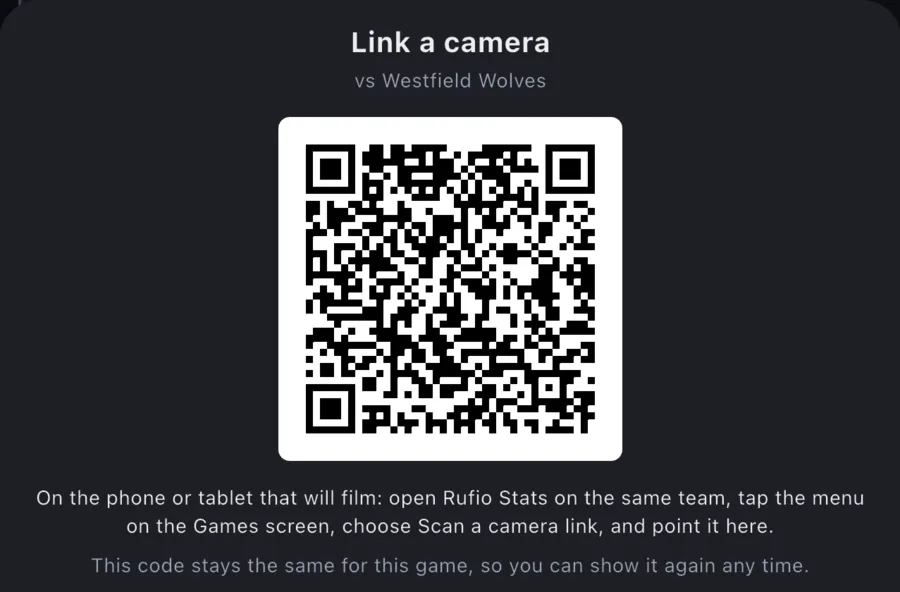
The score goes over Bluetooth, over Nearby when both devices are iPhones or iPads, or over the Internet when both are online. Bluetooth and Nearby work in a gym with no Wi-Fi or signal. Tap the link pill at the top of the camera screen to open Connection, which shows how each one is doing and lets you pick Automatic, Bluetooth or Nearby only or Internet only.
Scoreboard style
How the scoreboard looks is a team setting, so it is the same from every camera. Open it from team settings (Video scoreboard), from Scoreboard style on the Film this game sheet, or from the film menu while you watch.
- Look: Card, Broadcast bar (a TV-style strip with the team names in colored blocks) or Compact.
- Position: any corner, top center or bottom center.
- Colors: Us, Them, Background and Accent. Pick a swatch, mix your own, or enter a color code.
- Team logo beside your team name, once the team has a picture.
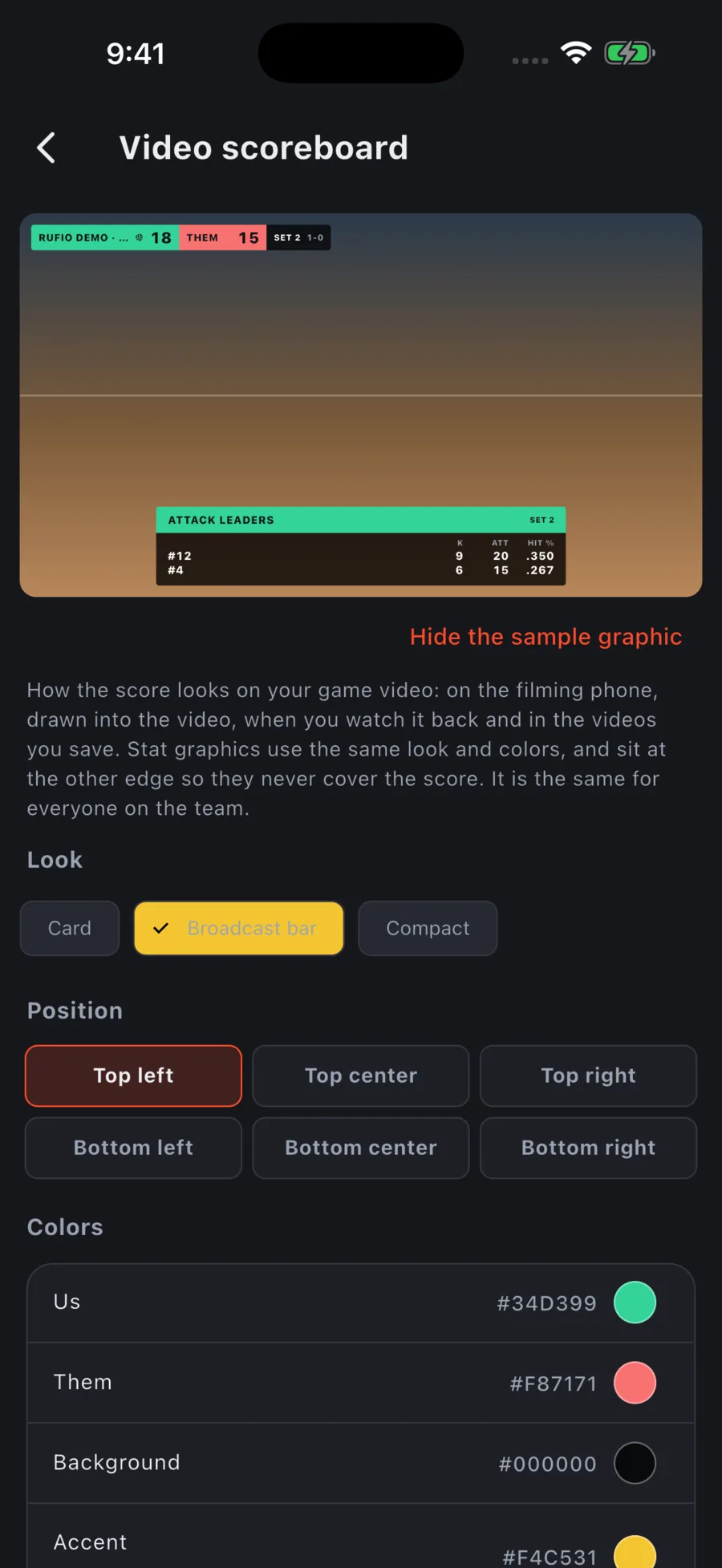
Stat graphics use the same look and colors and sit on the other edge, so they never cover the score. Only people who can change team settings can change it.
Stat graphics
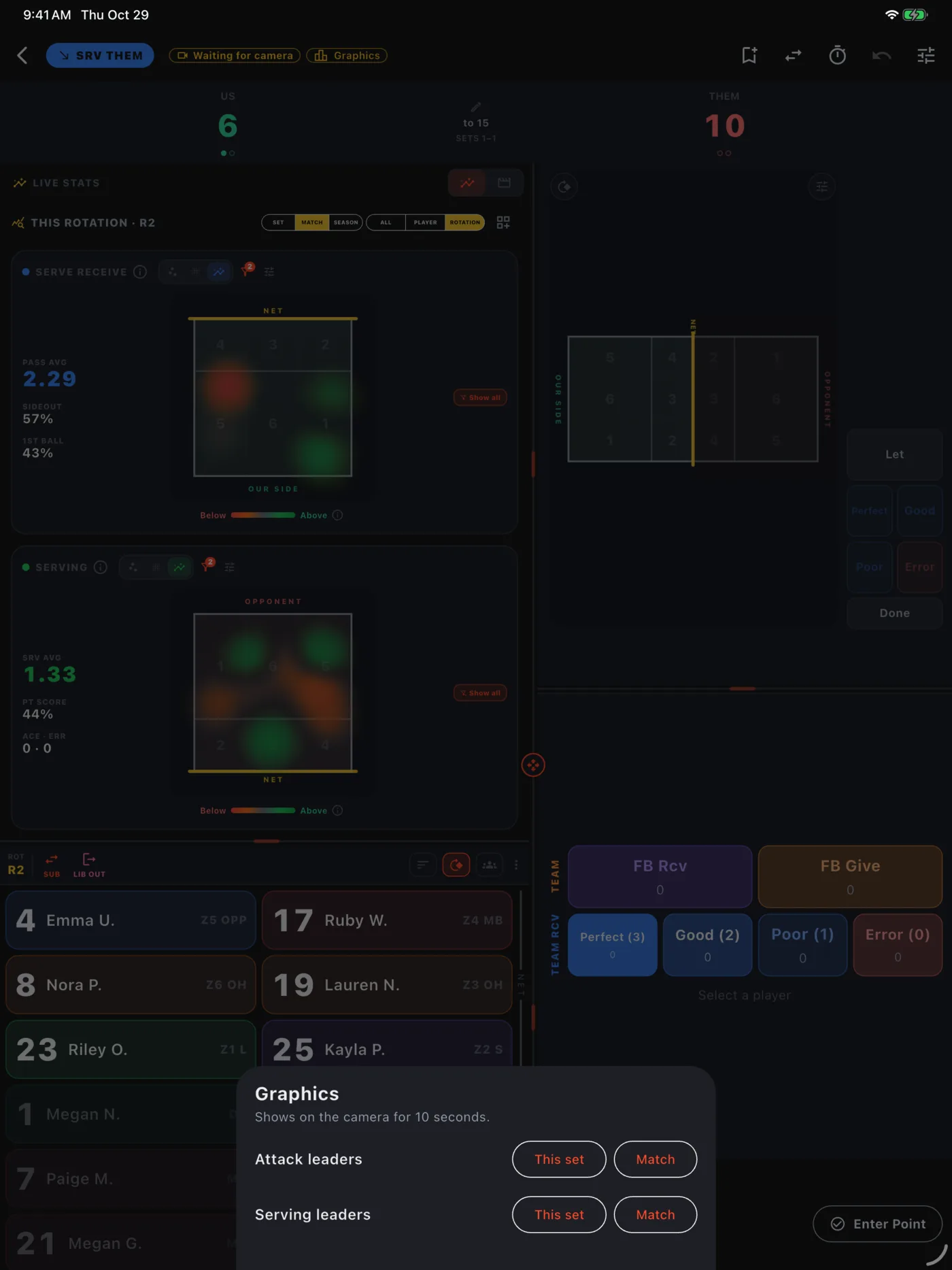
A graphic puts a short leaders table on the video for 10 seconds. Attack leaders lists kills, attempts and hitting percentage. Serving leaders lists aces, serves and serve errors. Each can cover This set or the Match.
Nothing shows on its own. The live Graphics button appears while a linked camera is filming. Tap Graphics on the stat device's live screen or on the camera, then pick one. Hide takes it down early. On the camera, Player names on graphics is off to start, which shows jersey numbers only.
Watching, saving and sharing
A recording plays in Watch game and Film review like any attached film, with the rallies already lined up from when the stats were entered. The video file itself has no scoreboard. It is drawn on top from a log saved with the recording, so Scoreboard and Graphics in Film options turn it on and off whenever you like.
If you want the scoreboard in the file from the start, turn on Burn in the scoreboard before you film. It is off by default, and it cannot be taken out of that file later.
- Save video in Film options saves the whole film, Clean or With scoreboard (graphics optional), at Full size or Smaller (720p). Keep the app open while it saves.
- In Watch game, Export these rallies saves the rallies your filter shows as one video, and Share this rally sends just one.
- Settings ▸ Data & storage ▸ Recordings lists every recording on the device with its size, and lets you play, attach, save, share or delete each one.
The app does not upload your recording. To share it with the team, save it, upload that copy to YouTube yourself and attach its link. Adding the link keeps your local recording. On the Film sheet, choose which source plays on this device, or remove either source separately. When you attach the full saved video and its length matches, rally timing carries over automatically. Check a few rally jumps; an edited video or a recording with gaps may need sync markers. See Game film.